VR headset supervision for training: use cases from the field

    OmnicastVR is a VR session control software: one trainer launches, watches and stops up to 16 standalone VR headsets from a single Windows PC, over a local network, with no internet required. Training centres, schools, mobile trainers and trade-show teams use it to run group VR sessions in a fixed room or on the road.

    • Up to 16 headsets per PC
    • No internet required
    • Meta Quest, Pico, HTC Vive
    • Nothing to install on the headsets

    Trusted by trainers in France and worldwide

    • FranceUniLaSalle Beauvais
    • Saint-Gobain
    • FranceIFPEN
    • SpainCPIFP Corona de Aragón
    • FranceUniversité Champollion
    • NetherlandsAmaze VR
    • FranceR'volution
    • RomaniaUniversity of Physical Education Bucharest
    • FranceVirtual Creation
    • FranceIno VR

    01 · Four field situations

    Where trainers use VR headset supervision

    OmnicastVR is used wherever one person runs VR for a group: in a training room, on a client site without internet, on a trade-show booth or during a sales demonstration.

    In a fixed training room

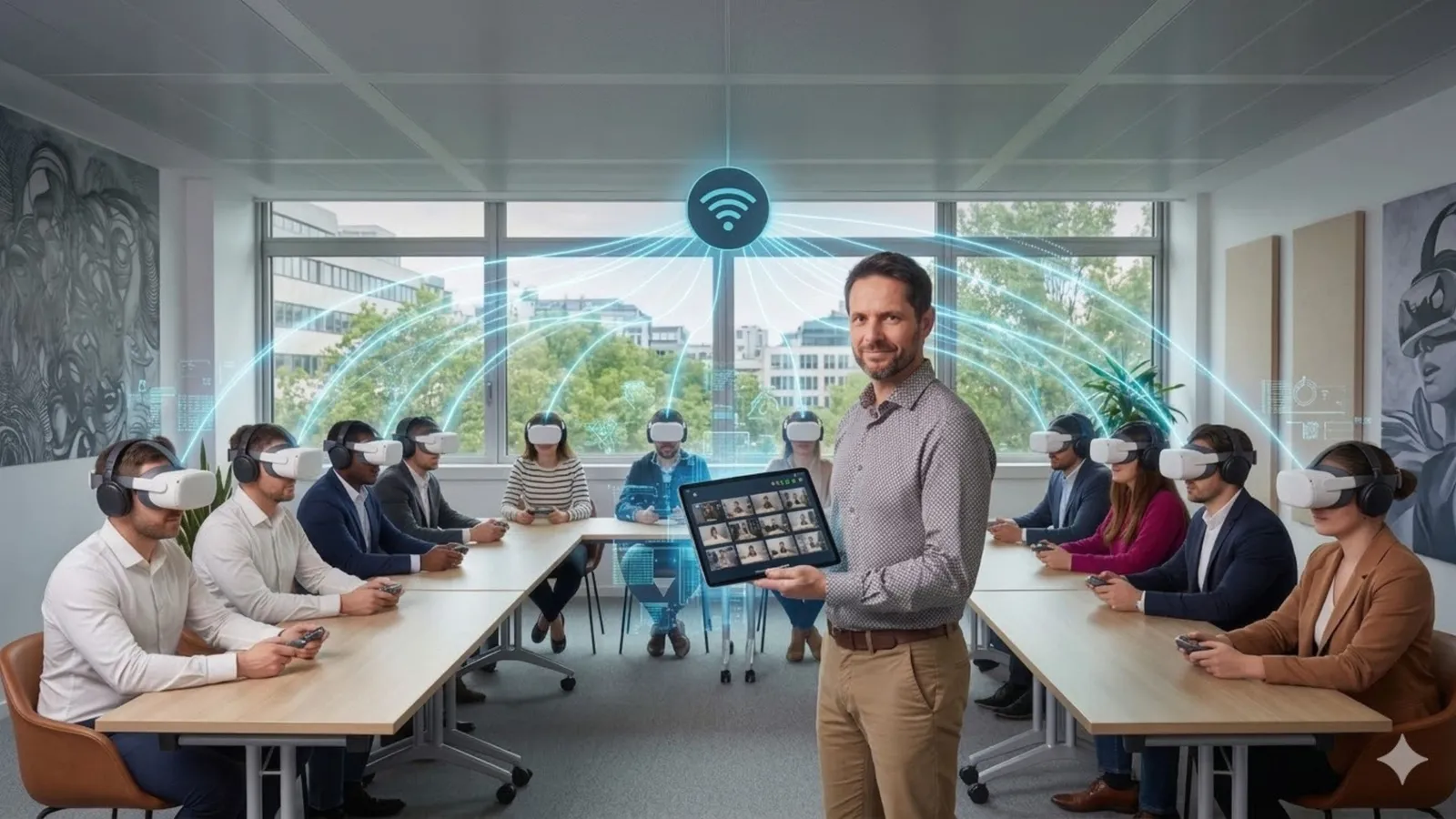
    In a fixed training room, OmnicastVR shows every learner's view on the trainer's screen and starts the same application on all headsets at once.

    • Launch one app on every headset in one click
    • See all screens live, enlarge one to guide a learner
    • End the session on every headset at the same time
    Read: VR headset supervision in training rooms

    On client sites, without internet

    For trainers who travel, OmnicastVR runs on its own local Wi-Fi network, so a session never depends on the client's internet connection.

    • Works on a dedicated router, with no internet on site
    • Install the training apps (APK) before leaving
    • Fits in a case with a laptop or a tablet
    Read: mobile VR training, a setup that works anywhere

    On a trade-show booth

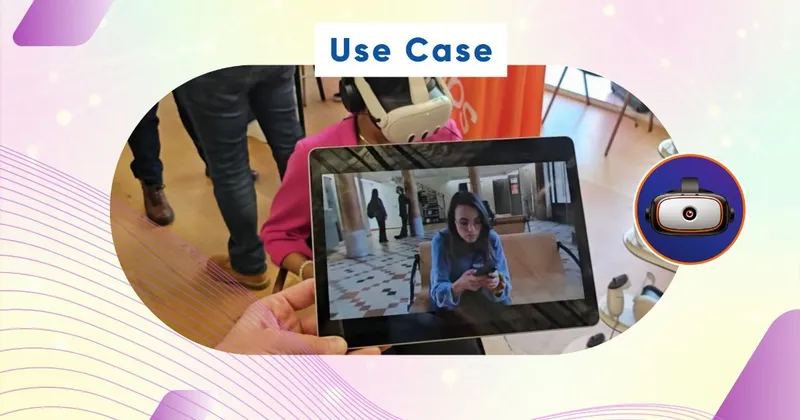
    On a trade-show booth, OmnicastVR relaunches each demo remotely between visitors and can show the headset views on a large screen.

    • Restart the demo without touching the headset
    • Mirror the headsets on a TV to draw visitors in
    • Runs on a local network when the venue Wi-Fi is crowded
    Read: how to cast VR headsets without internet

    During a client demonstration

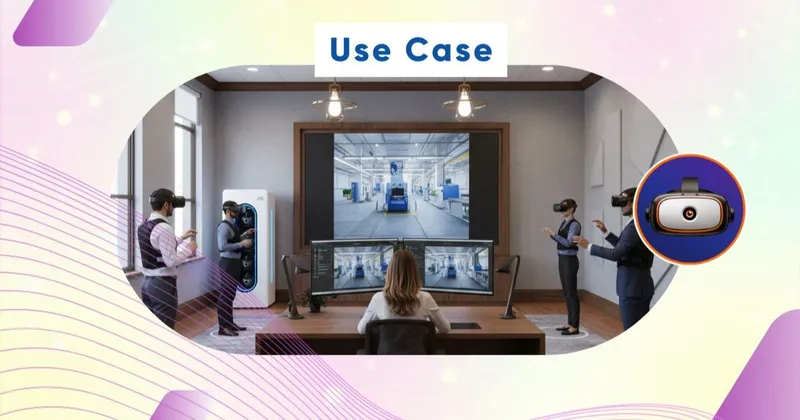
    During a client demonstration, OmnicastVR lets a sales team prepare the content beforehand and start it on every headset as soon as it arrives.

    • Content installed before the meeting
    • Start the experience on every headset at the same time

    • See what each participant sees while you present
    Read: VR demos at a client's site with a mobile kit

    Field results

    What changes in the field, told by VR trainers

    Four contexts, four professions, the same shift: less technical friction, more teaching.

    XR APEX educational program [2,300 students]

    Higher education

    Polytechnique Beauvais

    ×2

    VR sessions

    Challenge: How can we efficiently run classes of 10 students managed by our team of trainers?

    “Our VR Lab now hosts, thanks to OmnicastVR, several daily sessions of 10 students, letting us deploy at a much larger scale.”
    — APEX Project Manager at UniLaSalle · Figure reported by the client
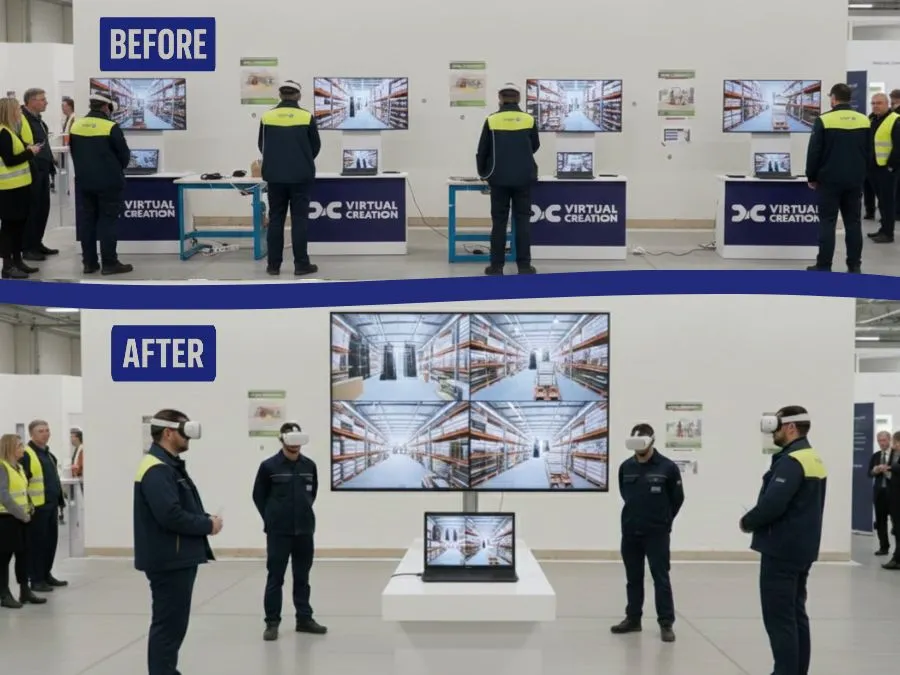
    VR safety workshop on a Seveso site

    Industry · Safety

    Industrial group — trained by Virtual Creation

    /4

    less XR gear to bring

    Challenge: How can we streamline equipment logistics for our mobile XR awareness sessions at client sites?

    “Thanks to OmnicastVR, we replaced our 4 PCs and 4 screens with a single PC and one screen for every client demo. It has significantly lightened our equipment transport and saved us from managing a massive hardware inventory.”
    — HSE Awareness Lead, Virtual Creation · Figure reported by the client
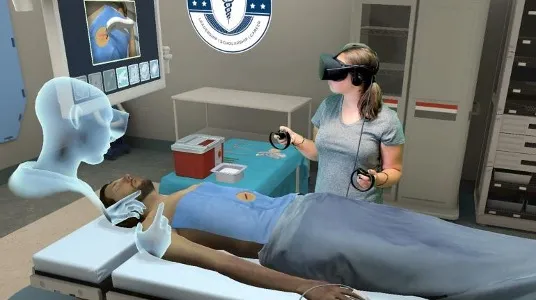
    VR simulation of clinical procedures

    Healthcare · Medical training

    Regional teaching hospital, VR procedural simulation

    −65%

    debrief time per session

    Challenge: Being able to follow and supervise every resident live and simultaneously?

    “Thanks to simultaneous streaming and the Zoom feature, I can spot very quickly which trainee in the group has a trembling hand before the incision.”
    — Dr. L., Head of Simulation · Figure reported by the client
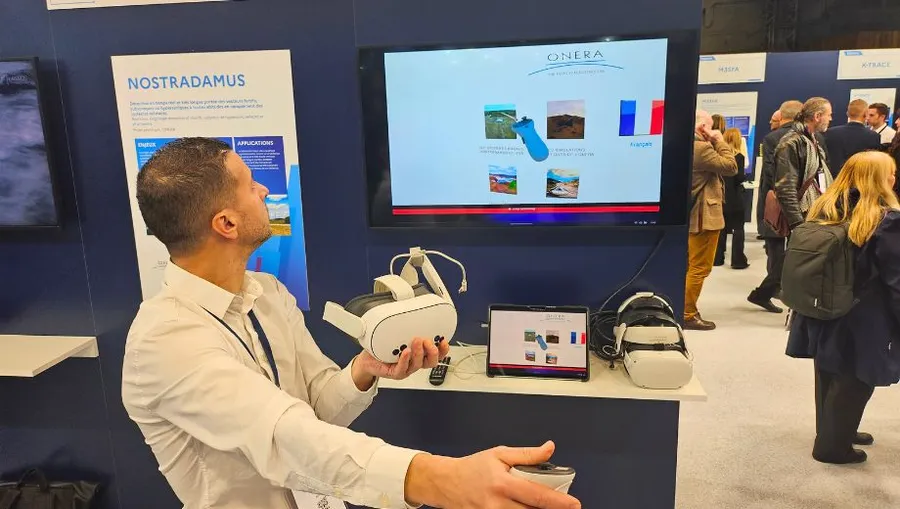
    Demonstration of current projects in virtual reality

    Events · Trade shows

    Onera — Roadshow

    ×3

    booth traffic

    Challenge: How can we launch VR content simultaneously across headsets without internet, while drawing traffic to the booth?

    “Because OmnicastVR runs on local Wi-Fi, we worked around the missing internet at the show. Simultaneous content launch let us share our experiences with whole groups, and the screen mirroring on the TV was a key driver of booth attraction.”
    — Catherine V., Events Manager · Figure reported by the client

    In their words

    What VR trainers say

    What trainers tell us after their first sessions with OmnicastVR.

    • No more guessing or chasing after participantsI see everything that's happening
    • I can easily onboard my entire team of trainersBecause there's no ID or password on the software
    • My learners no longer get stuckBecause I can step in immediately if there's an issue
    • I can operate anywhere without internetThanks to my local Wi-Fi router
    • I can also show students what's happening inside the headsetsThanks to the TV connection
    • I've significantly reduced my logisticsA single computer is enough to monitor 16 learners
    • I can keep my sessions on scheduleThanks to synchronous app launching
    • No hidden costs in my budgetI can pay for my license upfront with a fixed budget, or choose a monthly subscription
    STOP working blind: a trainer in a VR training room, with learners wearing headsets in the background
    STOP running everywhere: a trainer in a VR training room, with learners wearing headsets in the background
    STOP losing training time: a trainer in a VR training room, with learners wearing headsets in the background
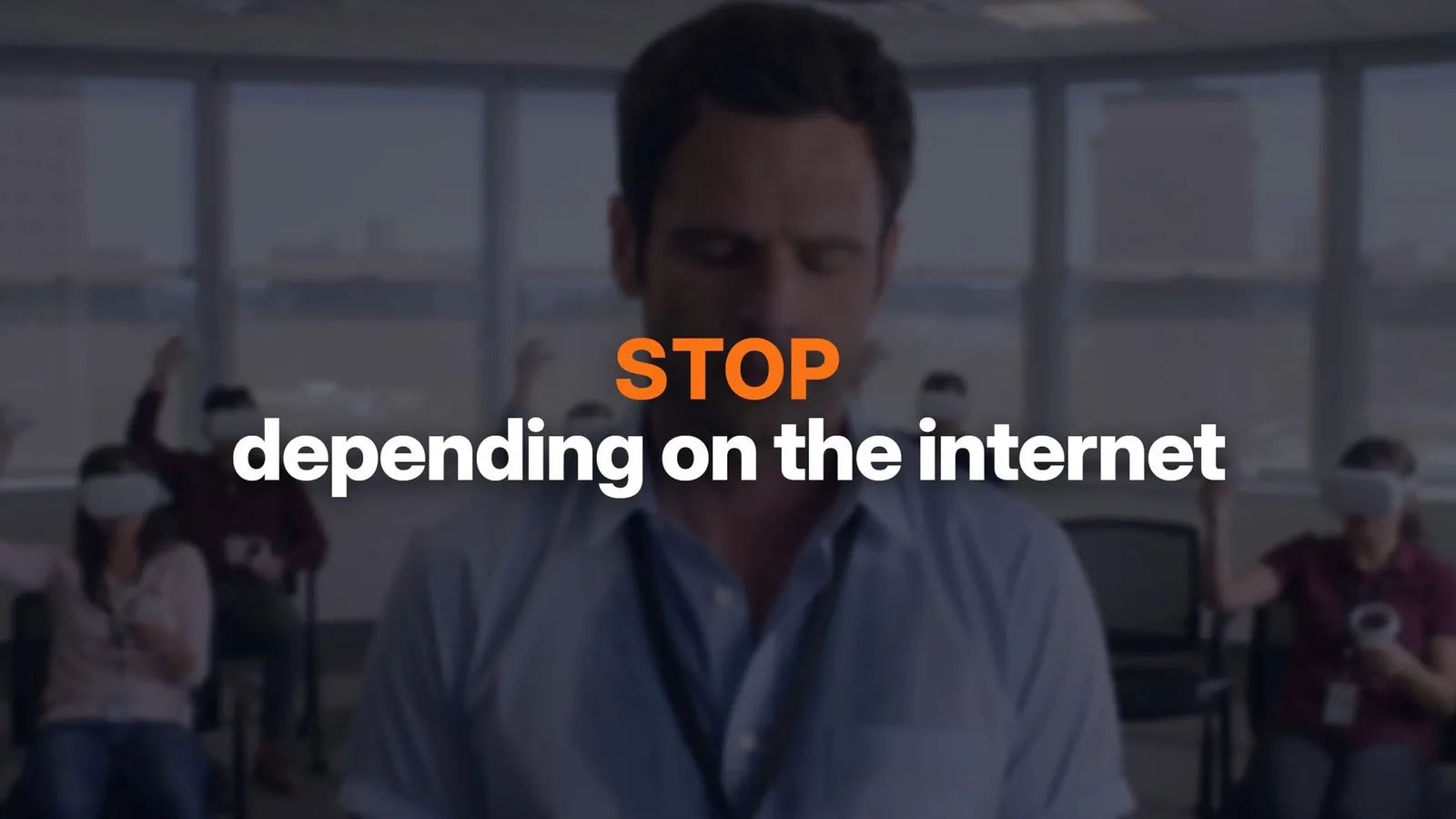
    STOP depending on the internet: a trainer in a VR training room, with learners wearing headsets in the background

    02 · By sector

    VR headset supervision by sector

    The sessions differ from one sector to another, but the trainer's need is the same: start the same content for the whole group and see what each learner is doing.

    SectorTypical sessionWhat the trainer needsRead more
    Fire safety and HSEA group practises the same hazard or extinguisher scenario, often on an industrial siteThe same scenario on every headset, sessions without site Wi-FiVR fire training with 10 headsets
    Higher education and schoolsA lab or classroom session led by a teacher for a whole classSee every student's view, start and stop the activity togetherVR in education
    Training simulationA procedure, maintenance or emergency scenario practised by a group, followed by a debriefWatch each learner live, launch a new scenario for everyone
    Corporate training and onboardingAwareness workshops for large groups, in rotationsFast rotations, one PC for the whole groupGuide VR learners in real time
    Events and trade showsShort demos for a flow of visitorsRemote relaunch between visitors, headset views on a big screenVR demos at trade shows with a mobile kit

    03 · How a session runs

    How a group VR session runs with OmnicastVR

    A group VR session with OmnicastVR runs in four steps, from one PC, whatever the number of headsets.

    1. Connect

      Put the headsets and the PC on the same local Wi-Fi network. A dedicated router is recommended.

    2. Launch

      Start the training app on every headset in one click, so the whole group begins together.

    3. Watch and guide

      Follow every screen and battery level live, and enlarge one view to help a learner.

    4. Close

      End the session on every headset at once, ready for the next group.

    Read the complete guide: how to manage multiple VR headsets

    04 · Requirements and limits

    What you need, and what OmnicastVR does not do

    What you need

    • A Windows PC, laptop or tablet
    • Standalone Meta Quest, Pico or HTC Vive headsets
    • Headsets and PC on the same Wi-Fi network (local or internet)
    • Developer mode enabled once, on Meta Quest only
    • Internet only to activate the license, update the software and validate the license once every 30 days

    What OmnicastVR does not do

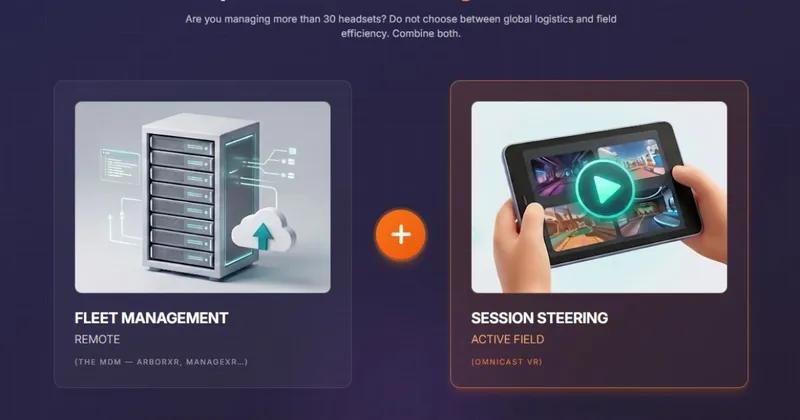
    • It is not an MDM. It controls the live session; fleet administration (inventory, policies, remote deployment) is the job of an MDM. VR MDM or session control?
    • It does not create VR content. It runs the Android VR applications you already use.
    • One PC controls up to 16 headsets. The number of live views shown at once also depends on the PC and the Wi-Fi. Streaming capacity guide
    A trainer holds a tablet showing the live view of every headset, while learners wearing VR headsets are connected to the same Wi-Fi network

    FAQ

    Questions about VR headset supervision

    What trainers ask before running their first group session with OmnicastVR.

    Run your next VR session with every headset in view

    Start free with 2 headsets, or ask us how OmnicastVR fits your sessions.

    At Omnicast, we respect your peace of mind

    We use cookies to improve your experience and analyze our site usage. We respect your privacy and give you the choice.

    Privacy Policy