VR headset control software for live training sessions
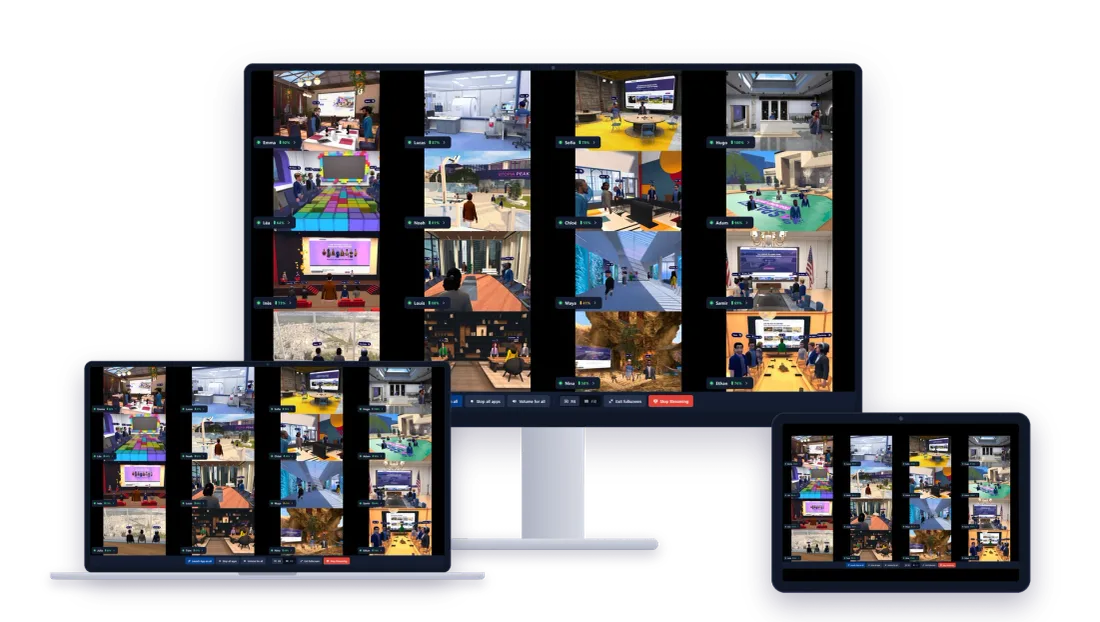
OmnicastVR is VR headset control software for Windows, built to run live training sessions. Trainers and teachers see up to 16 headsets on one screen, launch the same app on every headset at once and install APKs remotely, with or without internet, over your local Wi-Fi.
Free plan: 1 to 2 headsets, free forever, no credit card required.
Trusted by trainers in France and worldwide
 UniLaSalle Beauvais
- Saint-Gobain
- IFPEN
 CPIFP Corona de Aragón
- Université Champollion
 Amaze VR
- R'volution
 University of Physical Education Bucharest
- Virtual Creation
- Ino VR
At a glance
OmnicastVR in five points
OmnicastVR is not an MDM: it is the trainer's tool during the session, to see, launch and act on every headset at once.
- Up to 16 headsets supervised at once from a single Windows PC.
- With or without internet during the session: a local Wi-Fi network is enough.
- Mixed brands Meta Quest, Pico and HTC Vive in the same session.
- Nothing to install on the headsets: the software stays on your computer.
- No images sent to our servers: streaming stays on your network.
01 · Live monitoring
See every headset on one screen
OmnicastVR streams each VR headset's view to the trainer's PC, up to 16 headsets at the same time in a single window. The grid resizes automatically to the number of headsets, and any view can be enlarged in one click to help a learner.
Built-in Meta Quest casting shows one headset per screen. OmnicastVR brings every headset, of every brand, into the same view.
Adaptive streaming, up to 10 Mbps per headset.
02 · Launch and install
Launch the same app on every headset, or one at a time
OmnicastVR launches an app on one headset, a group or every headset at once, so the whole group starts together in a synchronized session. APKs are installed on each headset straight from the PC, with no third-party tool.
- Synchronized launch, or headset by headset
- Install APKs on each headset from the PC
- Stop apps remotely
How to install APKs on multiple VR headsetsApp launcher tutorial
03 · Remote control
Control every headset remotely
OmnicastVR sends each command to one headset, a group or all of them, so the trainer never has to walk from learner to learner.
- Restart
- Rename
- Auto Wi-Fi reconnect
- Session statistics
04 · Compatibility
Run Meta Quest, Pico and HTC Vive headsets in the same session
OmnicastVR supports standalone Android VR headsets from Meta, Pico and HTC, including mixed in one session. Every feature works on every brand.
| Feature | Meta Quest | Pico | HTC Vive |
|---|---|---|---|
| Real-time screen streaming | |||
| Synchronized app launch | |||
| Remote APK install | |||
| Remote shutdown and restart | |||
| Automatic Wi-Fi reconnection | |||
| Works without internet | |||
| Mixed brands in one session | |||
| Simultaneous headsets (max) | 16 | 16 | 16 |
05 · Specifications and security
OmnicastVR technical specifications
OmnicastVR is installed software, not an online service: headset images never leave your local network.
- Capacity
- 16 headsets
- Simultaneously, from one PC
- Bandwidth
- 10 Mbps
- Per headset, adaptive streaming
- Network
- Wi-Fi 6 / 6E
- Local network, internet optional
- System
- Windows 10 / 11
- 64-bit PC, laptop or tablet
How OmnicastVR connects
| Operating system | Windows 10 / 11, 64-bit (PC, laptop or tablet) |
|---|---|
| Compatible headsets | Meta Quest (all generations), PICO (2, 4, Neo), HTC Vive Focus / XR Elite, all standalone Android headsets |
| Simultaneous headsets | Up to 16, from one PC |
| Wi-Fi | Wi-Fi 6 / 6E |
| Streaming bandwidth | Up to 10 Mbps per headset, adaptive quality |
| Initial connection | USB-C data cable: 5 to 10 seconds per headset, only once, with the Companion app installed. The headsets then reconnect automatically at every session. |
| Network mode | Local (offline) + internet (online) |
- Runs offline during sessions
- No images in the cloud
- Automatic updates
- Made in France · NOVALAB, Paris
06 · Why OmnicastVR
Built for trainers, not IT teams
OmnicastVR is VR session control software, not an MDM: it covers what the trainer needs during a live session, while device administration stays the job of an MDM.
Session control vs MDM
| Capability | OmnicastVR |
|---|---|
| Live view of every headset on one screen | Yes, up to 16 |
| Zoom on one learner in one click | Yes |
| Synchronized app launch for the whole group | Yes |
| Works without internet during sessions | Yes |
| APK install from the PC | Yes, headset by headset |
| Firmware and OS updates | No, handled by an MDM |
| Kiosk mode and device lockdown | No, handled by an MDM |
| Remote wipe | No, handled by an MDM |
07 · Getting started
Ready for your first session in three steps
OmnicastVR installs on a Windows computer and connects to the headsets over your local Wi-Fi network, with nothing to install on the headsets.
Before you start
Create your free account on the OmnicastVR portal
The portal is where you manage your licence. Create your account, register your computer and use the Free licence right away: 1 to 2 headsets, free forever, no credit card required.
- Create your account
- Register your computer
- Use the Free licence for 2 headsets
Install OmnicastVR
Download the software and install it on a Windows 10 or 11 (64-bit) PC, laptop or tablet.
Activate your licence
Copy the Computer ID shown in the Licence tab, enter it in the portal and paste the activation code you receive.
Connect the headsets
Put the PC and the headsets on the same Wi-Fi network: they appear in the grid automatically.
Requirements and limits
Meta Quest: developer mode is enabled once, before the first session. Pico and HTC Vive don't need it.
Windows only: there is no macOS or Linux version.
Internet: needed for activation and updates, with a reconnection at least every 30 days.
FAQ
Technical questions about OmnicastVR features
Specifications, compatibility, data and real-world limits.
Teaching with VR? Discover VR in education
Free plan
Start free with 2 headsets
The Free plan covers 1 to 2 simultaneous headsets, free forever, with no credit card required. Move to Direct Access, from 5 to 16 headsets, when your sessions grow.