VR MDM Without the Cloud: Real-Time Headset Control for Trainers
An MDM is used to configure. OmnicastVR is used to act. Where the two layers of VR device management split, and which one the trainer standing in the room actually needs.
Key takeaways
VR MDM is not one tool - it is two layers. The first layer is upstream IT configuration: device enrollment, OS updates, security policies, kiosk mode. Tools like ArborXR and ManageXR own that layer. The second layer is live session control: launching apps in real time, streaming what learners see, shutting everything down when the session ends. That is OmnicastVR's layer. For fleets of 1–20 headsets, OmnicastVR alone is enough. For 20+ headsets, both layers work together. The distinction is simple: an MDM is used to configure. OmnicastVR is used to act.
What Is VR MDM?
VR MDM - VR Mobile Device Management - is the umbrella term for software that manages virtual reality headsets in professional or educational environments. It covers everything from enrolling a new headset into a corporate fleet to launching a training simulation on 10 devices simultaneously.
But "VR MDM" is not one thing. In practice, two completely different jobs get lumped under that label, and confusing them leads to buying the wrong tool.
The upstream job is IT administration: enrolling headsets, pushing OS updates, enforcing security policies, setting kiosk mode so learners can't wander into device settings, and remotely wiping a lost headset. This happens before training starts - from an office, from a dashboard, with an internet connection. ArborXR, ManageXR, emaxr, and FleetXR are built for this job.
The live session job is what happens in the room when 10 learners are putting on headsets and you have 5 minutes before the session starts. You need to launch the same app on all 10 headsets at once, see what each learner is seeing, and stop everything cleanly when time is up. That is OmnicastVR.
OmnicastVR is not an MDM. It does not do OS updates, enrollment, security policies, kiosk mode, or remote wipe. It does not replace an IT admin's toolbox. What it does is give the trainer - the person standing in the room - total real-time control over the session, on any network, without a cloud account, without a login, without IT on speed dial.
For fleets of 1 to 20 headsets, OmnicastVR alone covers the live session layer completely. For larger fleets, pairing a cloud MDM upstream with OmnicastVR for live sessions is the field-tested best practice.
The Two Layers of VR Device Management
Upstream Configuration
IT Admin's Domain
This is the layer most people picture when they hear "VR MDM." A cloud-based platform connects to every headset in the fleet via the internet. From a central dashboard, an IT administrator can:
- Enroll new devices and assign them to groups
- Push OS updates remotely, even across sites
- Enforce security policies (PIN lock, disable USB, restrict app installs)
- Set kiosk mode so headsets boot directly into a specific app
- Deploy apps from a managed store or content library
- Remotely wipe a lost or compromised device
- Monitor compliance and generate fleet analytics
The key word is upstream. This work happens before training starts - often days or weeks before. It requires an internet connection and a cloud account. The people doing it are IT administrators, not trainers.
Leading platforms in this layer: ArborXR, ManageXR, emaxr, FleetXR. Each has its own pricing model, feature set, and target market, but they all share the same architecture: cloud-based, internet-required, IT-centric.
Live Session Control
Trainer's Domain
This is the layer that most cloud MDMs handle poorly - or not at all.
The trainer walks into the training room. The headsets are charged and connected to the local Wi-Fi. The session starts in 5 minutes. From this point on, the trainer needs a completely different kind of tool: one that works in real time, in the room, without depending on a cloud server somewhere in Virginia.
OmnicastVR is that tool. From a single Windows laptop or tablet, the trainer can:
- See live video streams from up to 16 headsets simultaneously
- Launch an app on all headsets with one click - or headset by headset if a learner needs more time
- Monitor battery levels across the entire fleet
- Shut down or reboot any headset remotely
- Install custom APKs locally, headset by headset
No internet required - a local Wi-Fi network is enough. No login. No cloud account. No two-factor authentication blocking the session. The license is machine-bound: open the app, see the headsets, control them.
Why Both Layers Matter
The two layers are not competing - they are complementary.
For 1–20 headsets: OmnicastVR alone is sufficient. You get full live session control without needing a cloud MDM. Many training teams, schools, and VR labs operate perfectly well in this configuration.
For 20+ headsets: The best practice is to use a cloud MDM (ArborXR or ManageXR) for upstream fleet configuration, and OmnicastVR for live session control. The MDM prepares the hardware in IT's spreadsheet. OmnicastVR runs the learners in the real classroom.
Think of it this way: the MDM manages the fleet, OmnicastVR drives the experience.
How OmnicastVR Works - One Screen, Total Control
The trainer walks into the room. No login to enter. No password to find. No two-factor authentication blocking the session. They open the laptop: the headsets are there. That's it.
The Streaming View - Everything From One Screen
Every action in OmnicastVR happens from within the streaming view. You never leave the screen.
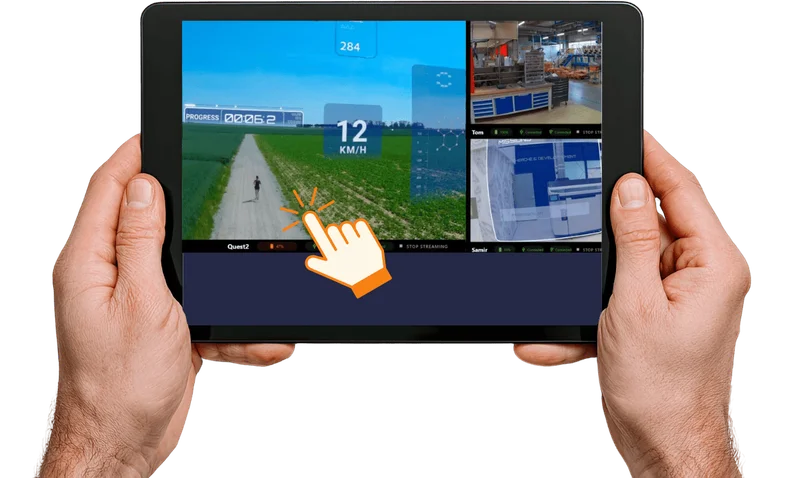
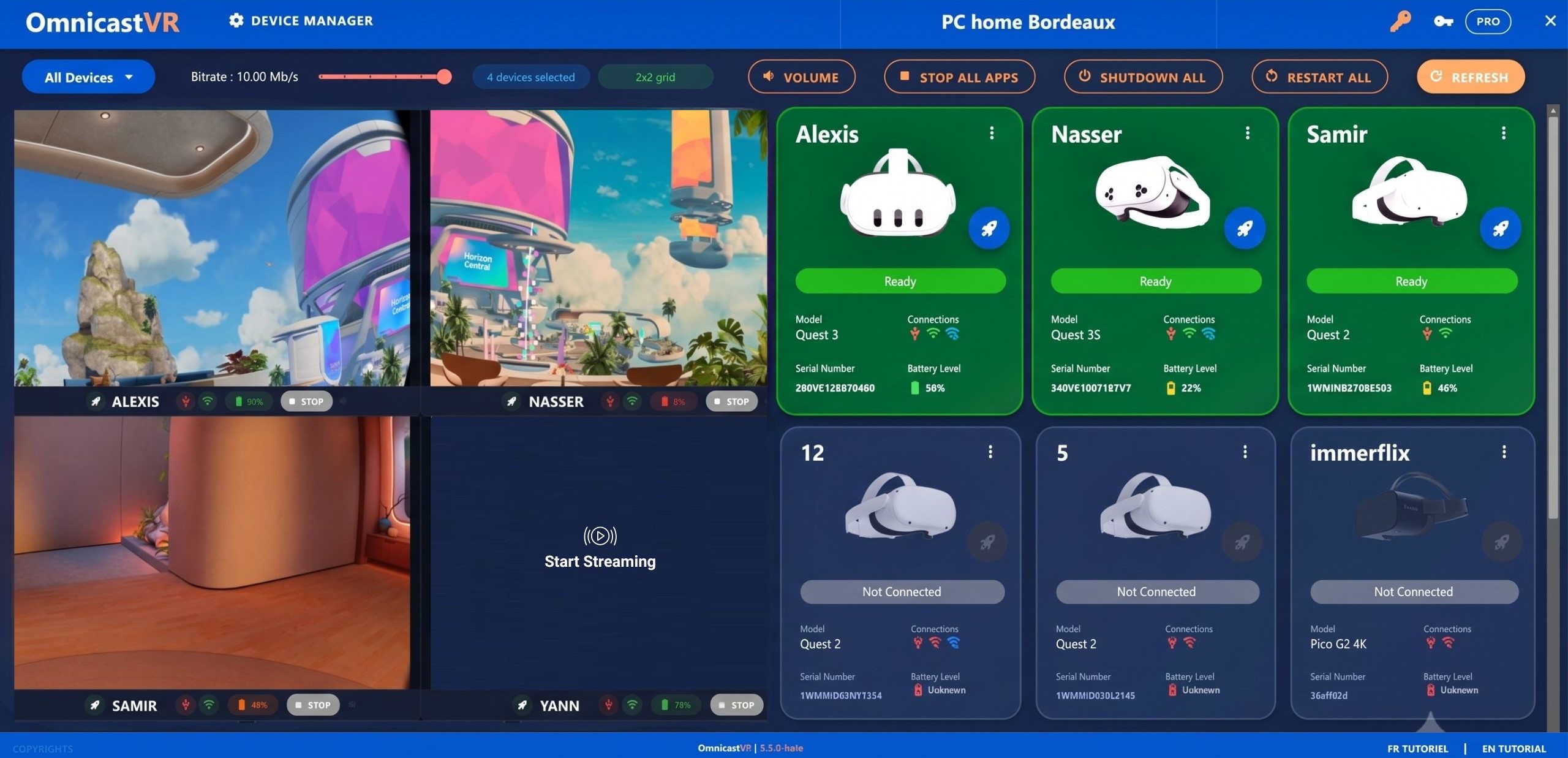
All 16 headsets appear as live video tiles. You see what every learner sees, in real time. From that same view - without switching tabs, without opening a separate menu - you can launch an app on one headset or all of them simultaneously, check battery levels, shut down a headset, or reboot it.
This is not passive monitoring. You see all 16 screens and act directly from that same interface. The result of every action is immediately visible in the stream - you know instantly whether the app launched, whether a headset is responding, whether a learner is stuck.
Cloud MDMs typically require you to click into a device, open a separate window, then navigate back to the main menu to take the next action. That workflow is fine for IT administration. It is unusable for live facilitation.
Synchronized App Launch
One click launches the same app on all connected headsets simultaneously. No cloud sync delay. No waiting for a server to relay the command. The instruction goes from the control PC directly to each headset over the local network.
If a learner is behind - still reading the safety briefing, still adjusting the headset - you can launch on the remaining headsets individually, without disrupting the others.
OmnicastVR supports all Android VR headsets: Meta Quest 2, 3, 3S, and Pro, Pico 4, 4E, and G3, HTC Vive Focus 3 and Vision, and Samsung devices. No ecosystem lock-in.
Local APK Install - The SideQuest Alternative
If your training app is not on the Meta Quest store or the Pico store, you can install it directly from OmnicastVR - headset by headset, locally. Think of it as what SideQuest used to do for individual developers, rebuilt into a professional training interface designed for fleet deployment.
Apps already installed from the store are also accessible. The App Selector feature lets you pre-select which apps appear in the launch menu before the session starts. No scrolling through a full library of 40 APKs when you have 10 learners waiting. The session menu shows exactly what you prepared.
Network Independence
OmnicastVR does not require an internet connection. A local Wi-Fi network - even a travel router - is enough. It also works perfectly on internet-connected networks. The choice is yours; the software does not care either way.
What matters is where the video streams go: they stay local, between the control PC and the headsets. They never pass through OmnicastVR's cloud servers. The only cloud contact OmnicastVR makes is a single license validation ping, once every 30 days.
No internet in your client's concrete bunker? No network in the factory? No problem. OmnicastVR runs in total autonomy. Your session depends on no remote server.
Data Privacy & Cybersecurity
No user data is collected from headsets. No content data. No learner behavior. The only metrics OmnicastVR collects are anonymous usage data: stream count and session duration. That is it.
The architecture is GDPR-compliant by design, not by policy. There is no cloud attack surface because there is no cloud transit. Video streams stay on the local network. This is not a marketing claim - it is a structural property of how the software works.
Saint-Gobain Group, one of the world's largest industrial companies, specifically highlighted this local streaming architecture as a major cybersecurity advantage when deploying OmnicastVR across their training operations. When a global industrial group with strict data governance requirements calls out your architecture as a differentiator, that is real-world validation.
OmnicastVR vs. Cloud MDM Solutions
Don't pay a monthly per-headset tax for a Cloud you don't need in the field.
🆚 Vs. ArborXR
ArborXR is a cloud-based MDM platform. It handles device enrollment, app store management, content library, usage analytics, OS updates, and remote device management. For large fleets that need upstream IT configuration, it is a strong choice.
ArborXR Essential ($10/device/month, billed annually) includes remote assistance with casting and screen streaming - but this streaming runs via cloud/WebRTC. If the training venue's firewall blocks WebRTC ports - a common scenario in corporate environments, hospitals, and government facilities - ArborXR streaming fails. OmnicastVR streaming is local, between the control PC and the headsets. No firewall dependency. No cloud relay.
Positioning: ArborXR and OmnicastVR are not competitors. For 20+ headsets, use ArborXR upstream for fleet configuration and OmnicastVR for live session control. For 1–20 headsets, OmnicastVR alone handles everything the trainer needs.
Cost at 10 headsets: ArborXR Essential runs approximately €92/month. OmnicastVR Omni10 is €55/month (or €39/month with an annual commitment). For a deeper look at how the two tools compare, see how OmnicastVR compares to ArborXR.
🏢 Vs. ManageXR
ManageXR is a cloud-based MDM platform with multi-room support, per-device licensing, and advanced analytics. Its Rooms feature enables live supervision of up to 30 participant screens simultaneously - impressive on paper.
In practice, streaming 30 headsets through cloud servers demands a robust internet connection and substantial outbound bandwidth. Whether quality holds at scale depends heavily on your venue's network infrastructure. Worth testing in your environment before committing.
OmnicastVR streams locally. No bandwidth dependency. No cloud latency. The stream quality is determined by your local Wi-Fi, not by a server load in a data center.
Positioning: ManageXR and OmnicastVR are complementary for large training centers. For live session control up to 16 headsets, OmnicastVR is the simpler and more cost-effective option.
Cost at 10 headsets: ManageXR Premium runs approximately €124/month annually for 10 headsets. OmnicastVR Omni10 is €55/month (or €39/month annual). For a detailed breakdown, see how OmnicastVR compares to ManageXR.
🔗 Vs. emaxr & FleetXR
Both are cloud-based MDM solutions targeting IT administrators. Both require internet connectivity. Both operate upstream, before and between sessions. OmnicastVR is complementary to either: no login required on-site, works on any network, designed for the trainer rather than the IT team.
Comparison Table
| ArborXR | ManageXR | OmnicastVR | |
|---|---|---|---|
| Target user | IT administrator | IT administrator | VR trainer / coordinator |
| Architecture | Cloud (internet required) | Cloud (internet required) | Local (internet optional) |
| Internet required | Yes | Yes | No - local Wi-Fi is enough |
| Video streaming | Via cloud / WebRTC | Via cloud / WebRTC | Local - never leaves the room |
| App launch | Cloud-synced | Cloud-synced | Direct, real-time, local |
| Login required | Yes (cloud account) | Yes (cloud account) | No - machine-bound license |
| Pricing model | Per device / month | Per device / month | Per fleet size / month |
| Best for | Fleet config, OS updates, security | Fleet config, multi-room analytics | Live session control, training facilitation |
Pricing - No Per-Headset Tax
Direct Access Plans (SMB / Education)
OmnicastVR Direct Access is straightforward: one price per fleet size, no per-headset fees, no per-user fees, unlimited trainers.
Payment is by credit card via Stripe. No Orga Manager on Direct Access plans.
Enterprise Plan (Large Accounts & Multi-Site)
For corporate groups, universities, distributors, and multi-site deployments, OmnicastVR offers an Enterprise plan built around Orga Manager - a multi-site license management console.
Orga Manager lets a central administrator create sub-organizations by campus, business unit, subsidiary, or department. Licenses are purchased in bulk and distributed to sub-orgs with one click. Local managers activate their licenses remotely - no physical access needed, no IT visit required. Usage stats roll up per sub-org and across the entire group.
Manage licenses across multiple sites from a central console. Distribute to subsidiaries, track usage per BU, activate remotely - without ever being on-site.
The Enterprise plan also includes a dedicated account manager, priority support packs (10, 20, or 40 tickets per year), and granular per-headset licensing from Omni3 to Omni16. Payment by bank transfer or purchase order. Enterprise pricing is on request - contact us for a quote.
Cost Comparison
OmnicastVR is 2 to 3× less expensive than leading US MDMs - and that comparison is for live session control only. The MDM tools are doing a different job.
| Fleet size | OmnicastVR Direct | ArborXR | ManageXR |
|---|---|---|---|
| 5 headsets | €29/month | ~€46/month | ~€50/month |
| 10 headsets | €55/month | ~€92/month | ~€100/month |
| 16 headsets | €115/month | ~€147/month | ~€160/month |
Monthly rates, no annual commitment. ArborXR and ManageXR figures are approximate EUR conversions of published USD rates.
Use Cases
Corporate VR Training
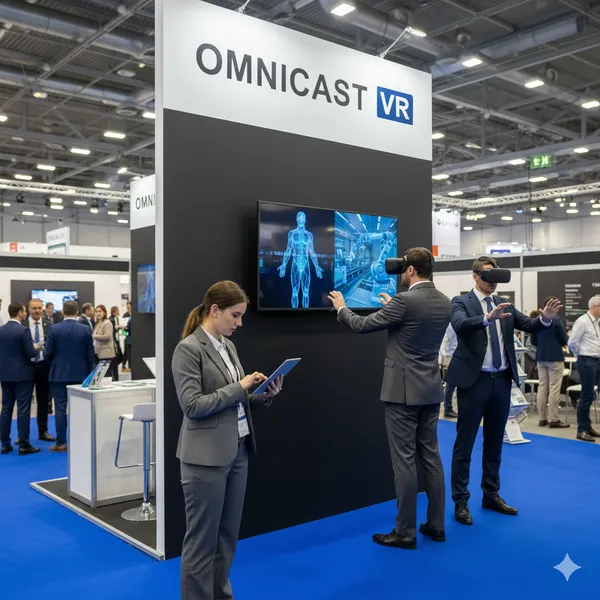
Safety training, onboarding, product demonstrations. A trainer manages 5–16 headsets in a training center, a conference room, or on a factory floor. No internet dependency means the session runs whether or not the site Wi-Fi has outbound access. Corporate training teams at industrial groups, including Saint-Gobain, have specifically cited the local streaming architecture as a cybersecurity requirement.
Educational Institutions
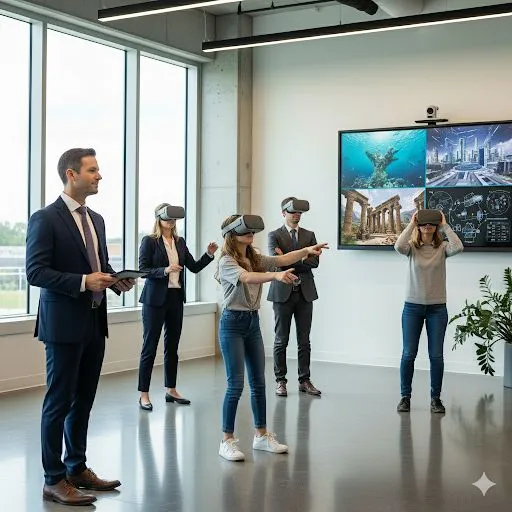
VR labs, STEM programs, medical simulation. School networks are often locked down - no outbound ports, no cloud access, captive portals. OmnicastVR works on the school's local Wi-Fi without touching the internet. Education coordinators get full live session control without filing an IT ticket.
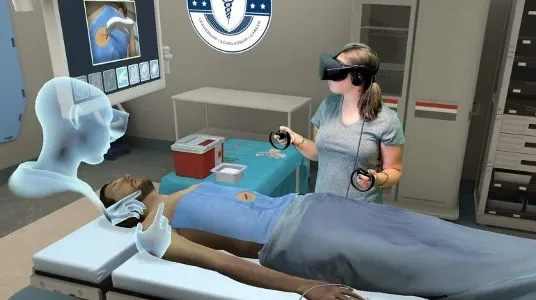
Healthcare Simulation
Surgical training, emergency response, patient education. On-premises control with no cloud data transfer. Video streams never leave the local network. GDPR-compliant by architecture - not a policy document, a structural guarantee.
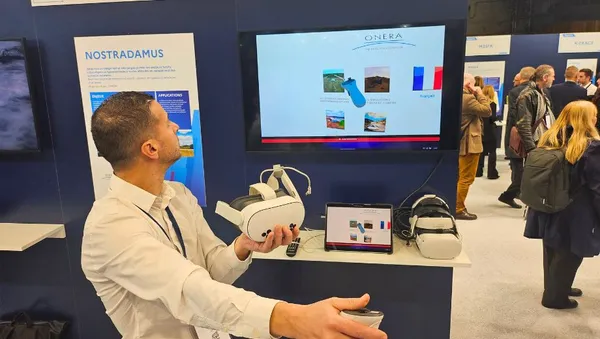
Remote & Industrial Sites
Oil rigs, construction sites, military training facilities. Offline-first is not a nice-to-have - it is a hard requirement. Cloud MDMs cannot function here. OmnicastVR runs on a travel router with no internet connection. No internet in the factory? No problem.
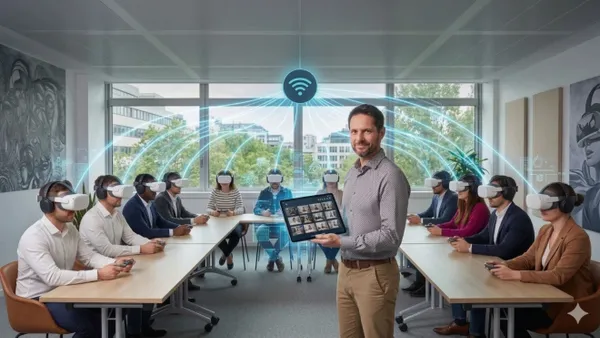
Secure Facilities
Government agencies, defense contractors, regulated industries. Zero cloud exposure. No user data leaves the premises. GDPR by architecture. The attack surface is the local network - which the facility already controls.

Pilot Programs
Testing VR training before scaling. The free plan covers 1–2 headsets with no credit card required. Run a real session, validate the workflow, then scale to Omni5 or Omni10 when you are ready.
Getting Started in 3 Steps
VR fleet management does not have to mean a week of IT setup.
Download OmnicastVR for free. No credit card. No account creation. The free plan includes 1–2 headsets and full access to every feature.
Pair your headsets once via USB-C. The connection takes about 5 seconds per headset. After that, the pairing is wireless - you never need the cable again.
Open OmnicastVR. The headsets appear. You control them. No cloud account, no IT setup, no login. The real-time headset control interface is ready immediately.
Upgrade to Omni5, Omni10, or Omni16 when your fleet grows. Activate the license in the app. Done.
Frequently Asked Questions
Run your next session without a cloud account.
Free plan, 1–2 headsets, every feature included. No credit card, no login.
Download for free