How to Launch a VR App on Multiple Headsets at Once
How to start the same app on every VR headset, on a group or on a single learner with OmnicastVR, why an app may be missing from the list, and how to stop all apps.
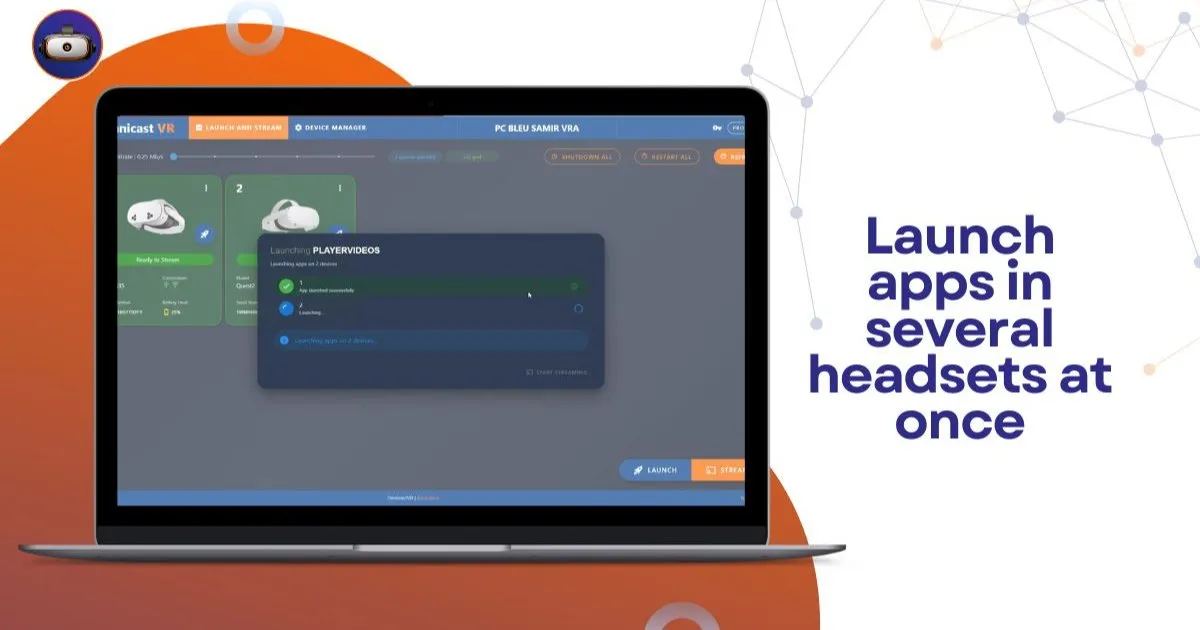

To launch a VR app on multiple headsets at once, select the headsets in the OmnicastVR Cockpit, click Launch and choose the app: it starts on every selected headset in one click. OmnicastVR, a VR session control software for Windows, does this for up to 16 Meta Quest, Pico and HTC Vive headsets over the local Wi-Fi network, with or without internet. The same command works from the streaming window, for the whole group or for a single learner.
How do you launch the same app on every headset?
Launching the same app on every VR headset takes three clicks in the OmnicastVR Cockpit: select the headsets, click Launch, then pick the app in the list.
- Select the headsets in the Cockpit: click their cards, or use Select ready (every connected headset) or Select worn (every headset a learner is wearing).
- Click Launch at the bottom right of the window. The list shows the apps you can launch on every selected headset.
- Click the app. It starts on all the selected headsets at once.
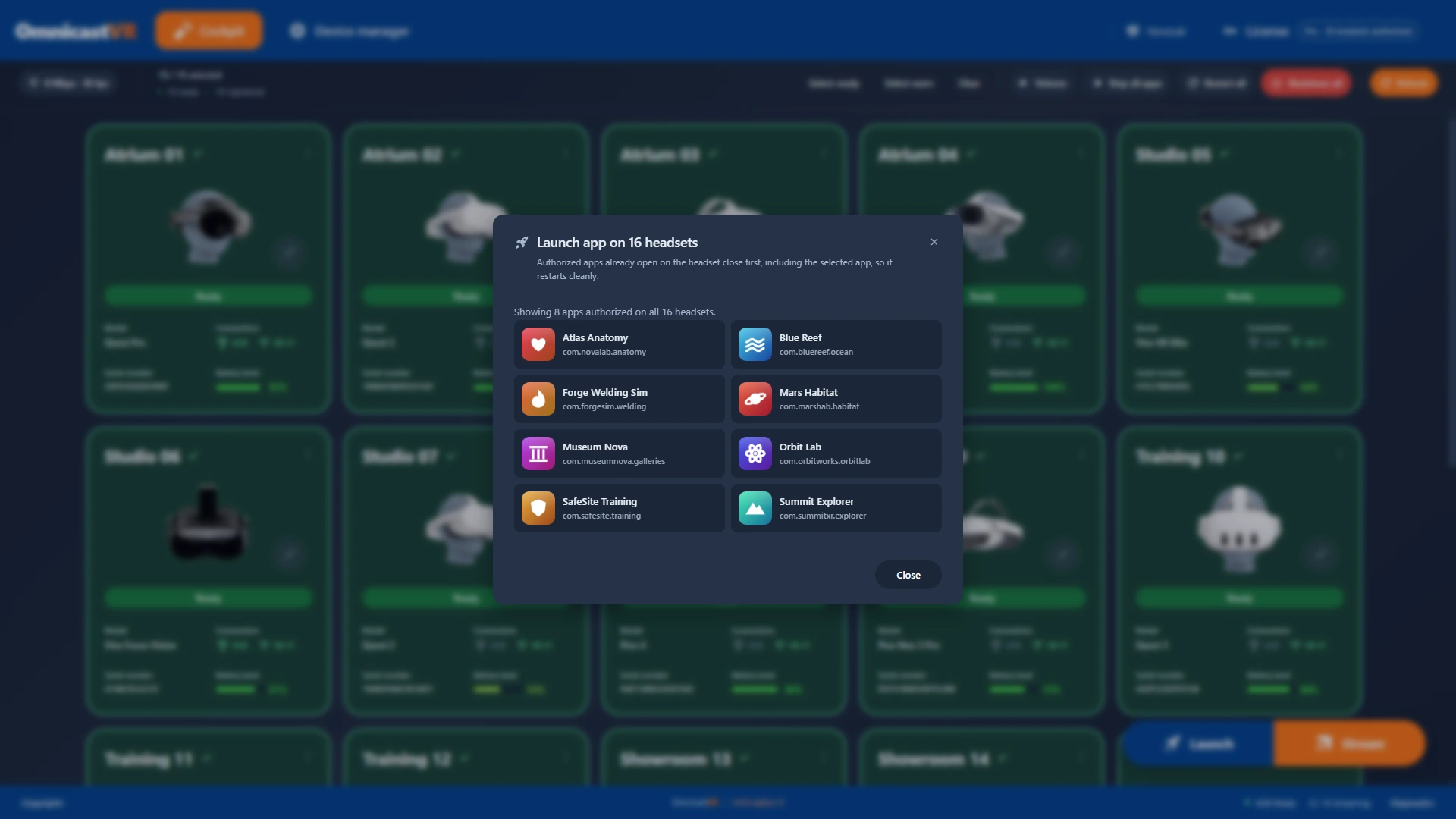
If an authorized app is already open on a headset, OmnicastVR closes it first, including the app you are launching, so that it restarts cleanly from its start screen.
Can you launch an app on one headset or on a group only?
Yes. OmnicastVR launches an app on whichever headsets are selected, from a single headset to all 16, so the trainer can run different apps for different learners in the same session.
- One headset: click the launch icon on the headset's card, then choose the app.
- A group: select only the headsets of that group, then click Launch.
- Two groups, two apps: select the first group and launch the first app, then select the second group and launch the other app.
Naming the headsets in the Device Manager (for example "Team A - 1") makes groups faster to select: see how to connect and name your VR headsets in OmnicastVR.
Can you launch an app from the streaming window?
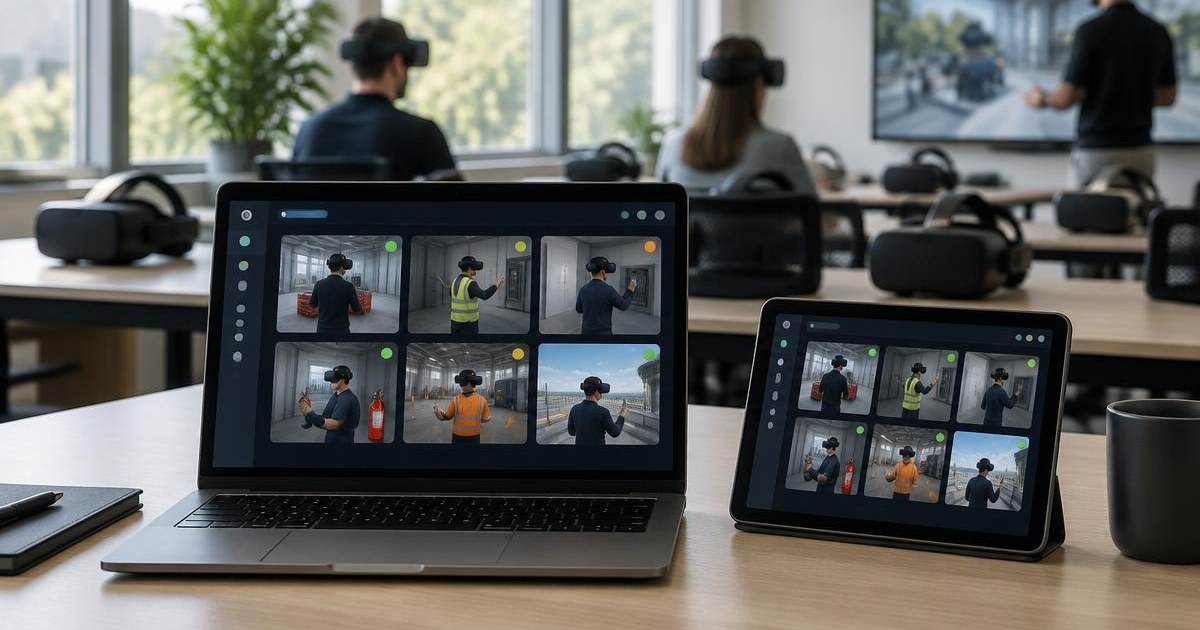
Yes. The OmnicastVR streaming window is also a control panel: while watching the learners, the trainer launches an app on every streamed headset with Launch App on all, or on one headset from its own stream.
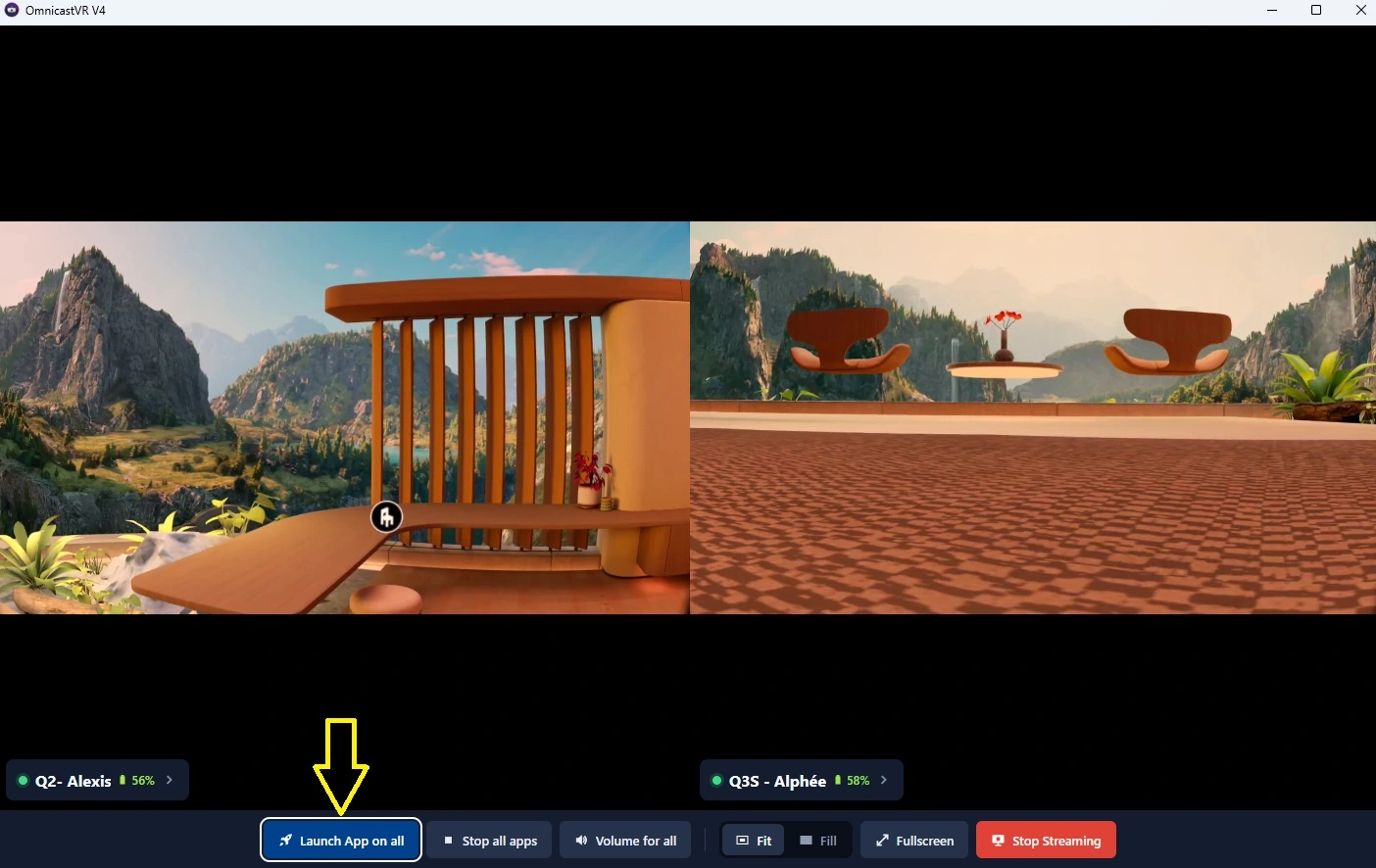
To follow one learner closely, open their stream in Focus mode: the controls then apply to that headset, while the group controls stay available.

Jump straight to the chapter Control every headset from the stream in the Cockpit tutorial.
Why doesn't an app appear in the launch list?
An app appears in the OmnicastVR launch list only if it is installed and authorized on every selected headset. When an app is missing, one of the selected headsets usually does not have it, or it has not been authorized on that headset.
| Cause | What to do |
|---|---|
| The app is not installed on one of the selected headsets | Install it on that headset: how to install an APK on multiple VR headsets |
| The app is installed but not authorized | Add it in Manage apps in the Device Manager: how to choose which apps each headset can launch |
| The app is on some headsets only | Select only the headsets that have it, or launch it headset by headset |
| A headset is switched off or not connected | Switch it on and check that it is on the same Wi-Fi network: commands only reach headsets that are on and connected |
The launch list works with Meta Store apps as well as your own APK files, as long as they are authorized on the headset.
Are the learners synchronized inside the app?
OmnicastVR starts the app on every headset at the same time, but it does not synchronize what happens inside the app afterwards. Each learner then progresses at their own pace, unless the app itself offers a shared or multiplayer mode.
For a guided activity, launch the app on every headset, then use the streaming window to see who is ahead or stuck, and restart the app on one headset if a learner needs to start again. If your training requires learners to stay at the same step, check with the app's publisher whether it has a group mode.
How do you stop the apps on every headset?
To stop the apps, click Stop all apps, in the Cockpit toolbar or in the streaming window: the running apps close on the selected headsets.
Stopping the apps is useful between two activities or two groups. At the end of the day, the Cockpit toolbar also restarts or shuts down every selected headset: see how to shut down all your VR headsets remotely.
How is this different from an MDM or Meta's own tools?
OmnicastVR launches apps from the trainer's computer, on the local network, next to the live view of every headset. Fleet management platforms (MDM) such as ArborXR can also launch apps remotely, through a cloud console designed for administering devices. The two can work together: OmnicastVR runs on headsets managed by Meta Horizon managed services, ArborXR or ManageXR. Meta's App Sharing serves a different need: sharing purchased games between accounts at home. For a side-by-side view, read VR MDM or VR session control: which do you need?
Key takeaways
- Select the headsets in the Cockpit, click Launch and choose the app: it starts on every selected headset at once.
- The same command launches an app on one headset, a group or all 16 headsets, and works from the streaming window.
- Only apps installed and authorized on every selected headset appear in the list, Meta Store apps and your own APKs alike.
- OmnicastVR starts the apps at the same time; progression inside the app depends on the app itself.
- Stop all apps closes them between two activities, without leaving the stream.
For the whole session workflow, read our guide on how to manage multiple VR headsets.
Try it on your own headsets: the Free plan supervises 1 to 2 headsets, free forever, with no credit card required.
Frequently Asked Questions
Can I launch different apps on different VR headsets?
Yes. OmnicastVR launches an app on the headsets that are selected, so you can select a first group and launch one app, then select a second group and launch another. You can also launch an app on a single headset from its card or from its stream. Each headset only lists the apps installed and authorized on it.
Does launching apps on several headsets need an internet connection?
No. OmnicastVR sends the launch command over the local Wi-Fi network shared by the computer and the headsets, so no internet connection is needed during the session. The headsets only need to be switched on and connected to that network. Internet is used to activate the licence and install updates, with a reconnection at least every 30 days.
Can I launch Meta Store apps or only my own APK files?
Both. OmnicastVR lists the apps installed on each headset, whether they come from the Meta Store or from an APK file installed with the OmnicastVR APK installer. To keep the launch list short, you choose in Manage apps which of these apps can be launched on each headset; only those authorized apps appear when you click Launch.
Can I launch the same app on Meta Quest, Pico and HTC Vive headsets together?
Yes, if the app is installed and authorized on each of them. OmnicastVR controls Meta Quest, Pico and HTC Vive headsets in the same session, and the launch list shows the apps available on every selected headset. An app published only for one brand will only appear when headsets of that brand are selected.