OmnicastVR V4 Tips: 10 Ways to Run Smoother VR Sessions
What to keep, what to drop and what to set when you move to OmnicastVR V4, the rebuilt version of the software: 8 practical tips for trainers who supervise several VR headsets.
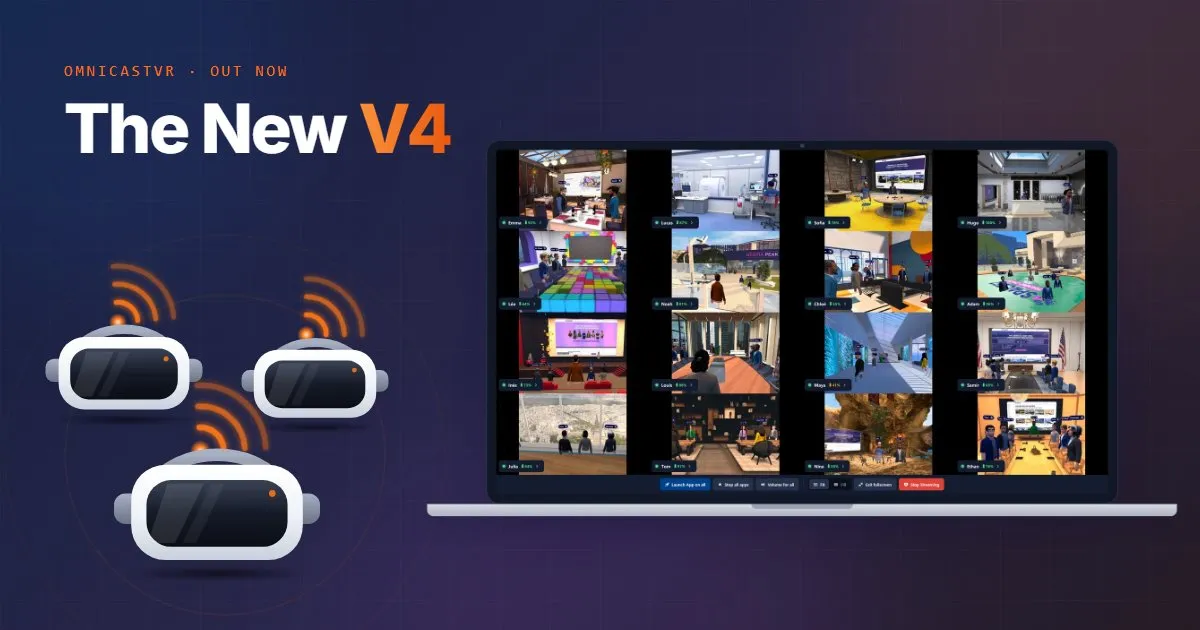

OmnicastVR V4, the version of the VR session control software released on 4 November 2026, is not a simple update of V3: it is a largely rebuilt version of the software, with a new engine and every part of the trainer's workflow reworked and optimised.
Most V3 workarounds are gone: headsets stay paired after a first USB connection and reconnect on their own after sleep, a shutdown or a Wi-Fi drop, and Meta Quest sleep settings or a third-party browser are no longer needed.
These 10 tips show what to keep, what to drop and how to run the smoothest sessions with V4
OmnicastVR V4 at a glance: what changes from V3
OmnicastVR V4 is a rebuilt version of the software, not an update of V3: the engine, the interface and the way headsets connect have all been redesigned. For trainers, the main change is that the manual steps V3 required during a session are now automatic.
| Situation | OmnicastVR V3 | OmnicastVR V4 |
|---|---|---|
| Before each session | Headsets had to be reconnected manually | Companion, the V4 pairing feature, keeps each headset paired after a first USB connection |
| A learner takes the headset off | The stream showed "Time Out"; the trainer clicked "Restart Stream" | The stream pauses, then restarts on its own when the headset is put back on |
| A headset is switched off or the Wi-Fi drops | The connection was lost and the headset had to be reconnected | Companion reconnects the headset automatically |
| Meta Quest sleep delay | Set to 4 hours | No sleep setting to change |
| Proximity sensor | Sticker over the sensor to prevent standby | Not needed |
| Headset volume on Meta Quest | Not adjustable remotely | Set per headset from the supervision screen, or on all headsets at once |
| Apps selected on each headset | Only the number of selected apps; the App selector had to be opened to see them | App thumbnails in the Device Manager; hover to see each headset's apps |
| Image settings | Bitrate only | Bitrate, frame rate and resolution |
| Developer mode on Meta Quest | Required | Still required, once per headset |
See every feature on the OmnicastVR features page. The new version was first announced in our October 2026 announcement.
1. One USB connection, then no more cables
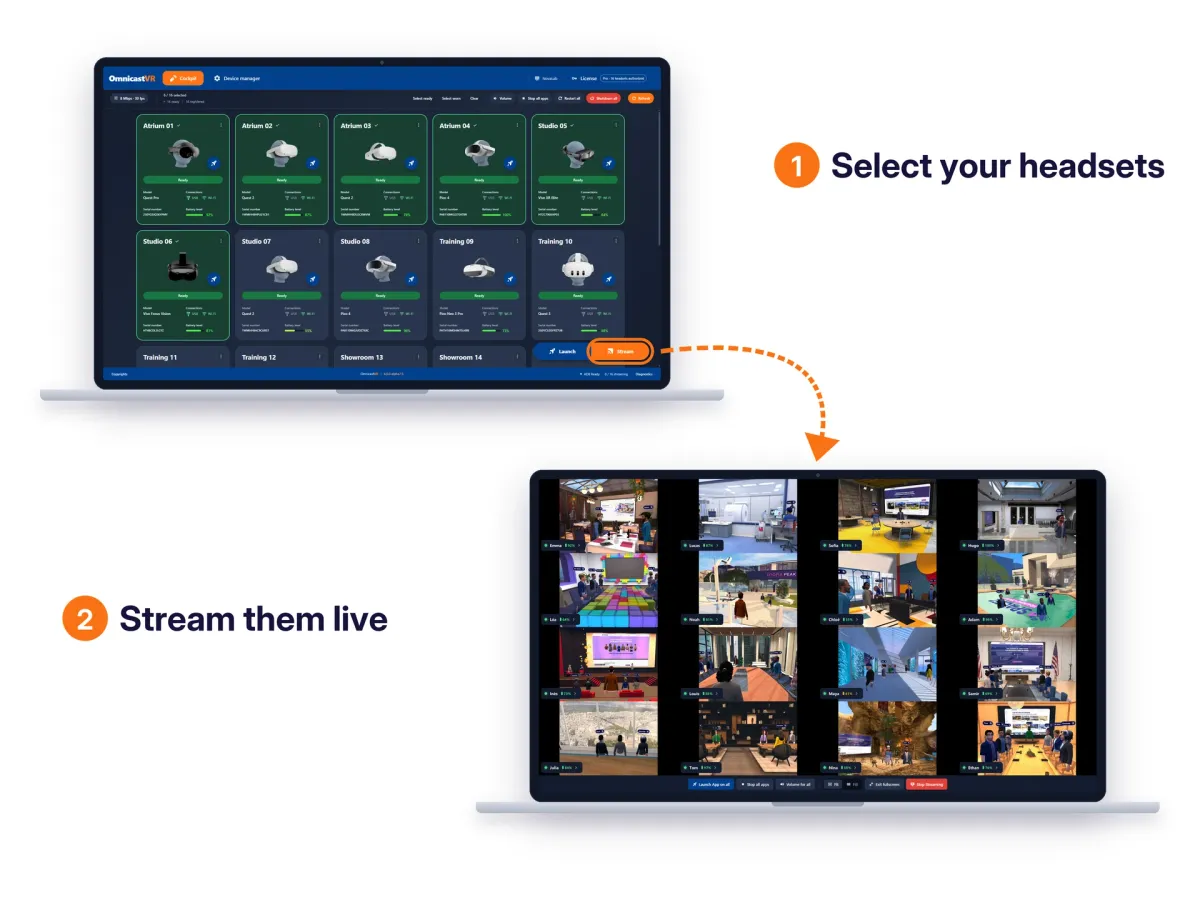
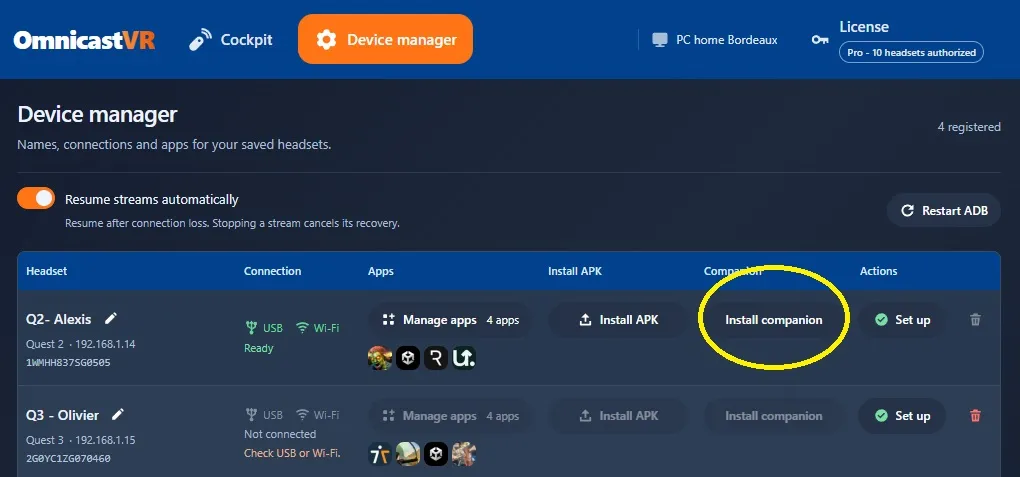
With OmnicastVR V4, a headset only needs a USB connection the first time: Companion then keeps it paired with the trainer's Windows computer, and it reconnects over the local Wi-Fi network at the start of every session.
- Connect the headset to the computer with a USB-C data cable.
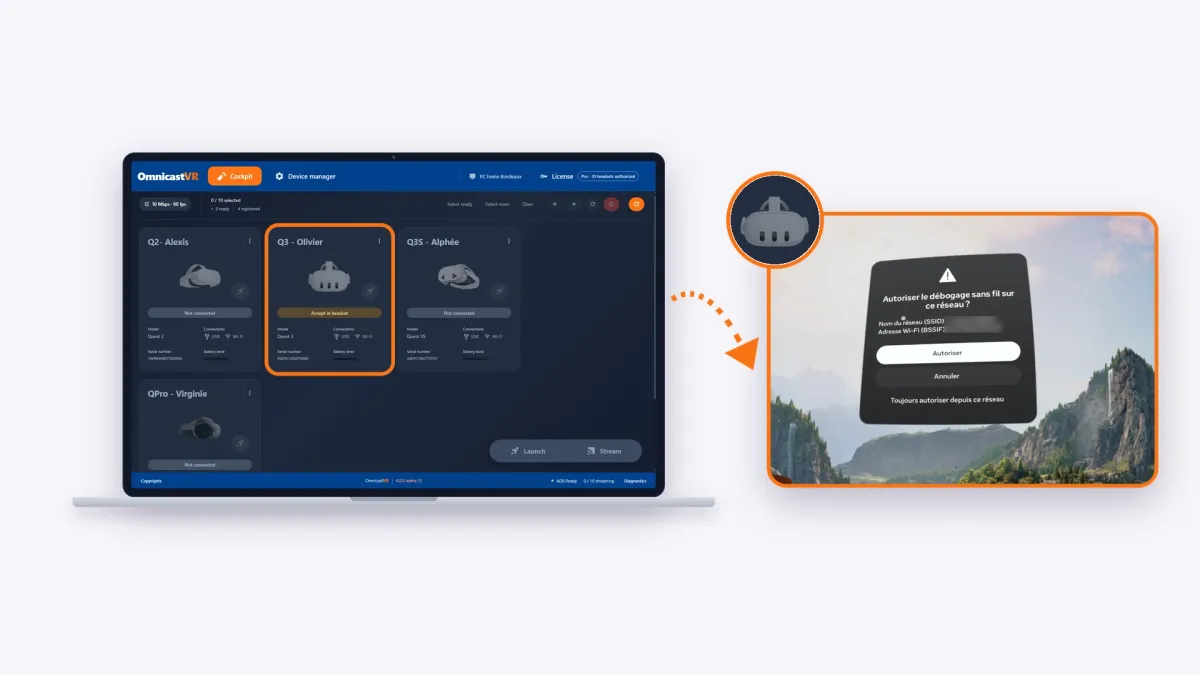
- On Meta Quest, accept the USB debugging request in the headset and choose "Always allow from this computer".
- Wait until OmnicastVR shows the headset as connected, then unplug the cable.
The computer and the headsets must be on the same local network. No internet connection is needed during the session.
2. Headsets now reconnect on their own after sleep, a shutdown or a Wi-Fi drop
OmnicastVR V4 reconnects headsets automatically: a stream that stops when a headset goes to sleep restarts on its own, and Companion reconnects a headset that was switched off or lost the Wi-Fi network, with no cable and no action from the trainer.
- Sleep: when a headset turns its screen off, its stream stops; when the learner puts the headset back on, the screen wakes up and the stream restarts automatically. In V3, the trainer had to click "Restart Stream" for each headset.
- Shutdown: if a headset is switched off, by mistake or to charge it, Companion reconnects it to OmnicastVR as soon as it is switched back on.
- Wi-Fi drop: if the network cuts out, headsets reconnect automatically when the Wi-Fi comes back.
Learners can take a break or hand the headset to someone else, and the trainer's view comes back on its own. Keep the headsets' default power settings, and leave the "Resume streams automatically" option on in the Device Manager.
3. Fewer Meta Quest settings: only developer mode remains
Developer mode is the only Meta Quest setting OmnicastVR V4 still requires: it is enabled once per headset, and Pico and HTC Vive headsets need no preparation.
- Keep: developer mode and USB debugging on each Meta Quest. Follow our guide to enable developer mode on Meta Quest via USB, or the guide for headsets managed by an MDM.
- Drop: the 4-hour sleep delay, the Wolvic browser and the sticker over the proximity sensor. These V3 workarounds are no longer needed with V4.

4. More streams on low-power computers and tablets
OmnicastVR V4 streams more headsets on low-power processors than V3: a Surface Go tablet, for example, handles up to 8 headsets at once in our performance tests, against 6 with V3. For comfortable day-to-day sessions, we keep recommending about 6 headsets on this class of tablet, and up to 16 on a more powerful computer.
V4 adjusts the image with three settings instead of the bitrate alone: bitrate, frame rate and resolution. Lower them on a small tablet or a busy Wi-Fi network:
| Setting | Light mode (small tablet or busy Wi-Fi) | Maximum quality |
|---|---|---|
| Bitrate | 2 Mbps | 10 Mbps |
| Frame rate | 30 fps | 60 fps |
| Resolution | Divided by two | Native |
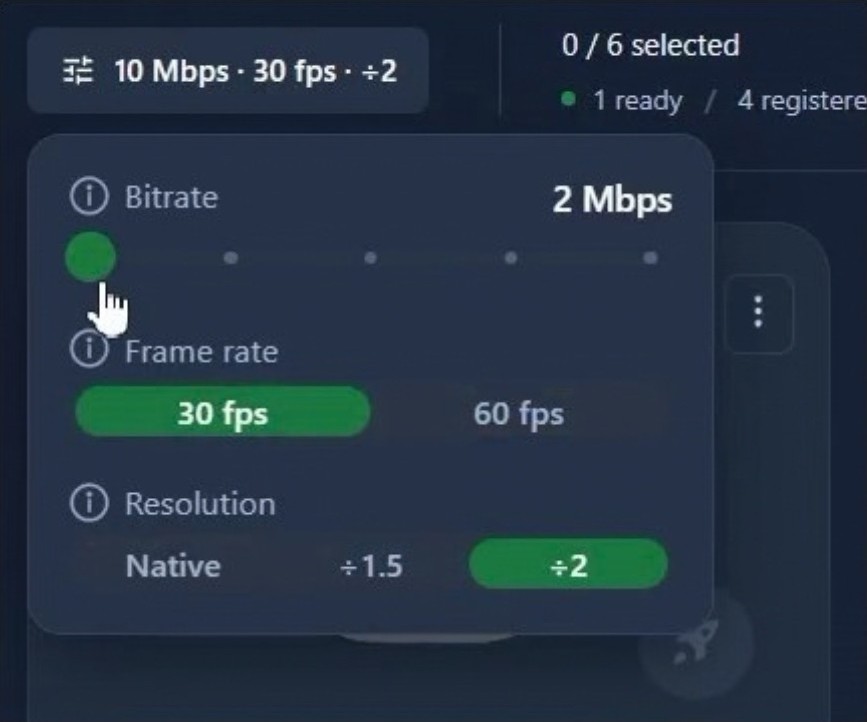
These settings only change the feed shown on the trainer's screen: inside the headset, the learner keeps their application at full quality. To size your computer and network, read how many VR headsets you can stream on a PC, laptop or tablet. The software supervises up to 16 headsets on one computer.
5. Now: launch apps, see each headset's apps and follow one learner
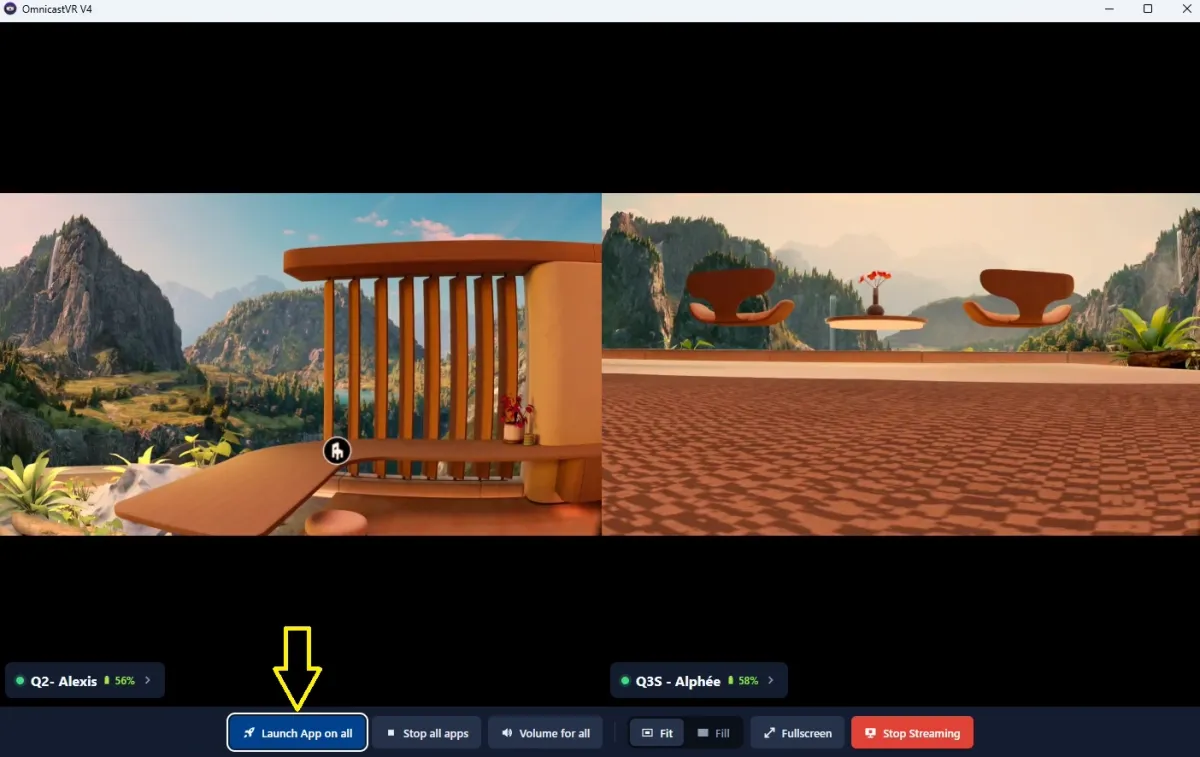
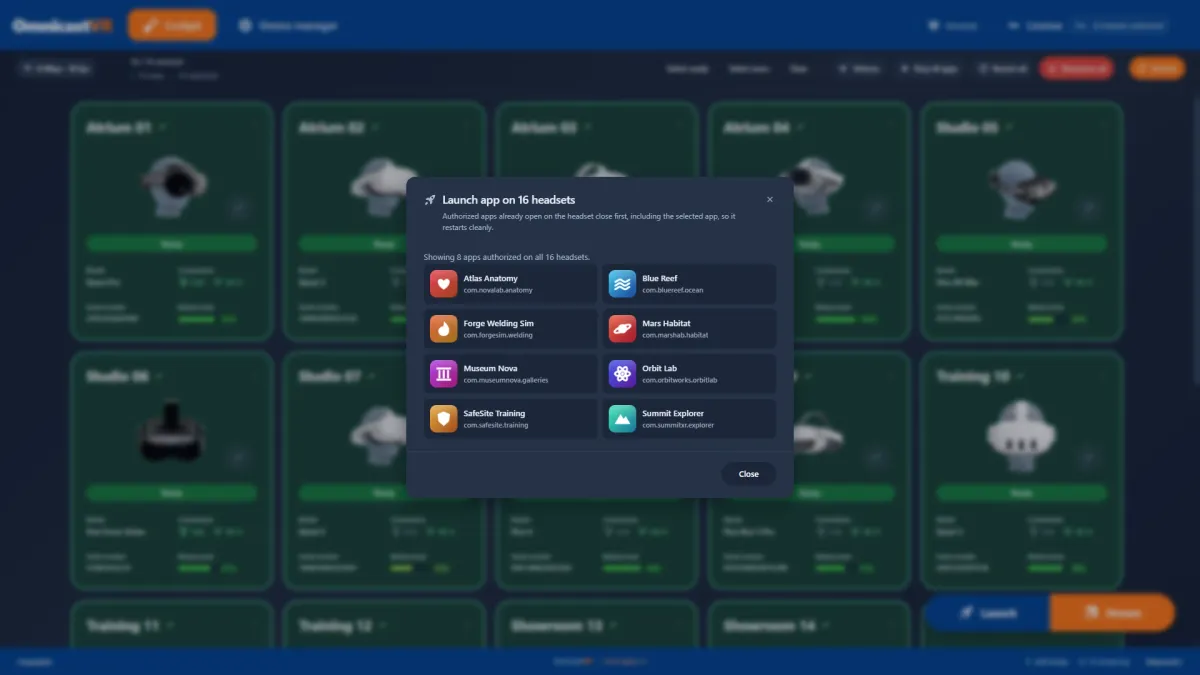
OmnicastVR V4 lets the trainer launch an application on one headset or on all of them, and zoom in on a learner, directly from the streaming window, while the Device Manager now shows at a glance which apps are selected on each headset.
- One learner: click a headset's stream to launch an app on that headset only.
- The whole group: use the group command to start the same app on every headset at once.
- Zoom: enlarge a single stream to follow a learner's actions precisely while keeping the group in view.
- Volume and battery: set the volume of one headset or of all headsets at once from the supervision screen, and check battery levels on the headset cards before a learner runs out.
- Apps per headset: in the Device Manager, the App selector column now shows thumbnails of the apps selected on each headset. Hover over them to see the list for that headset. In V3, only the number of selected apps was shown, and the App selector had to be opened to see which ones.
6. Improved onboarding: a setup assistant and built-in video tutorials
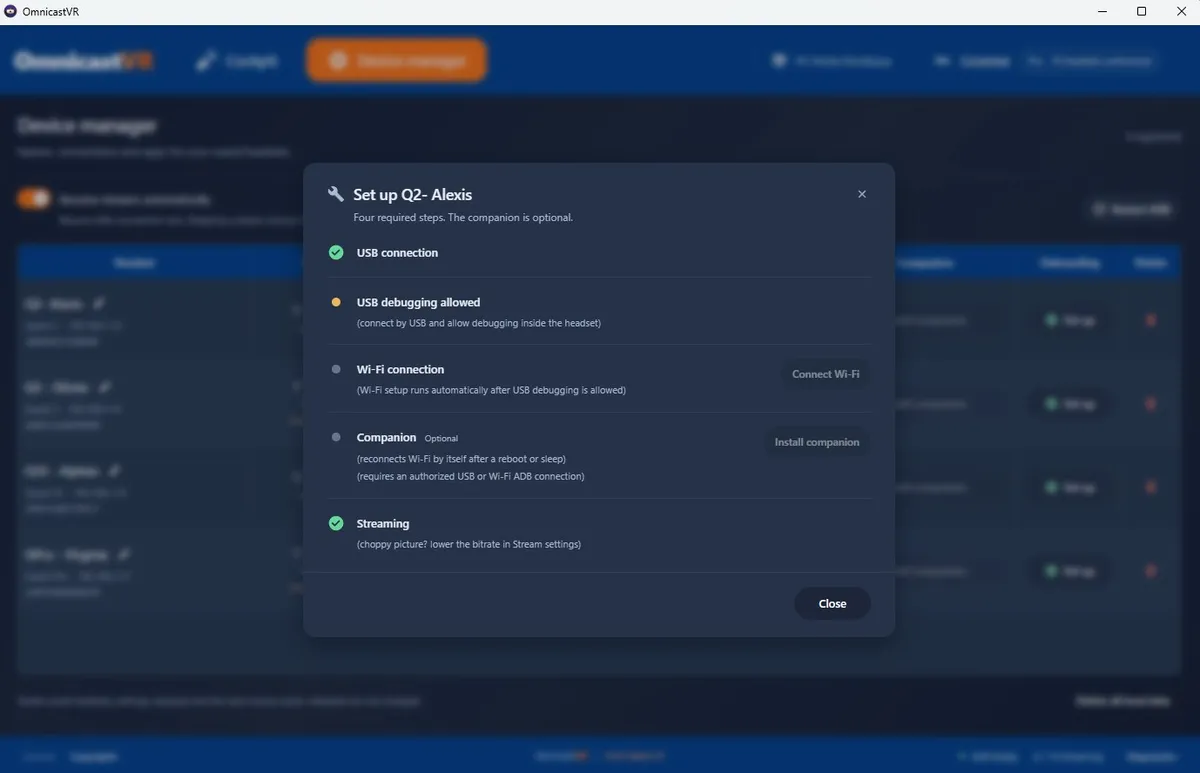
OmnicastVR V4 guides new users with a first-connection assistant and video tutorials built into the software, so a trainer can set up headsets without reading a manual.
- The assistant guides the operator step by step through the first headset connection and simplifies the technical steps.
- A short video opens the first time you visit the Cockpit and Device Manager tabs. Tick "Don't show automatically again" to hide it, and use the "Tutorial" button at the bottom of the window to watch it again.
7. Automatic updates that wait for the end of the session
OmnicastVR V4 downloads updates in the background and installs them only after the trainer confirms a restart, so an update never starts in the middle of a session.
When an update is ready, finish the session, stop headset activity, then confirm the restart. Closing the software normally does not install the update. In the Diagnostics tab, keep the Stable update channel for training sessions; the Alpha & Beta channel is for testing new builds. Technical details of each build are in the OmnicastVR release notes.
8. Your V3 licence carries over to V4
Moving from OmnicastVR V3 to V4 keeps your licence: V4 reuses the Computer ID of your V3 installation, so there is no new activation.
- Download V4 from the OmnicastVR download page and install it on the same Windows 10 or 11 (64-bit) computer.
- Keep developer mode on your Meta Quest headsets.
- Connect each headset once by USB so Companion can pair it.
- Remove the V3 workarounds from your session checklist: sleep delay, Wolvic, sensor sticker.
9. Event mode: stream over USB when the Wi-Fi fails
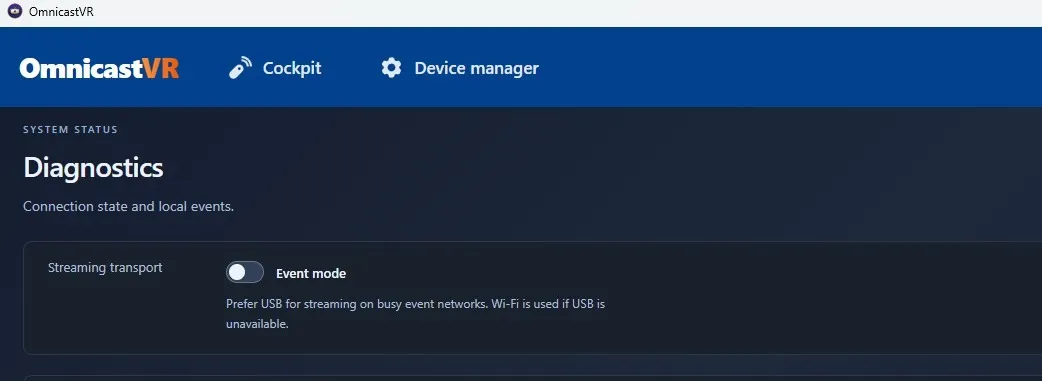
Event mode in OmnicastVR V4 streams headsets over a USB-C cable instead of Wi-Fi, so the trainer keeps a live view of every headset when no Wi-Fi network is available or when the local network is saturated.
At trade shows and exhibitions, dozens of nearby Wi-Fi networks interfere with the local router: streams become choppy or do not start at all. With Event mode, each headset is connected to the trainer's computer with a long USB-C data cable, 2 metres for example, and its stream goes through the cable.
- Open the Diagnostics tab in OmnicastVR.
- Under "Streaming transport", turn on Event mode.
- Connect each headset to the computer with a USB-C data cable.
Headsets connected by USB stream through the cable, and a headset without a cable keeps streaming over Wi-Fi. Event mode suits stands and demos where users stay near the computer: the cable length sets how far they can move.
10. A Microsoft-signed installer
The OmnicastVR V4 installer and software are digitally signed with a code-signing certificate issued by Microsoft, which Microsoft only delivers after verifying the publisher's identity.
- Verified publisher: when you install OmnicastVR, Windows shows the publisher's verified name instead of "Unknown publisher".
- Untampered file: the signature proves that the file has not been modified since it was signed.
- IT approval: IT departments can check the signature in the file's properties (Digital Signatures tab) before allowing the software on training computers.
Always download OmnicastVR from the official download page to get the signed installer.
Key takeaways
- OmnicastVR V4, released on 4 November 2026, is a largely rebuilt version of the software with a new engine, not a simple update of V3.
- After a first USB connection, Companion keeps each headset paired: no cable before each session.
- Headsets reconnect on their own: after sleep, the stream restarts when the headset is worn again; after a shutdown or a Wi-Fi drop, Companion reconnects the headset automatically.
- On Meta Quest, only developer mode remains; the 4-hour sleep delay, Wolvic and the sensor sticker are no longer needed.
- V4 streams more headsets on low-power processors; the image is tuned with bitrate, frame rate and resolution. Plan about 6 headsets on a Surface Go-class tablet and up to 16 on a stronger computer.
- V3 customers keep their licence when they move to V4.
- Event mode streams headsets over a USB-C cable when the Wi-Fi is missing or saturated, for example at a trade show.
- The installer and the software are signed with a Microsoft-issued certificate: Windows shows a verified publisher.
Try OmnicastVR V4 on your own headsets: the Free plan supervises 1 to 2 headsets, free forever, no credit card.
Frequently Asked Questions
Does OmnicastVR V4 need an internet connection?
No. OmnicastVR V4 runs on a local Wi-Fi network: the trainer's Windows computer and the headsets only need to be on the same network, and no internet connection is needed during sessions. The licence must go online at least once every 30 days. Headset video streams stay on the local network and never go through a cloud service.
Is developer mode still required on Meta Quest with OmnicastVR V4?
Yes, on Meta Quest only. Developer mode must be enabled once on each Meta Quest headset so that OmnicastVR V4 can connect to it. Pico and HTC Vive headsets need no preparation. The other V3 settings, such as a 4-hour sleep delay or the Wolvic browser, are no longer needed with V4.
Do headsets reconnect automatically in OmnicastVR V4?
Yes. With OmnicastVR V4, a headset that goes to sleep stops streaming, then resumes as soon as a learner wears it again. A headset that was switched off, or that lost the Wi-Fi network, is reconnected by Companion when it comes back. The trainer no longer clicks "Restart Stream" or plugs in a cable, and the 4-hour sleep delay used with V3 is no longer needed.
Can I try OmnicastVR V4 for free?
Yes. The OmnicastVR Free plan supervises 1 to 2 headsets per computer, free forever and with no credit card. Direct Access plans extend supervision to 5, 10 or 16 headsets on a monthly or annual subscription, and large organisations can request an Enterprise quote. Current prices are on the pricing page.
Which VR headsets work with OmnicastVR V4?
OmnicastVR V4 works with standalone Android VR headsets, including Meta Quest, Pico and HTC Vive, and can supervise headsets of different brands in the same session. There is nothing to install on the headsets; Meta Quest headsets only need developer mode enabled once. The software runs on a Windows 10 or 11 (64-bit) computer, laptop or tablet.
Can OmnicastVR V4 stream VR headsets without Wi-Fi?
Yes. With Event mode, turned on in the Diagnostics tab, OmnicastVR V4 streams every headset connected to the trainer's Windows computer by a USB-C data cable, with no Wi-Fi network needed. Event mode is designed for trade shows and busy venues where nearby networks disrupt the local router. Headsets without a cable keep streaming over Wi-Fi.