How to Enable Developer Mode on Meta Quest Managed by an MDM
Learn how to enable Developer Mode on Quest headsets managed by Meta Horizon Managed Services. Pro guide for debugging and sideloading Omnicast VR.
Enable Developer Mode for Omnicast VR using Meta Horizon Managed Services (MDM) 🛠️
In a professional environment managed by an MDM (Mobile Device Management) system via Meta Horizon Managed Services (formerly known as Meta Quest for Business), the Developer Mode activation procedure is centralized and does not require individual registration on the consumer developer portal ($developers.meta.com$).
Developer Mode activation is often required for tasks like debugging or sideloading (installing internal company apps), such as the Omnicast VR application.
1. Activation via MDM Policies (Centralized Professional Method)
The initial activation and authorization are handled by the System Administrator directly from the MDM management console. This is the most secure and efficient method for managing a fleet of professional devices.
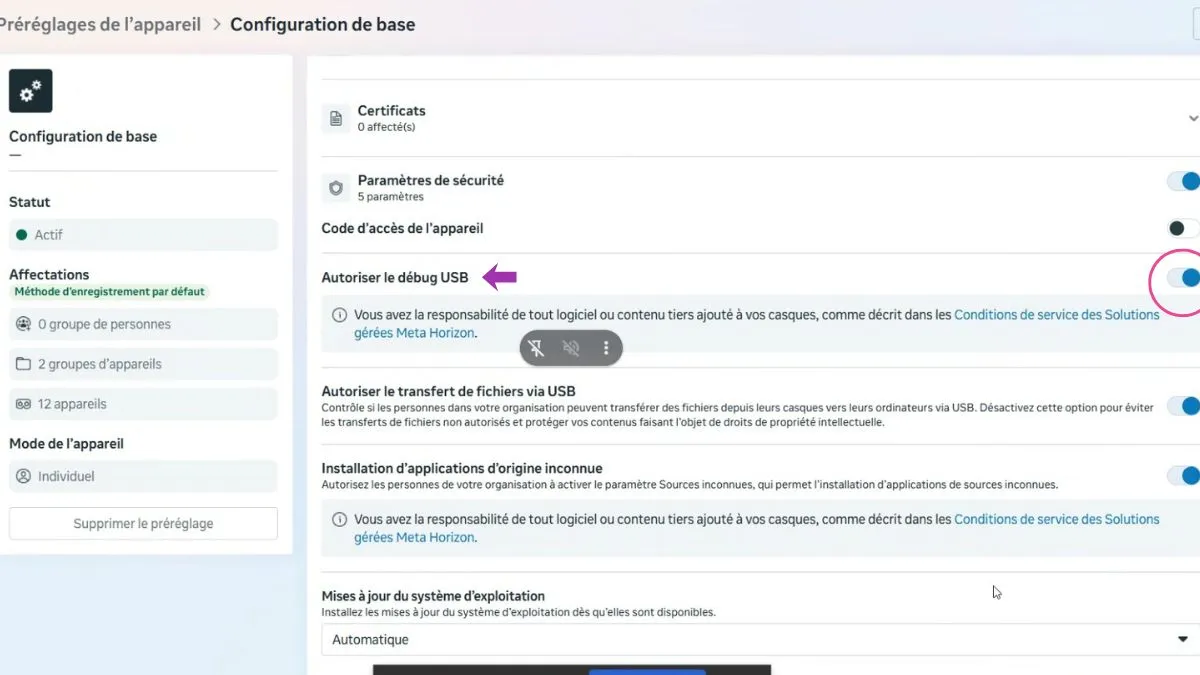
| Step | Action | |
| MDM Console | The administrator logs into the Meta Horizon Managed Services Admin Portal (or the integrated third-party MDM like Microsoft Intune/VMWare Workspace ONE). | |
| Device Policy | The administrator locates the Device Policies or restrictions for the Meta Quest headsets (or the specific device, such as Quest 3). | |
| Feature Activation | They enable the option allowing USB Debugging or Developer Mode for the specific group of devices or the concerned devices. | |
| Deployment | Once the policy is applied and saved, it is remotely deployed to the headsets. |
2. Headset Access and Verification
If the organization's policy authorizes the activation and the headset is configured in Individual Mode with a managed account, the user or developer may need to verify and finalize the activation directly on the device.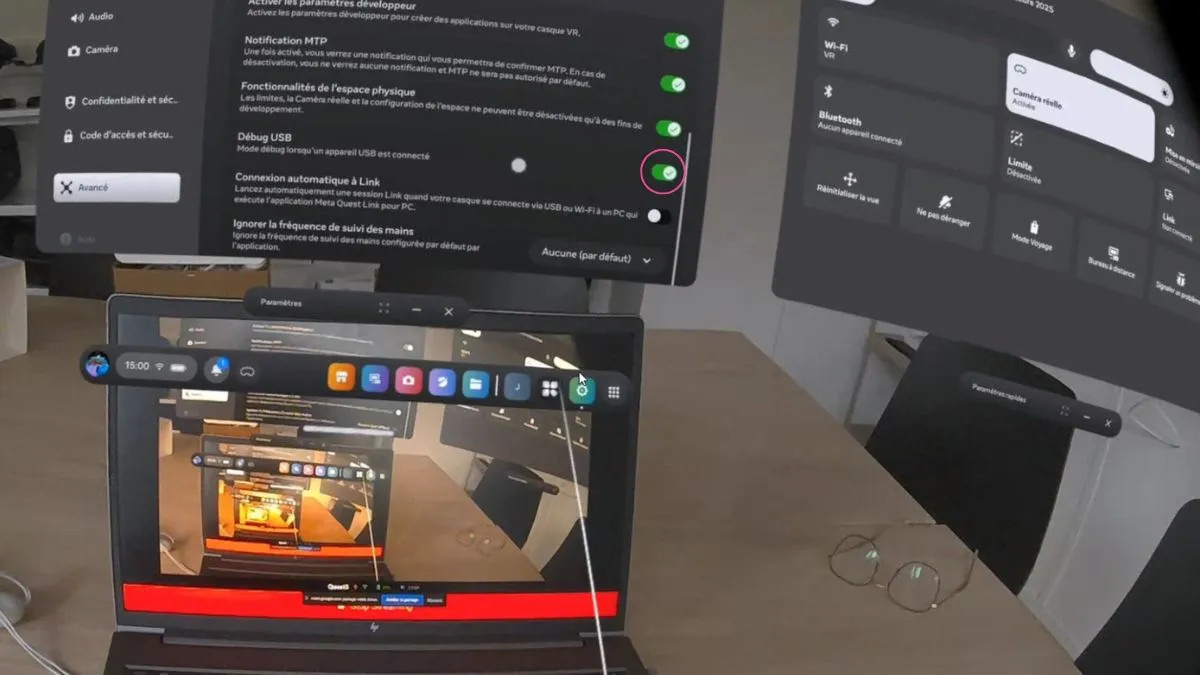
• Check Debugging Setting: In the headset, navigate to Settings > System > Developer.
• Enable Option: Verify that the Enable USB Debugging option is checked. If it is not, enable it.
• Restart: Restart the headset if you had to manually enable the option. After the restart, recheck that the option is still active.
3. Connecting the VR Headset to the Omnicast Software
Once Developer Mode is confirmed, you can connect the headset to your development station to use tools like ADB or SideQuest for deploying the Omnicast VR application.
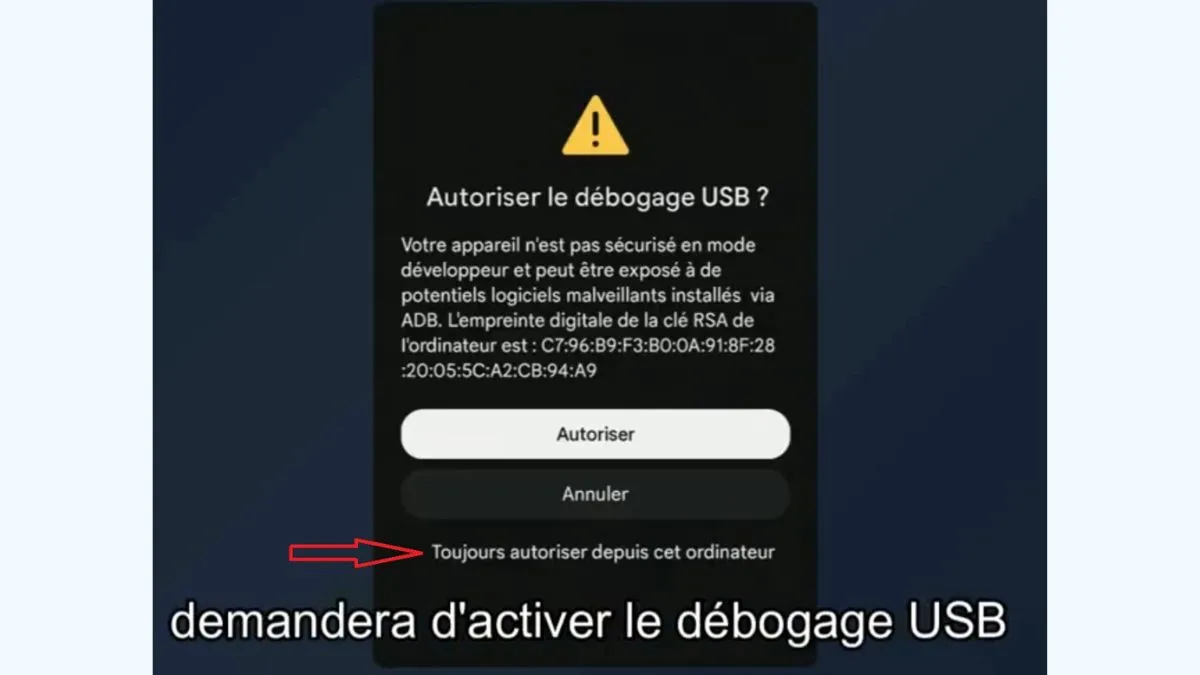
• PC Connection: Connect the headset to your computer (PC or Mac) using a USB-C cable.
• Headset Authorization: Put on the headset. A pop-up window will ask you to Allow USB Debugging. To prevent this prompt from reappearing, check the option "Always allow from this computer" and then press "Allow".
• Sideloading Readiness: The headset is now ready to receive ADB commands or to be recognized by the sideloading or debugging software.
4- Key Distinction from Consumer Headsets (B2C)
The distinction between environments is crucial:
• B2C Mode (Consumer) : Registration on developers.meta.com is mandatory to unlock the option in the Meta Quest mobile app, which is then transmitted to the headset.
• MDM Context (Professional) : The authorization for the device (and access to development features) is managed and enforced by the administrator via the MDM portal, bypassing the individual registration step.
👉Know more about Consumer headsets licence setup wioth Omnicast VR
👉Prefer a manual approach without MDM : See our guide: Enable Developer Mode via USB Debugging
While MDM platforms like Meta Horizon Managed Services handle fleet deployment and policy enforcement, they don't provide real-time VR MDM session control on the ground—that's where OmnicastVR fills the gap.