How Many VR Headsets Can I Stream on My PC, Laptop or Tablet?
Lag or dropped streams with several VR headsets? Here are the three bottlenecks of multi-headset streaming, our field benchmarks, and the settings that raise capacity.
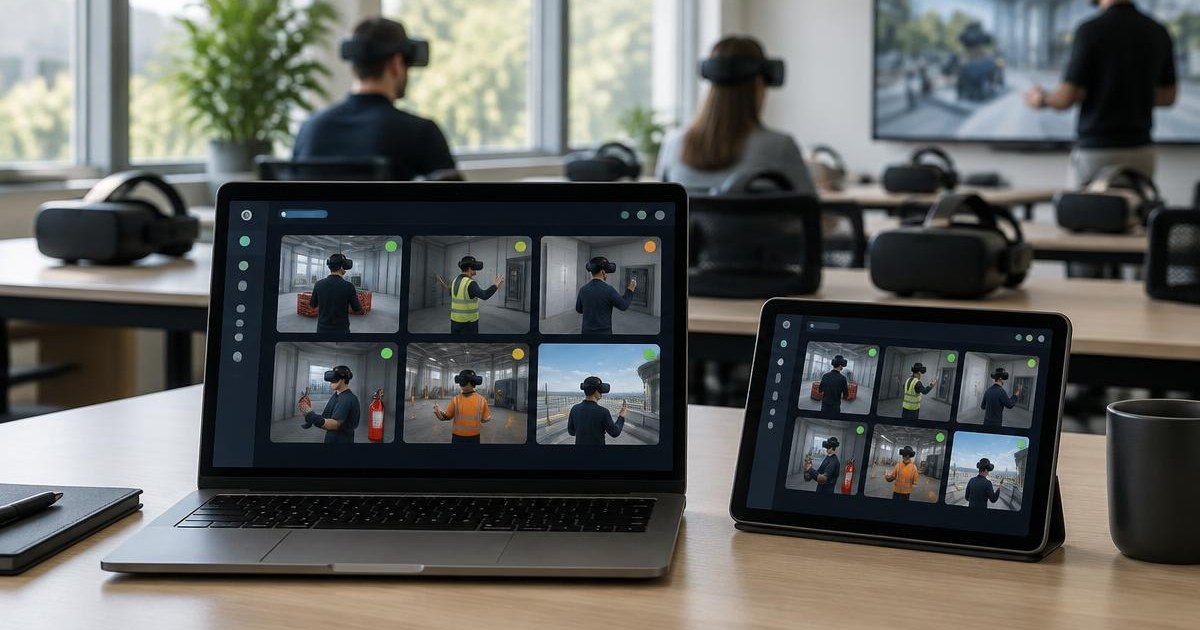

It depends on your computer more than on the software. In our field tests, a Surface Go 4 tablet handles around 6 VR headsets streaming at once, and a Surface Pro-class machine reaches the current OmnicastVR software cap of 16. Lowering resolution, frame rate and bitrate in OmnicastVR makes each stream lighter and raises that ceiling on small machines.
The case that prompted this guide: a demo in Spain, seven headsets in the session, six of them streaming to a Surface Go 4. A few minutes in, the images started to stutter, streams dropped, and the facilitator lost sight of the group. Casting one headset is easy. Showing what six, ten or sixteen learners see, live, is another job entirely.
What Happens When You Stream a VR Headset
Every screen feed follows the same path, in three steps:
- The headset encodes its view as compressed video (H.264).
- Wi-Fi carries the stream to the supervising computer. Everything runs on the local network, so no internet is needed: see how to stream multiple VR headsets without an internet connection.
- The computer decodes the video and displays it in the OmnicastVR grid.
With one headset, the load is negligible. With six, the computer decodes six videos in parallel and the Wi-Fi carries six streams. The load multiplies with the number of headsets, and each of the three steps can become a bottleneck.
Bottleneck 1: The Computer's Processing Power
This is the most common limit. Decoding video in real time takes computing power, and that work adds up headset after headset.
Who does the work depends on your machine. OmnicastVR uses the video decoder of the graphics chip (GPU) when one is available. Otherwise, decoding falls back to the processor (CPU), which then has to do everything on its own.
- A computer with a capable graphics chip takes much of the work off the processor and handles more streams with ease.
- Tablets and ultraportables built around a low-power processor, such as the Surface Go 4, are designed for battery life rather than performance and only have a small integrated graphics chip. They hit their limit quickly.
Our field benchmarks:
| Machine | Observed capacity, simultaneous streaming | How to increase it |
|---|---|---|
| Surface Go 4 | Around 6 headsets | Use the optimized settings described below |
| Surface Pro-class machine | Up to 16 headsets | Reaches the current software cap in our tests |
Past that point, the machine saturates: choppy images, growing delay, then disconnections. Other causes can also cut a stream, such as a headset going to sleep or a lost Wi-Fi connection. Our VR headset streaming troubleshooting guide covers them.
Bottleneck 2: Wi-Fi Bandwidth
Each stream uses part of the network's capacity. The math is simple:
Total bandwidth = bandwidth per headset × number of headsets.
In OmnicastVR, you set a target bitrate for each stream, from 2 to 10 Mbps. The default is 8 Mbps.
| Number of headsets | Minimum (2 Mbps) | Default (8 Mbps) | Maximum (10 Mbps) |
|---|---|---|---|
| 6 | ≈ 12 Mbps | ≈ 48 Mbps | ≈ 60 Mbps |
| 10 | ≈ 20 Mbps | ≈ 80 Mbps | ≈ 100 Mbps |
| 16 | ≈ 32 Mbps | ≈ 128 Mbps | ≈ 160 Mbps |
These are target values, not measurements: treat them as an order of magnitude for sizing your network. One OmnicastVR measurement from October 2026: on a Meta Quest 2, in the lightest mode (2 Mbps, 30 fps, resolution ÷2), one stream uses about 1.9 Mbps. Sixteen headsets in that mode fit in around 30 Mbps.
A router's real throughput is typically well below the speed printed on the box, and it is shared by every connected device. School networks add their own traps, such as device isolation and captive portals, which we cover in our guide to VR in education.
Our router recommendations:
- A router plugged into mains power, not battery-powered: more stable and more powerful.
- A model with external antennas.
- Budget: around €150.
- Use the 5 GHz band, which is generally less crowded than 2.4 GHz.
The trade show trap: dozens of nearby Wi-Fi networks compete for the same frequencies, and interference degrades the connection even with a good router. To build a complete mobile setup, router included, see the off-road kit for VR trainers and presenters.
Bottleneck 3: Memory (RAM)
Each displayed stream takes up memory. On a machine with 4 or 8 GB of RAM, already used by Windows and other open software, the margin shrinks fast. Close everything you don't need during the session.
How to Find Your Machine's Real Capacity
No need to guess. Test it step by step:
- Start streaming 2 headsets and check how smooth the images are.
- Add one headset at a time: 3, then 4, then 5.
- Open Windows Task Manager (Ctrl + Shift + Esc), Performance tab. Watch the CPU, memory and Wi-Fi. On the GPU side, the “Video Decode” graph, when shown, tells you whether the graphics chip is handling the streams.
- Find the threshold: as soon as a component stays at its peak for a sustained period, or the image starts to stutter, you have reached the limit. Go back down one headset: that is your real capacity.
A short spike is not a problem. A sustained one is, because it disrupts every process, starting with streaming. Run this test in the real conditions of your session (same venue, same router), especially before a trade show.
Resolution, Frame Rate and Bitrate Explained
A video is a sequence of images. Three settings decide how heavy it is:
| Setting | What it is | What it changes on screen | What lowering it relieves |
|---|---|---|---|
| Resolution | The number of pixels in each image (width × height) | How fine the details are | The computer (fewer pixels to decode and display) and the network |
| Frame rate | The number of images sent every second: 30 or 60 | How smooth movement looks | The computer (fewer images to decode) |
| Bitrate | The amount of data sent every second to carry the compressed video, in Mbps | Sharpness: too low a bitrate causes blur or visible blocks | The Wi-Fi network |
The three are linked: the bitrate is shared across every image and every pixel. At the same bitrate, a smaller image or fewer frames per second leave more data for each image, so the picture stays clean.
To supervise a session, you don't need cinema-grade video. You need to see what the learner is doing.
OmnicastVR Settings That Raise Capacity
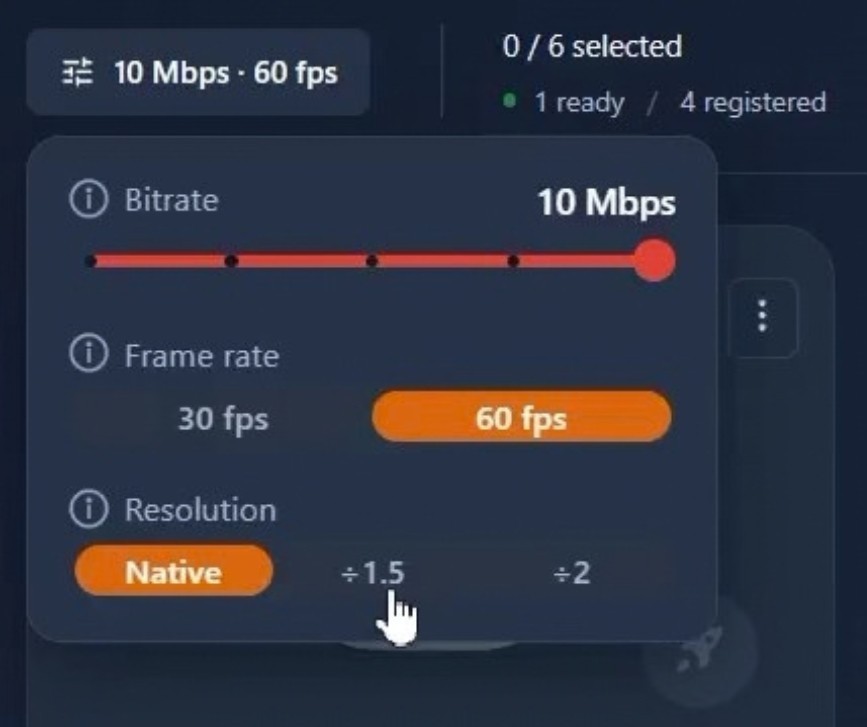
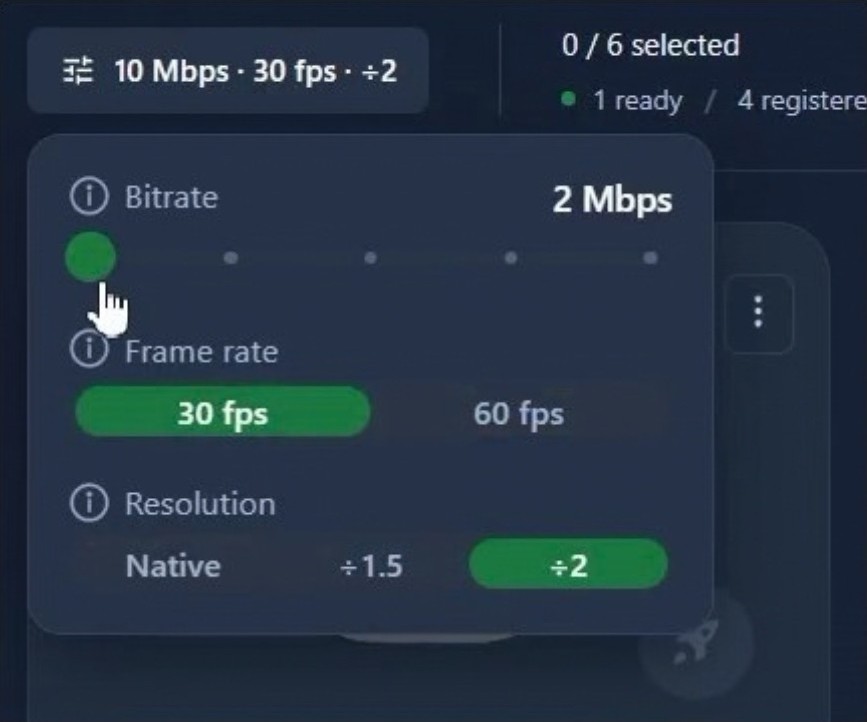
If your machine is struggling, OmnicastVR groups three settings in one panel:
- Lower the resolution. Three options: Native, ÷1.5 and ÷2. At ÷2, the stream image is scaled down by half, so the computer has far fewer pixels to decode and display per headset. The network benefits too: measured by OmnicastVR in October 2026 on a Meta Quest 2, halving the resolution takes one stream from about 7 to 3 Mbps. This is the most effective lever for small tablets.
- Switch from 60 to 30 fps. The computer has half as many images to decode per headset, and 30 fps is more than enough to check what a learner is doing.
- Lower the bitrate. From 10 to 2 Mbps, each stream becomes five times lighter on the network. To the eye, image quality is only roughly halved and remains perfectly usable for supervision.
On a small machine, combine all three, then run the step-by-step test again to find your new ceiling.
These settings only change the screen feed shown on the trainer's computer. Inside the headset, the learner keeps their application at normal quality. For a walkthrough of the interface, see the advanced streaming tutorial.
Which Computer for Which Fleet Size?
- Around 6 headsets: a Surface Go 4-class tablet can be enough, and the optimized settings lighten the load further.
- 7 to 16 headsets: aim for at least a Surface Pro-class machine, or a more powerful laptop.
- In every case: a dedicated router, plugged into mains power and reserved for the session.
Key takeaways
- Capacity depends mostly on the supervising computer: around 6 headsets on a Surface Go 4 and up to the current 16-headset software cap on a Surface Pro-class machine in our October 2026 tests.
- Wi-Fi load is roughly the target bitrate multiplied by the number of headsets: 10 headsets at the default 8 Mbps need about 80 Mbps.
- Resolution ÷2, 30 fps and 2 Mbps form the lightest mode: about 1.9 Mbps per headset, measured by OmnicastVR in October 2026 on a Meta Quest 2.
- Windows Task Manager shows which component saturates first: test by adding one headset at a time.
- Lower settings only affect the trainer's screen feed, never what the learner sees in the headset.
Ready to test your own setup? Download OmnicastVR, connect your headsets and add streams one at a time to find your machine's stable capacity.
Frequently Asked Questions
How many VR headsets can a Surface Go 4 stream at the same time?
In our October 2026 field tests, a Surface Go 4 handled around 6 VR headsets streaming at once with OmnicastVR. Beyond that, its low-power processor saturated and streams began to lag or drop. Lowering resolution, switching to 30 frames per second and reducing bitrate makes each stream lighter. Test your own setup by adding one headset at a time.
How much Wi-Fi bandwidth does each VR headset need for streaming?
With OmnicastVR, each headset uses roughly the target bitrate you set, between 2 and 10 Mbps, with 8 Mbps by default. Multiply by the number of headsets to estimate network demand: 10 headsets at 8 Mbps represent about 80 Mbps of target traffic. In our October 2026 test, a Meta Quest 2 stream used about 1.9 Mbps in the lightest mode.
Why does my VR headset stream start lagging when I add more headsets?
Each extra headset adds one more video for the computer to decode and one more stream for the Wi-Fi to carry. When the processor, graphics chip, memory or router reaches its limit, images can stutter, delay can grow and streams can disconnect. Windows Task Manager, in the Performance tab, helps identify which component remains saturated.
Do I need a graphics card to monitor several VR headsets?
A dedicated graphics card is not required, but capable graphics hardware helps. OmnicastVR uses the graphics chip's video decoder when one is available, taking work off the processor. Without capable hardware decoding, the processor must handle more of the work and practical capacity may fall. Use lighter streaming settings on lower-power machines.
Does lowering the stream quality change what the learner sees in the headset?
No. Resolution, frame rate and bitrate settings change only the screen feed sent to the trainer's computer. The learner's VR application continues at its normal quality inside the headset. Lower settings simply make the supervision view lighter for the computer and local network.
Can I stream VR headsets to a computer without an internet connection?
Yes. OmnicastVR can stream headset screens over a local Wi-Fi network without internet access. A dedicated mains-powered router can provide the local connection, which is useful on industrial sites, at trade shows or in buildings where internet access is unreliable or restricted.