VR Headset Streaming Troubleshooting
Discover the keys to successful VR streaming: network setup, Developer Mode, status management (black screen, frozen image), and connection troubleshooting tips.
Key Points to Understand When Streaming VR Headset Screen Feeds ?
To ensure the headset streaming functionality works correctly, it is essential to follow a few rules that will optimize your sessions:
• Headsets in Developer Mode + Debugging enabled for Meta Quest headsets
• Adjust the sleep mode settings on your headsets if possible according to VR brands
• Both the software and the headsets must be connected to the same Wi-Fi network
How to enable Developer Mode on Meta Quest (USB/ADB)
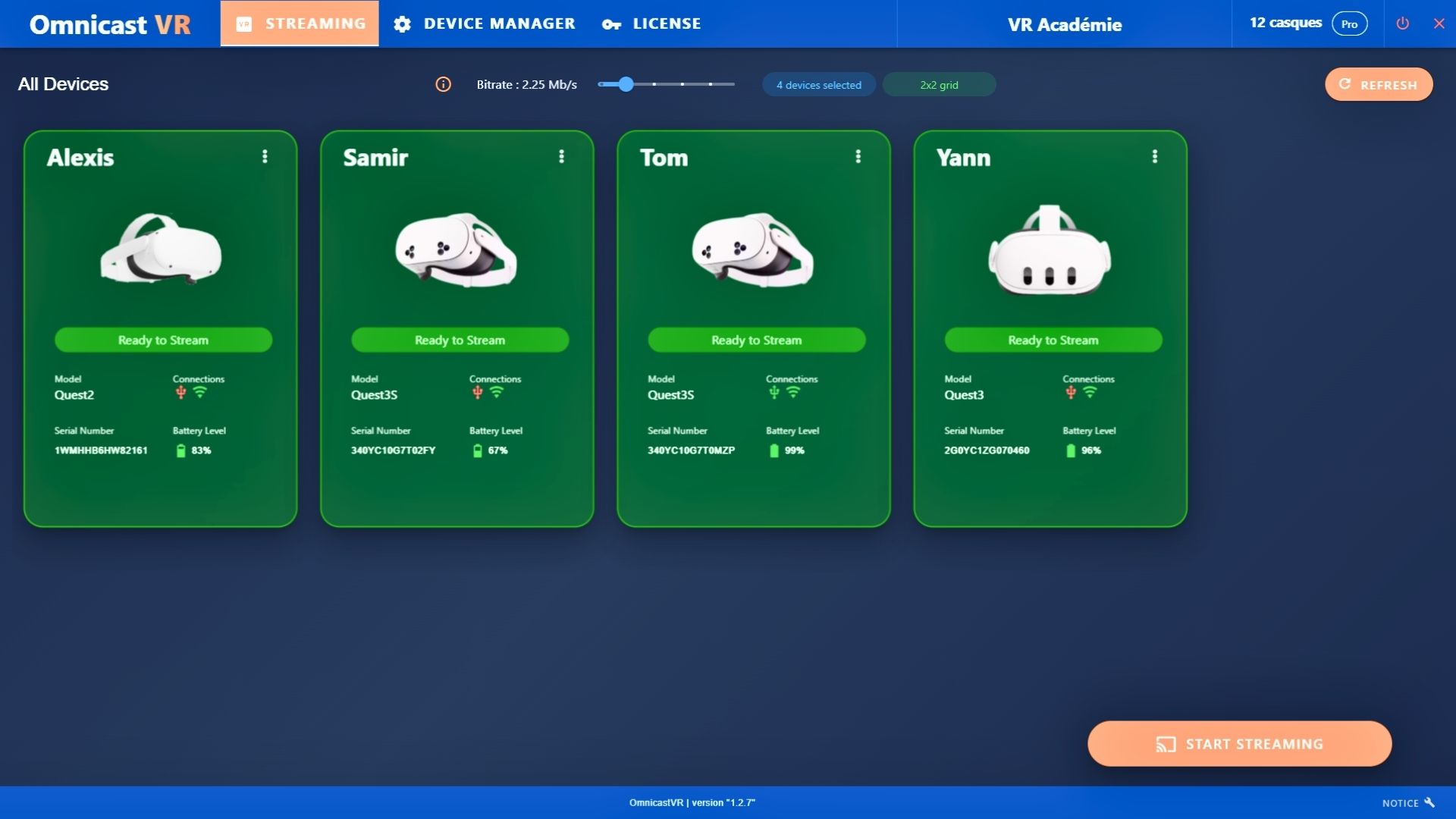
Once the headsets are marked "Ready to Stream," you are ready to launch! Select the headsets you want to stream and click the "Stream" button. The headset screen feeds will then appear on your monitor.
Different Scenarios You May Encounter While Streaming
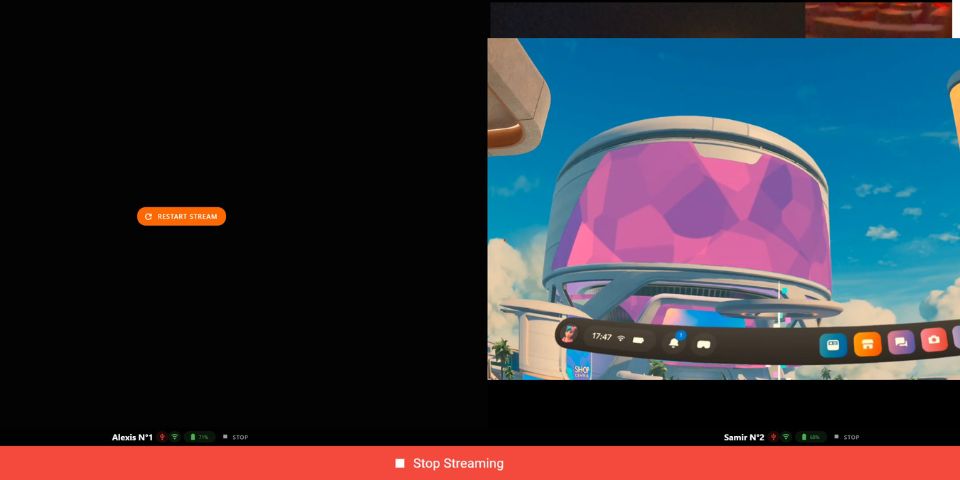
• I have a black screen with mention : Time Out / restart stream
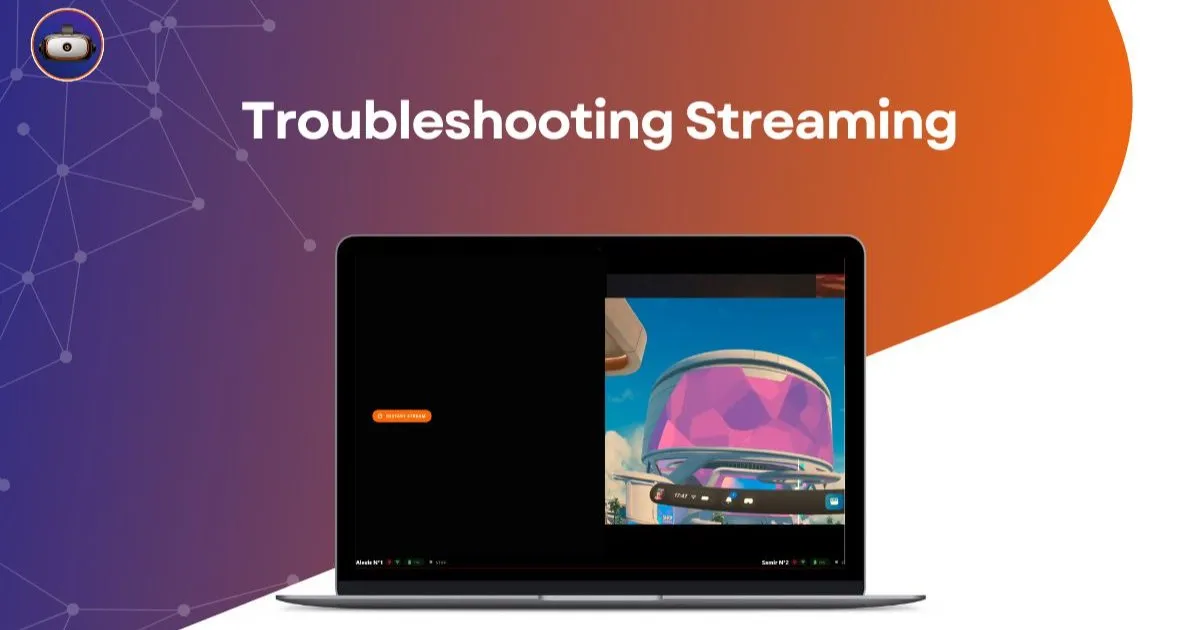
A black screen does not mean your stream has failed; on the contrary, it means the stream is running, but no one is wearing the headset. The headset usually turns off the screen when it is not worn. If the stream displays "Time Out": Once the headset is being worn again, it becomes active. Simply click on RESTART STREAM, and the live image will reappear immediately.
TIPS 1: Never forget that the system reports the exact image of what is happening inside the headset. If the screen is off, you will see a "black screen" image.
TIPS 2: For those testing alone with multiple headsets, place opaque tape (gaffer tape) over the internal sensor (usually between the lenses) to simulate that the headset is being worn.
• I have a frozen image
If the image freezes, it means the headset has gone into sleep mode or has powered off due to low battery.
If it's in Sleep Mode: This is often because the user accidentally pressed the "Power" button. Simply press the power button again, and the image will return automatically. You have up to 1 minute 30 seconds to press the button again.
TIPS: Beyond this timeframe, you risk losing the actual connection, but even if the status shows "Device Disconnected" in the stream, by pressing the power button on the headset, you can relaunch the stream once the status returns to "ready to stream."
If it has Powered Off: This is the only scenario where you will need to reconnect the headset via cable to the software.
TIPS: You have a battery indicator on the stream interface that allows you to act before the power cutoff.
Statuses During Streaming
There are three main statuses that may occur during your streaming session:
• You are viewing all screen feeds (No Status Marked)
In this case, no status is marked—everything is running smoothly.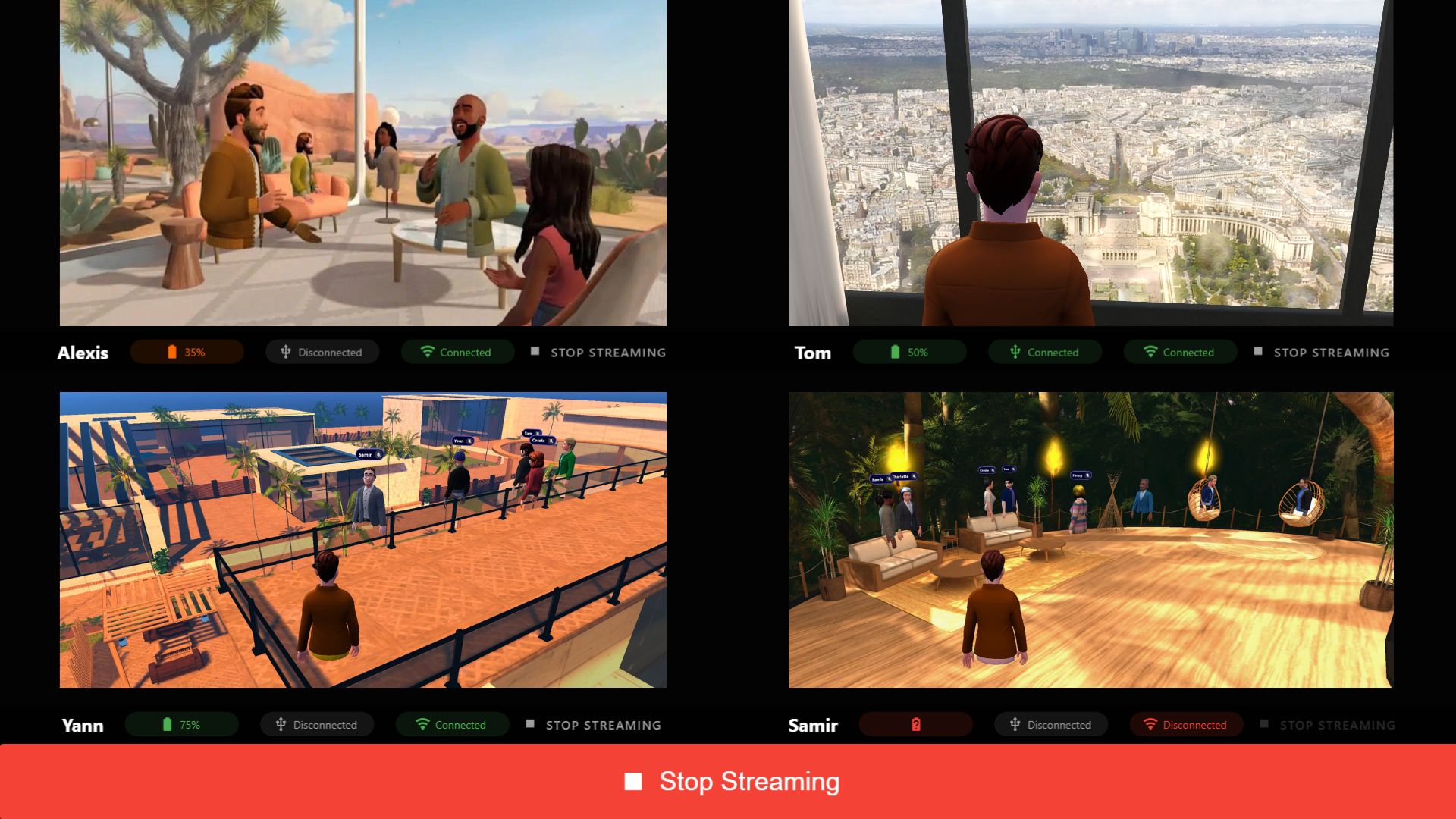
• Black Screen with the status "Time Out / Restart Streaming"
Most of the time, the stream is active, but there is no one wearing the headset, so the headset turns off its screen. But the stream stops in the meantime. It displays a black screen marked "Time Out / Restart Stream." => Once the headset is active again, click on Restart Stream and the image will appear.
Note: Most of the time, it is not necessary to click the "Restart Stream" button. However, if the image does not return, then press "Restart Stream."
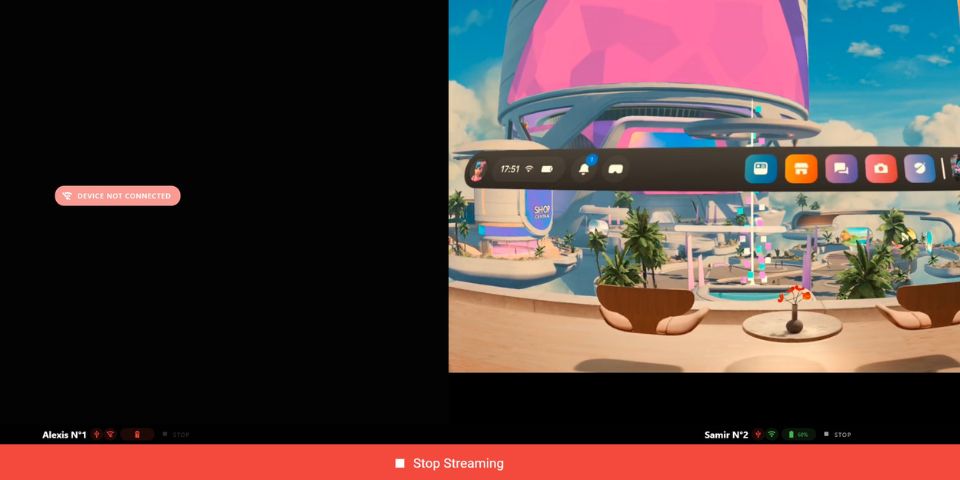
• Black Screen with the status: "Device Not Connected"
Wi-Fi Connection Lost: In this specific case, the headset has lost its Wi-Fi connection. You will need to reconnect it using a USB cable first; the connection will then be automatically restored.
Capacity planning: If streams begin to stutter as the group grows, use our computer and Wi-Fi capacity guide for multi-headset streaming to identify whether the computer, memory or network is the bottleneck.