How to Shut Down All Your VR Headsets Remotely
How to shut down, restart or stop the apps on every VR headset from the OmnicastVR Cockpit, what remote shutdown requires, and an end-of-session checklist.


To shut down all your VR headsets remotely, select them in the OmnicastVR Cockpit and click Shutdown all: every selected headset switches off in one click, from the trainer's computer. OmnicastVR, a VR session control software for Windows, sends the command over USB or the local Wi-Fi network to up to 16 Meta Quest, Pico and HTC Vive headsets. The same toolbar restarts the headsets or stops their apps, and the headsets reconnect on their own when they are switched back on.
How do you shut down every headset at once?
Shutting down every VR headset at once takes two clicks in the OmnicastVR Cockpit: select the headsets, then click Shutdown all in the toolbar.
- Open the Cockpit and select the headsets: click their cards, or use Select ready to select every connected headset.
- Click Shutdown all, the red button of the toolbar. The selected headsets switch off.
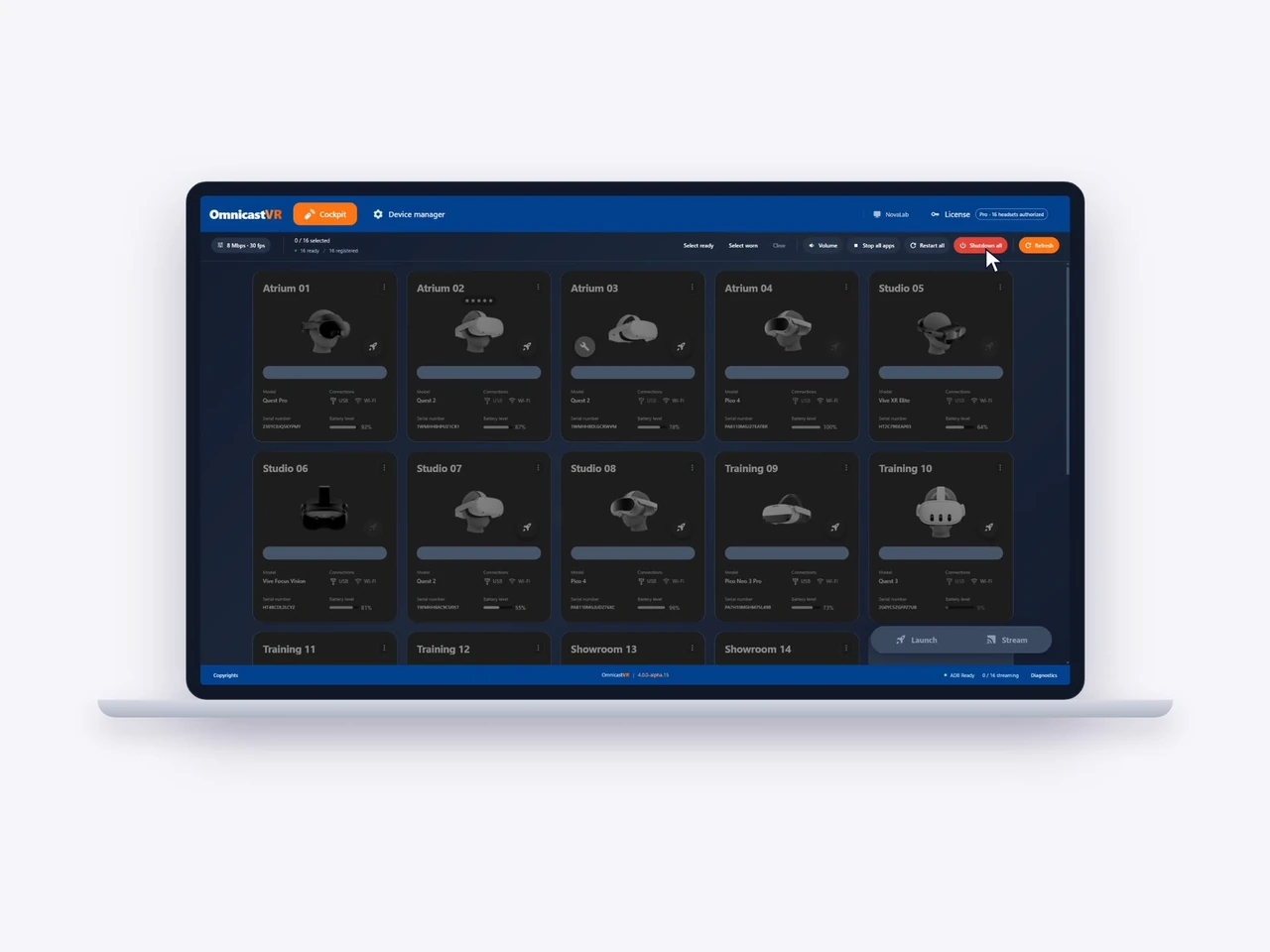
Shutdown and restart are in the Cockpit toolbar only, not in the streaming window.
Should you shut down, restart or stop the apps?
The Cockpit toolbar offers three end-of-activity commands. Choose the one that matches what comes next: another activity, a headset that needs a fresh start, or the end of the day.
| Command | What it does | When to use it |
|---|---|---|
| Stop all apps | Closes the running apps; the headsets stay on and connected | Between two activities or two groups |
| Restart all | Restarts the selected headsets; they reconnect on their own | When a headset needs a fresh start |
| Shutdown all | Switches the selected headsets off | At the end of the session or of the day |
To start a new activity after Stop all apps, see how to launch a VR app on multiple headsets at once.
Does remote shutdown work over Wi-Fi?
Yes. OmnicastVR sends the shutdown command over the local Wi-Fi network, or over USB if a headset is plugged into the computer, with no internet connection. The command only reaches headsets that are switched on and connected to OmnicastVR: a headset whose card shows "Not connected" will not receive it.
If a headset does not appear as connected, see what to check when a VR headset does not connect.
Can you switch the headsets back on remotely?
No. A switched-off headset cannot receive any command, so OmnicastVR cannot switch it back on: press the power button of each headset. Once switched on, the headsets reconnect to OmnicastVR on their own over the same Wi-Fi network, provided the Companion was set up during their first connection.
What should you check at the end of a session?
A short end-of-session routine keeps the headsets ready for the next group and saves time at the next start.
- Glance at the battery levels on the headset cards, to know which headsets to charge first.
- Stop the apps with Stop all apps.
- Shut down the headsets with Shutdown all.
- Put the headsets on charge and store them.
- Check the usage statistics in the OmnicastVR portal, next to your machines and licences, if you need them.
🎯 The integrator's opinion on the ground: "At VR-Academie.fr, our Novalab entity has over 10 years of field expertise and thousands of animated sessions. During a major event bringing together 16 Meta Quest VR headsets at a trade show, the rotation time between each group was only two minutes. Using OmnicastVR's Shutdown all button allowed us to instantly power off the fleet remotely at the end of each session, saving valuable time and preventing device overheating in front of visitors."
Key takeaways
- Select the headsets in the Cockpit and click Shutdown all to switch them all off in one click.
- Stop all apps closes the apps between activities; Restart all gives the headsets a fresh start.
- The command travels over the local Wi-Fi network or USB, without internet, to headsets that are on and connected.
- Headsets cannot be switched back on remotely; once switched on by hand, they reconnect to OmnicastVR on their own with the Companion.
For the whole session workflow, from connection to shutdown, read our guide on how to manage multiple VR headsets.
Try it on your own headsets: the Free plan supervises 1 to 2 headsets, free forever, with no credit card required.
Frequently Asked Questions
Can OmnicastVR shut down Pico and HTC Vive headsets remotely?
Yes. OmnicastVR shuts down Meta Quest, Pico and HTC Vive headsets from the same Cockpit, including headsets of different brands in the same session. Select the headsets, then click Shutdown all. The command reaches every selected headset that is switched on and connected to OmnicastVR, over USB or the local Wi-Fi network.
Does remote shutdown need an internet connection?
No. OmnicastVR sends the shutdown command from the trainer's computer to the headsets over the local Wi-Fi network, or over USB, with no cloud service in between. The computer and the headsets only need to be on the same network. Internet is used to activate the licence and install updates, at least once every 30 days.
What happens to an app that is running when I shut down the headsets?
Shutting down a headset closes the app that is running on it, like switching it off by hand. If the app needs to save the learner's progress or results, end the activity in the app first, then shut the headsets down with Shutdown all from the OmnicastVR Cockpit.
Will the headsets reconnect at the next session?
Yes. After a remote shutdown, switch each headset back on with its power button: it reconnects to OmnicastVR on its own over the same Wi-Fi network if the Companion was set up during its first USB-C connection. There is no cable to plug in again and no action needed in the software.