Do VR Headsets Need Internet? How to Run a Group Session Offline
Standalone VR headsets run installed apps without internet. Here is what still needs a connection, and how one trainer sees and controls a whole group on a local network.
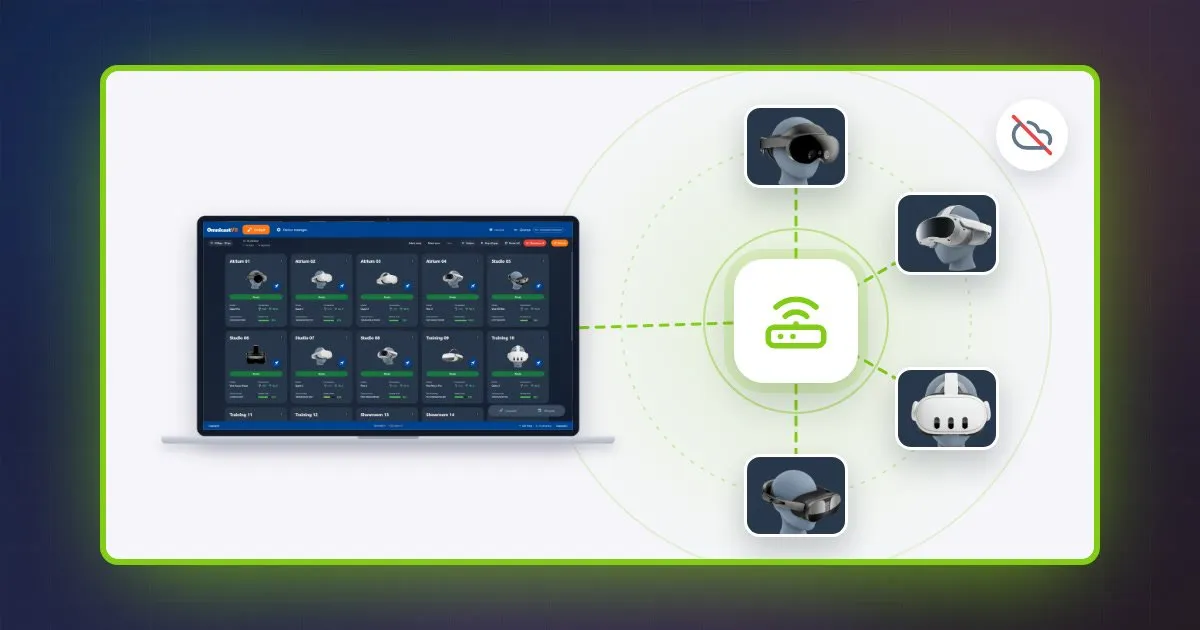
Do VR headsets need internet? Not for day-to-day use: a standalone headset such as a Meta Quest runs its installed apps, Meta Store apps included, without any connection. Internet is only needed to set up the headset, download apps, install updates and use online features. To run and supervise a whole group offline, OmnicastVR, VR session control software for Windows, connects up to 16 headsets and the trainer's PC on a local Wi-Fi network that does not need internet access.
Do VR headsets need internet?
A standalone VR headset needs internet for its setup, its downloads and its updates, but not to run apps that are already installed on it. Once a headset is ready, a training app that does not rely on online features runs the same way in a factory, on a building site or in a room with no network at all.
| Task on a standalone headset | Internet needed? |
|---|---|
| First setup and account pairing | Yes, once |
| Downloading apps from the Meta Store | Yes |
| System and app updates | Yes |
| Multiplayer, social and cloud-based apps | Yes |
| Meta's built-in casting to a phone or a browser | Yes |
| Running Meta Store apps already installed | No |
| Running your own APK files | No, unless the app uses online features |
| Videos and files stored on the headset | No |
One limit depends on the training app, not on the headset: an app that logs learners in online or uploads scores to a cloud platform needs a connection for those features. Check this with the app's publisher, and test the app offline before a session (see the test at the end of this guide).
For a group, the real question is different: the headsets run offline, but can the trainer still see and control them?
Can a trainer see and control every headset without internet?
Yes, a trainer can see and control every VR headset without internet, provided the supervision tool works on a local network. OmnicastVR streams and controls the headsets over a local Wi-Fi network: images go straight from the headsets to the trainer's PC, and commands from the PC to the headsets, without passing through the internet.
| What the trainer does | Without internet, with OmnicastVR |
|---|---|
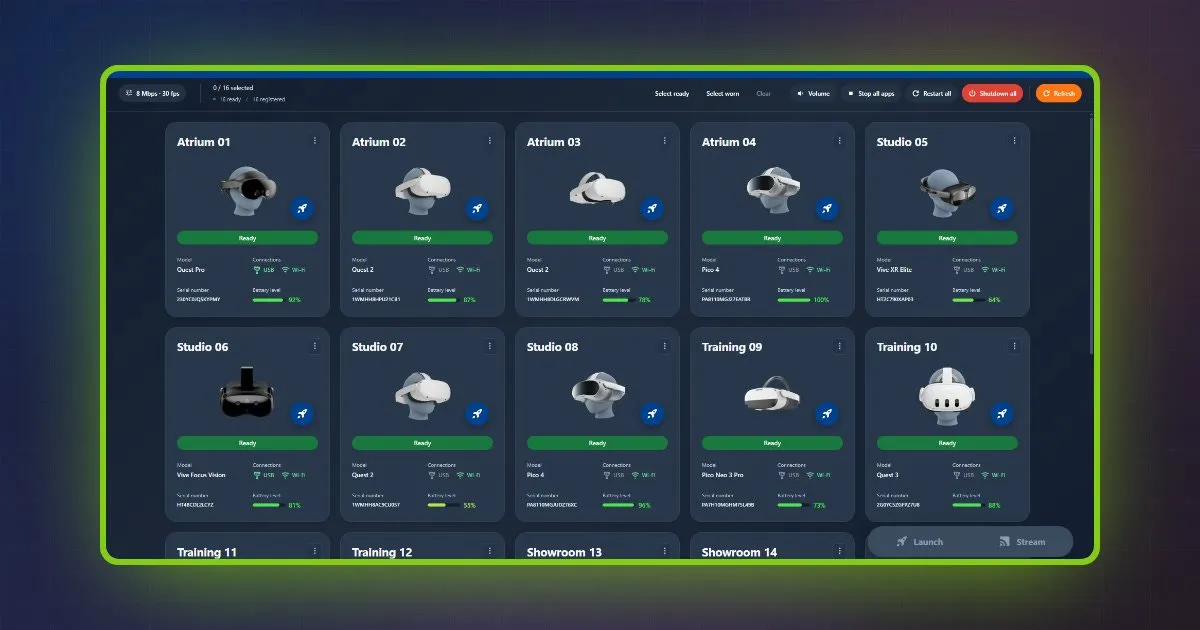
| See every learner's view live, up to 16 headsets on one screen | Yes (Supervisor mode) |
| Zoom in on one learner who needs help | Yes (Focus mode, one headset full screen) |
| Launch an app on one headset or on all of them | Yes |
| Check battery levels | Yes |
| Adjust the volume, stop the apps | Yes |
| Restart or shut down the headsets | Yes, one headset or all at once |
| Install your own APK on several headsets | Yes, over USB or the local Wi-Fi |
| Reconnect a headset after a restart | Yes, on its own, through the OmnicastVR Companion |
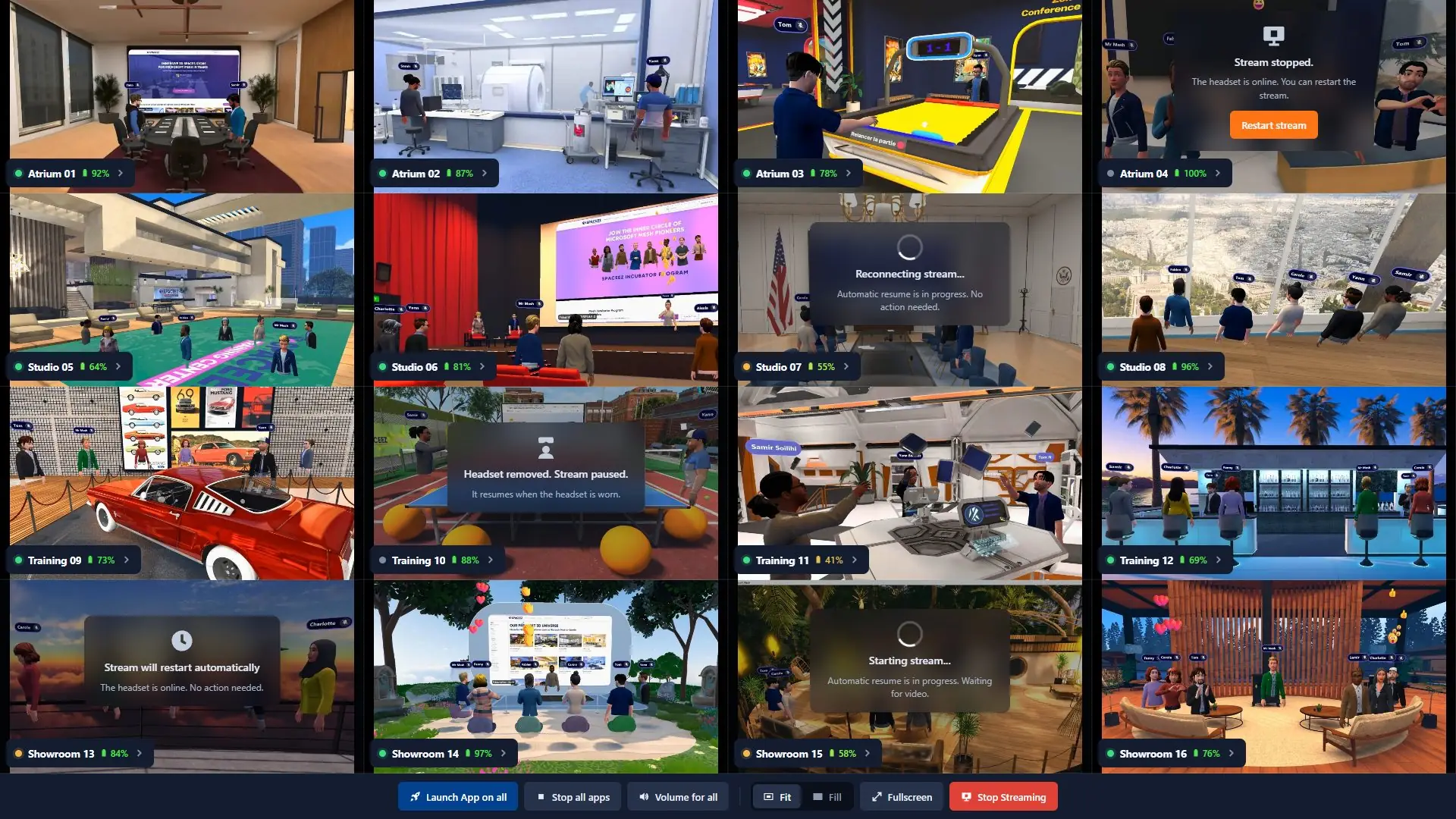
These commands act on the headsets and their apps. What happens inside a training scenario, such as pausing a step or resetting an exercise, is handled by the training app itself. OmnicastVR runs Meta Quest, Pico and HTC Vive headsets in the same session, from a Windows 10 or 11 (64-bit) PC. Every step of a session is detailed in how to manage multiple VR headsets.
Do cloud MDM tools like ManageXR work without internet?
ManageXR, a cloud-based mobile device management (MDM) tool for VR headsets, relays commands and screen streams through its own servers, so its headsets need internet for live control. ManageXR documents this in its help center, as checked in November 2026:
- Commands: a headset does not receive commands until it is switched on and connected to the internet.
- Casting: ManageXR Casting is relayed through ManageXR's servers.
- Rooms: live monitoring works as long as each device has an active internet connection; a headset that goes offline stops showing its screen until it reconnects.
- Network: ManageXR states that it is cloud-based and "will not work on closed/on-prem networks."
ArborXR, another VR MDM, added an offline mode in July 2025 for headsets managed with Meta Horizon Managed Services: users can begin sessions without an internet connection. ArborXR's Remote Assistance, which shows a headset's screen, runs from the ArborXR Web Portal; its documentation does not say whether it works without internet.
An MDM and OmnicastVR work together. The MDM prepares the headsets while they are online: enrolment, updates, kiosk mode. OmnicastVR then runs the session on the local network, on headsets managed by Meta Horizon Managed Services, ArborXR or ManageXR, as long as USB debugging is allowed in the MDM configuration. The differences are detailed on the VR MDM page.
Which local network do you need?
The PC and the headsets only need to share a local Wi-Fi network, and that network does not need any internet connection.
| Network | Headsets | Verdict |
|---|---|---|
| Dedicated Wi-Fi router, ideally Wi-Fi 6 or 6E | Up to 16 | Recommended: you control it, and it keeps the same network name from site to site |
| The site's Wi-Fi, with or without internet access | Depends on the site | Works if the PC and the headsets can reach each other; guest networks often isolate devices from one another |
| A phone's hotspot | 1 or 2 | Not recommended: only with at least 4 bars out of 5 in 4G or 5G |
Each stream uses up to 10 Mbps of the local Wi-Fi, never of an internet connection. How many headsets one computer can display depends on its power and on the Wi-Fi: see how many VR headsets your PC, laptop or tablet can stream.
What do you need to do online before going offline?
Four tasks need internet and are done before going offline: setting up the headsets, installing the apps and updates, activating the OmnicastVR licence, and checking that licence at least once every 30 days.
- Set up each headset with its account, while connected to the internet.
- Meta Quest only: enable developer mode once on each headset. Pico and HTC Vive headsets need no developer mode.
- Install every app the session needs, Meta Store apps and your own APKs, and run the system and app updates.
- Install OmnicastVR on the Windows PC and activate the licence.
- Plug each headset into the PC once with a USB-C data cable; after that, the OmnicastVR Companion reconnects it over Wi-Fi on its own, even after a restart or sleep. Step by step: how to connect VR headsets to OmnicastVR.
- Keep the licence checked: OmnicastVR needs an internet connection at least once every 30 days to check its licence. A counter at the top right of the software shows how many days are left; at zero, OmnicastVR asks for an internet connection the next time it is opened.
How do you test an offline setup before a session?
To test an offline VR setup, unplug the internet and restart the PC and every headset before the session: a setup that survives a cut during a session is not the same as a setup that starts from cold with no network.
- Cut the internet: unplug the router's internet cable, or use a travel router with no connection.
- Restart everything: the PC and every headset.
- Check the connections: every headset appears as connected in OmnicastVR.
- Open the live view: every headset streams in Supervisor mode.
- Launch the training app on every headset and run a short exercise, to check that the app itself never asks for a connection.
- Restart one headset during the test: it should reconnect to OmnicastVR on its own.
- Read the licence counter at the top right: enough days must be left for the whole trip.
The kit to take on site, the setup steps and what to do if the Wi-Fi drops during a session are covered in VR training in the field, without internet. Ready-made cases and kiosks are listed on the VR training kits page.
Key takeaways
- A standalone VR headset runs installed apps, Meta Store apps included, without internet; setup, downloads, updates, online features and Meta's built-in casting need a connection.
- OmnicastVR lets one trainer see, launch, restart and shut down up to 16 headsets over a local Wi-Fi network, with no internet.
- ManageXR, a cloud-based MDM, needs internet for live commands and screen viewing.
- A dedicated Wi-Fi router is the most reliable network; a phone's hotspot only suits 1 or 2 headsets.
- OmnicastVR needs internet at least once every 30 days to check its licence, and a counter shows the days left.
- Before a session, test the kit from cold: internet unplugged, PC and headsets restarted.
Test it before your next session: the Free plan runs 1 to 2 headsets, free forever, with no credit card required. Download OmnicastVR for free
Frequently Asked Questions
Can you use a Meta Quest without Wi-Fi?
Yes, a Meta Quest runs its installed apps without Wi-Fi or internet, Meta Store apps included. A connection is only needed for the first setup, for downloading apps, for updates and for online features such as multiplayer. To supervise several headsets from a PC, the headsets and the PC need a shared local Wi-Fi network, which does not need internet access.
Do Meta Store apps work offline once installed?
Yes, a Meta Store app that is already installed on the headset launches and runs without internet, including when OmnicastVR launches it on several headsets at once. Features that depend on an online service, such as multiplayer, online logins or cloud saves, only work when the headset is connected. Test each training app offline before relying on it.
Can you cast a VR headset to a PC without internet?
Yes, you can cast VR headsets to a PC without internet, but not with Meta's built-in casting, which needs a connection. OmnicastVR casts headsets to a Windows PC over a local Wi-Fi network: up to 16 Meta Quest, Pico or HTC Vive headsets on one screen. The PC and the headsets only need to be on the same network, such as one created by a dedicated router.
How long can OmnicastVR run without internet?
OmnicastVR can run without internet for up to 30 days, because it needs a connection at least once every 30 days to check its licence. The days left are shown at the top right of the software. Once the counter reaches zero, OmnicastVR asks for an internet connection the next time it is opened. A few moments online are enough for the check, even through a phone's hotspot.
Can I use my phone's hotspot instead of a router?
Yes, a phone's hotspot can replace a router, but only for 1 or 2 headsets, with at least 4 bars out of 5 in 4G or 5G, and it is not recommended. On sites with a weak mobile signal, it is often not an option at all. For a group, a small dedicated Wi-Fi router is more reliable and needs no internet connection.
Do ArborXR or ManageXR work without internet?
ManageXR does not work without internet for live control: it is a cloud-based platform, headsets receive commands only when connected, and casting is relayed through its servers. ArborXR has an offline mode that lets users begin sessions without internet on Meta Horizon Managed Services headsets. OmnicastVR runs the session on the local network, alongside either MDM, as long as USB debugging is allowed.