VR Training in the Field, Without Internet
How to run VR training on a construction site, in a factory or at a client's office without internet: a local Wi-Fi network, a mobile kit and OmnicastVR.
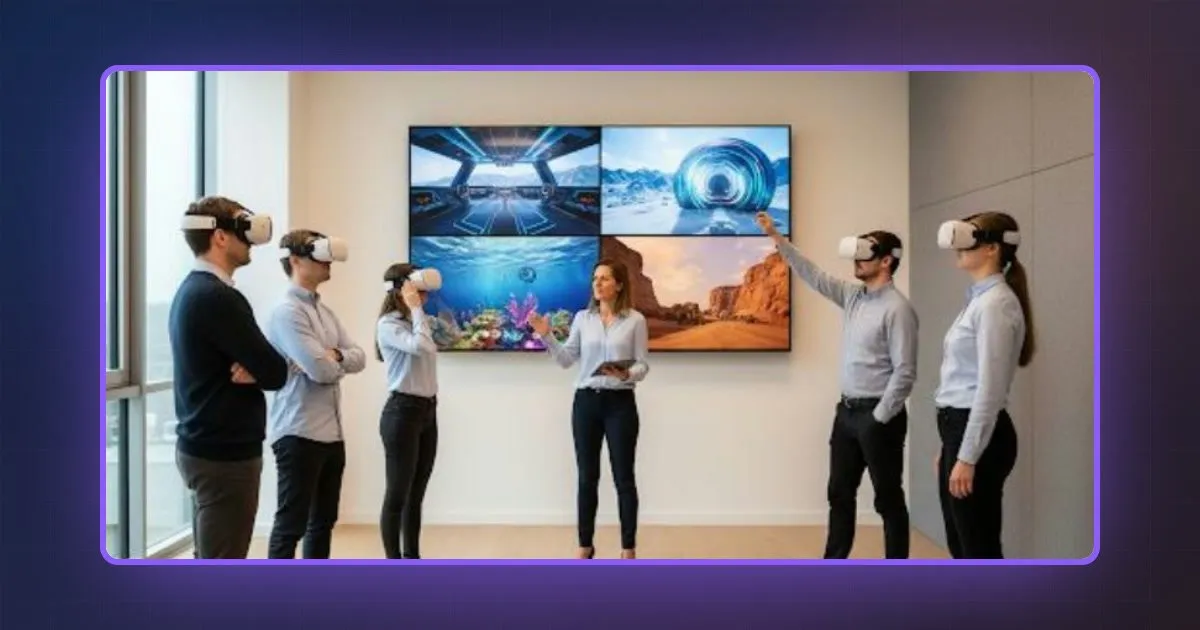
To run VR training in the field without internet, bring your own local Wi-Fi network and a session control tool that works on it. OmnicastVR, a VR session control software for Windows, streams and controls up to 16 VR headsets over a local Wi-Fi network, so a factory, a construction site or a client's meeting room without reliable Wi-Fi is enough. A travelling trainer carries a tablet or laptop and a small router, and runs the session exactly as in a training room.
Can a trainer supervise VR learners without internet?
Yes, a trainer can see and guide every VR learner live without internet, as long as the headsets and the trainer's PC share a local Wi-Fi network. Standalone headsets already run downloaded training apps offline; what usually stops without internet is the trainer's live view, because most tools send headset images through a cloud service.
That matters in the field, where venues rarely offer a usable network: construction sites, factories, warehouses and remote sites have weak or filtered Wi-Fi, and a client's network is never under the trainer's control. OmnicastVR runs on a local Wi-Fi network instead: streams and commands go from the headsets to the trainer's PC and never leave it. After a one-time USB-C setup, the OmnicastVR Companion reconnects each headset to the network on its own, even after a restart. Internet is only needed from time to time to activate the licence and install updates, with a reconnection at least every 30 days. What a headset still needs internet for, and how to test a kit offline before a session, is explained in do VR headsets need internet?
What goes in a mobile VR training kit?
A mobile VR training kit holds everything needed to create a session anywhere: a Windows computer, a router, a cable for the venue's screen and a bag or case for the headsets.
| Item | Role |
|---|---|
| Windows tablet or laptop (for example a Microsoft Surface) | Runs OmnicastVR: live view and control of every headset |
| Dedicated Wi-Fi router, ideally Wi-Fi 6 or 6E | Creates the local network for the PC and the headsets |
| USB-C to HDMI cable | Shows the headset mosaic on the venue's TV or projector |
| Transport bag or case | Carries and protects the headsets from site to site |
A phone hotspot does not replace the router: it only holds one or two headsets, with a very strong 4G or 5G signal. A small tablet streams fewer headsets than a laptop: check how many VR headsets your PC, laptop or tablet can stream. For more protection, the Ino VR Connected Case and the VR Académie XR Kiosk integrate OmnicastVR for transport and fast set-up: see the OmnicastVR and INO VR kit and the VR training kits page.
How do you set up a VR session on site?
OmnicastVR runs an on-site session in the same steps as a training room session, once the router is switched on.
- Prepare the space: clear at least 1 m by 1 m per learner for seated or standing exercises, more when learners walk, and find a power outlet for the router and the computer.
- Set up the network: switch on the router and connect the PC to its Wi-Fi.
- Connect: switch on the headsets; they join the network and appear in OmnicastVR on their own.
- Launch: start the training app on every headset in one click.
- Supervise: follow every learner live, and put the mosaic on the site's screen if there is one.
- Pack up: shut down every headset in one click and put them back in the case.

Laying out a permanent room follows the same rules: see how to set up a VR training room.
What happens if the Wi-Fi drops during a session?
If the Wi-Fi drops during a session, the headsets reconnect to OmnicastVR on their own as soon as the network is back, provided the OmnicastVR Companion is installed on them; the apps keep running on the headsets in the meantime. The Companion is installed during the one-time USB-C connection of each headset: a headset without the Companion does not reconnect on its own. Because the session runs on the trainer's own router, an internet outage on the site has no effect on it.
- Weak or intermittent internet: no impact, since the session does not use internet.
- Router switched off or out of range: the live view pauses; it comes back when the headsets rejoin the network.
- Headset asking for authorization after a restart: the wearer accepts the prompt inside the headset.
Keeping the router in the same room as the learners, with a clear line of sight, avoids most drops.
Can you use the same kit for client demos and trade shows?
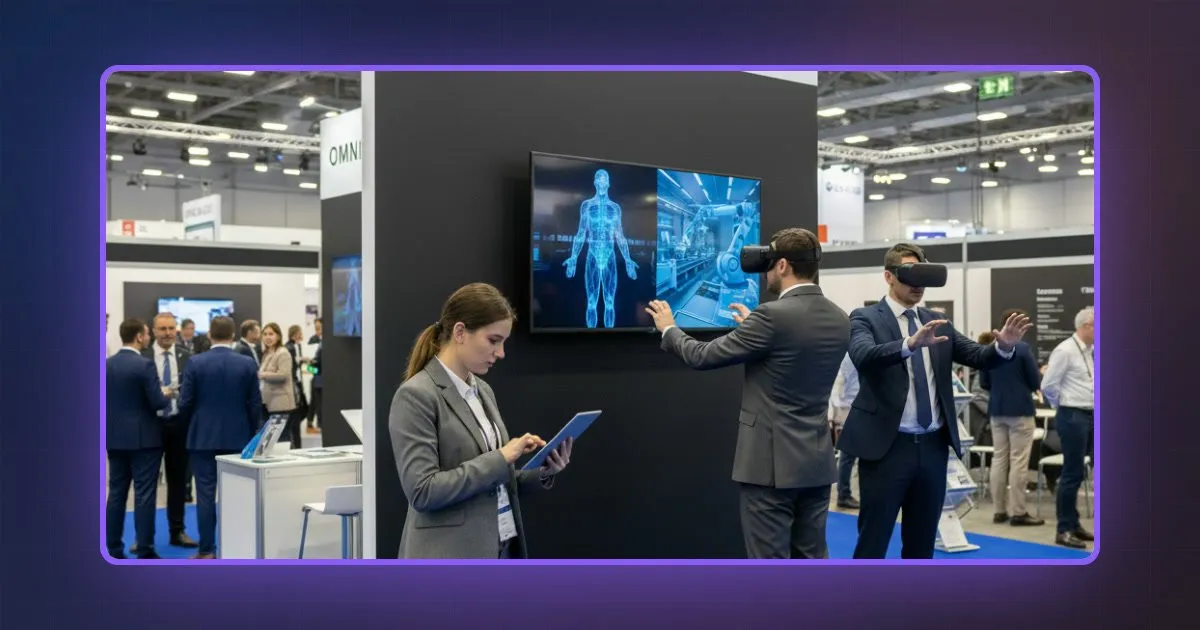
Yes. The same mobile OmnicastVR kit runs client demos and trade show stands, where the venue's Wi-Fi is often saturated. The demonstrator guides visitors tablet in hand, seeing what each visitor sees, while the headset views on a large screen draw in the audience.
- Precise guidance: the demonstrator points out key features at the exact moment the visitor sees them.
- A show for the stand: several headset views on one screen attract passers-by.
- Quick turnover: the demonstrator restarts the experience between two visitors without touching the headset.
- Mixed brands: Meta Quest, Pico and HTC Vive headsets run in the same session, whatever the client wants to try.

See it on a stand: VR demo at a trade show with Omnicast VR. Field sessions by sector, from safety training to events, are summed up on the use cases page; for fire drills on site, read VR fire extinguisher training for 10 learners.
Key takeaways
- OmnicastVR needs a local Wi-Fi network shared by the PC and the headsets, not an internet connection.
- A dedicated router makes the trainer independent of the venue's network; a phone hotspot only holds one or two headsets.
- A mobile kit holds a Windows tablet or laptop, a router, an HDMI cable and a bag or case.
- With the OmnicastVR Companion installed, headsets reconnect on their own, at each new site and after a Wi-Fi drop.
- The same kit runs field training, client demos and trade show stands.
Test it before your next trip: the Free plan runs 1 to 2 headsets, free forever, with no credit card required. Download OmnicastVR for free
For every step of a session, read how to manage multiple VR headsets: the complete guide.
Frequently Asked Questions
Can I run a VR training session with no internet at all?
Yes, a VR training session runs with no internet at all with OmnicastVR, as long as the PC and the headsets share a local Wi-Fi network, for example from your own router. Streams and commands stay on that network. Internet is only needed from time to time to activate the licence and install updates, with a reconnection at least every 30 days.
Do I need my own router for field VR training?
A dedicated router is the safest option for field VR training. It creates a private Wi-Fi network for the PC and the headsets, so the session does not depend on a venue's network that may be weak, filtered or saturated. OmnicastVR also works on an existing local network, provided the PC and the headsets can see each other on it.
Can I use my phone's hotspot instead of a router?
A phone hotspot is not recommended for field VR training with OmnicastVR. It only works for one or two headsets, and only with a very strong 4G or 5G signal. For a group, a small dedicated Wi-Fi router is more reliable and keeps the same network name from site to site, so the headsets reconnect as soon as they are switched on.
What computer should a travelling VR trainer use?
A travelling VR trainer needs a Windows 10 or 11 (64-bit) tablet or laptop to run OmnicastVR. A small tablet is light to carry but streams fewer headsets at once; a more powerful laptop reaches the 16-headset maximum more easily. Lowering the stream quality in OmnicastVR lets a small machine stream more headsets.
Do the headsets need to be set up again at each new site?
No, the headsets do not need a new setup at each site. After the one-time USB-C connection, the OmnicastVR Companion reconnects each headset to the network on its own. Using the same router everywhere keeps the same network name, so the headsets reconnect as soon as they are switched on. If a headset asks for authorization, the wearer accepts the prompt inside the headset.