VR Training Room: How to Set It Up and Supervise Every Learner
What a VR training room needs (space per learner, one Wi-Fi network, headset charging) and how one trainer sees and guides every learner from one PC.
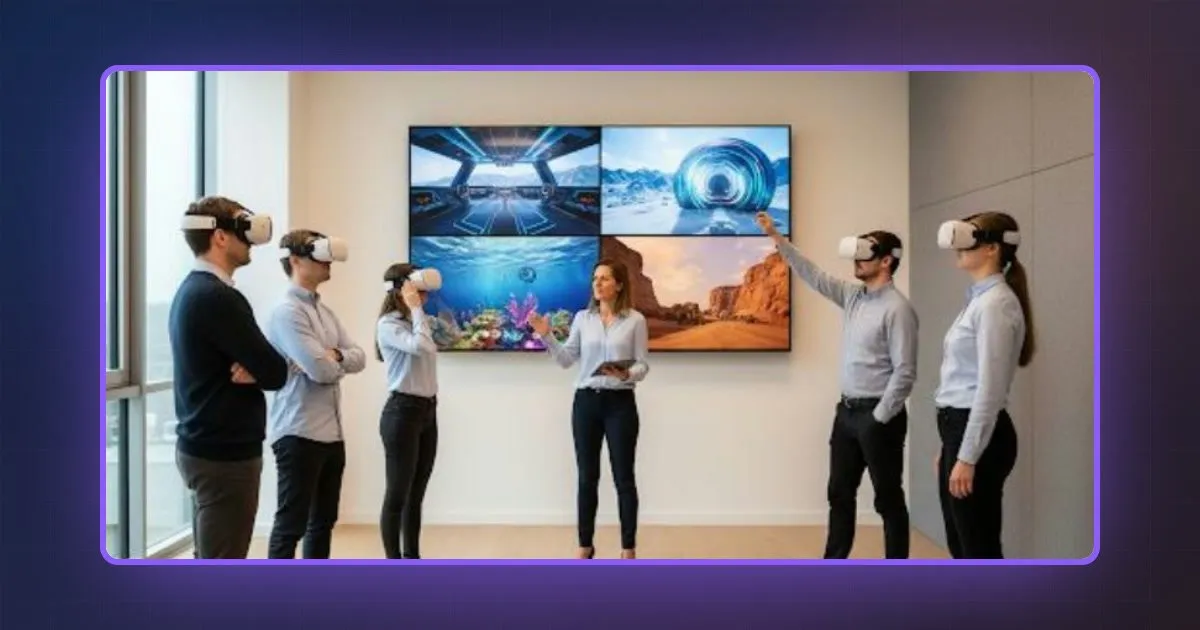
A VR training room works when four things are ready: enough floor space for each learner, one Wi-Fi network for the headsets and the trainer's PC, a place to store and charge the headsets, and a way for the trainer to see every learner. OmnicastVR, a VR session control software for Windows, covers the last point: it streams up to 16 VR headsets live to the trainer's PC over the local network, with no internet needed during the session. The trainer starts the same app for the whole group, spots the learner who is stuck and guides them by voice, without anyone taking off their headset.
What makes a VR training room work?
A VR training room is a room where one trainer runs a group of learners in VR headsets, in a fixed place, session after session. It works when the space, the network, the storage and the trainer's view are planned before the first lesson.
| Element | What to plan |
|---|---|
| Floor space | A clear area per learner, sized for standing or seated use |
| Network | One Wi-Fi network shared by the headsets and the trainer's PC |
| Storage and charging | A cabinet, kiosk or case that charges every headset between sessions |
| Trainer's view | Every headset on one screen, and the room's screen or projector for the group |
| Content | The same training app installed on every headset |
Supervision is the part that is often missing: once the headsets are on, the trainer cannot see what learners see, and every learner is at a different point of the scenario. Trainers feel it: a 2024 doctoral thesis on 155 trainers found that their main fears are losing control of the session and losing learners' attention, as covered in what research says about VR training effectiveness.
How much space does each learner need?
Each learner needs at least 1 metre by 1 metre for seated or standing-in-place use, and Meta recommends at least 2 by 2 metres of clear space for exercises where learners walk around. These figures come from Meta's guidance on the Meta Quest boundary: the stationary mode creates a default area of 1 m by 1 m, and the roomscale mode needs an unobstructed space of at least 2 m by 2 m.
- Seated or standing exercises: the most compact layout, suited to rooms that host many learners at once.
- Exercises where learners move: plan 2 m by 2 m per learner, and keep a walkway for the trainer.
- Between learners: leave enough room so that two learners' arms cannot meet, and mark each area on the floor.
The space needed depends on the training app: check whether it is played seated, standing or walking before arranging the room.
What network does a VR training room need?
A VR training room needs one Wi-Fi network shared by the headsets and the trainer's PC; it does not need internet during the session with OmnicastVR. A dedicated Wi-Fi router in the room is the most reliable option, because the session then does not depend on a building network that may be filtered or busy.
A phone hotspot is not recommended: it only holds one or two headsets with a very strong 4G or 5G signal. Internet is only needed from time to time to activate the licence and install updates, with a reconnection at least every 30 days. How many headsets a computer can stream at once is explained in how many VR headsets your PC, laptop or tablet can stream.
How do you store and charge the headsets?
Headsets are stored and charged in a cabinet, a kiosk or a case, so that they are ready at the start of each session. In a permanent room, a charging kiosk or custom furniture keeps them in place; for a room that changes use, a mobile case works better.
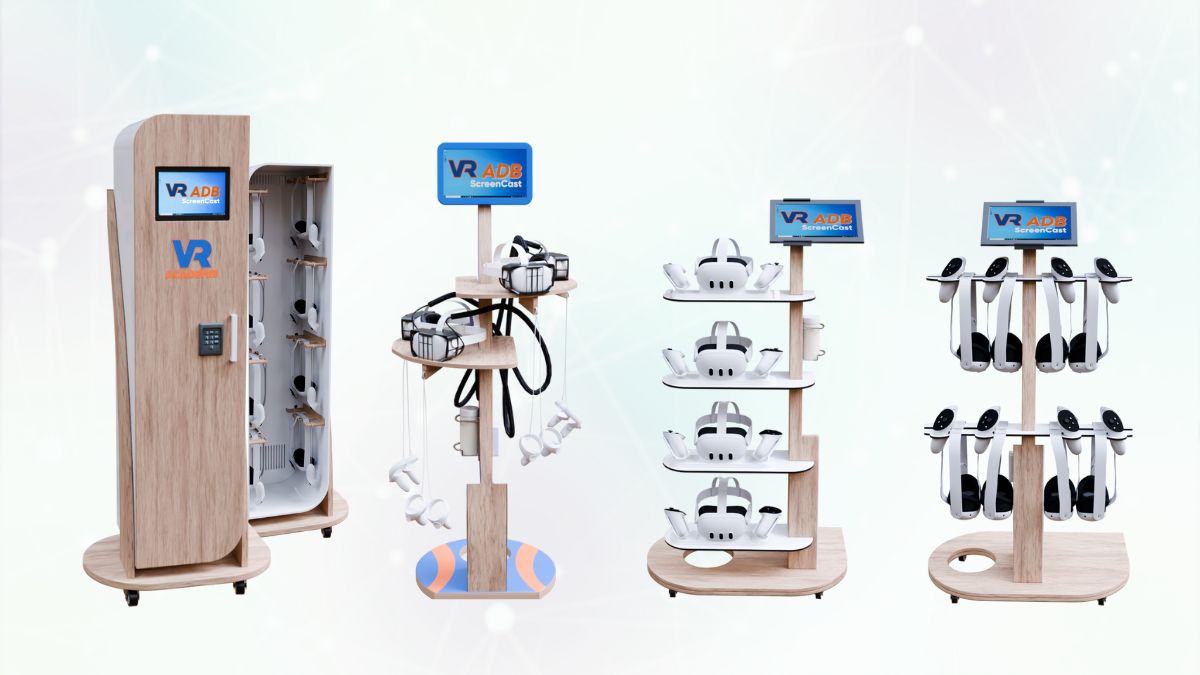
During the session, OmnicastVR shows the battery level of every headset, so the trainer swaps a headset before it runs out instead of discovering it mid-exercise. VR Académie, which belongs to NOVALAB like OmnicastVR, designs kiosks, cases and furniture: see the VR training kits page.

How does the trainer see every learner?
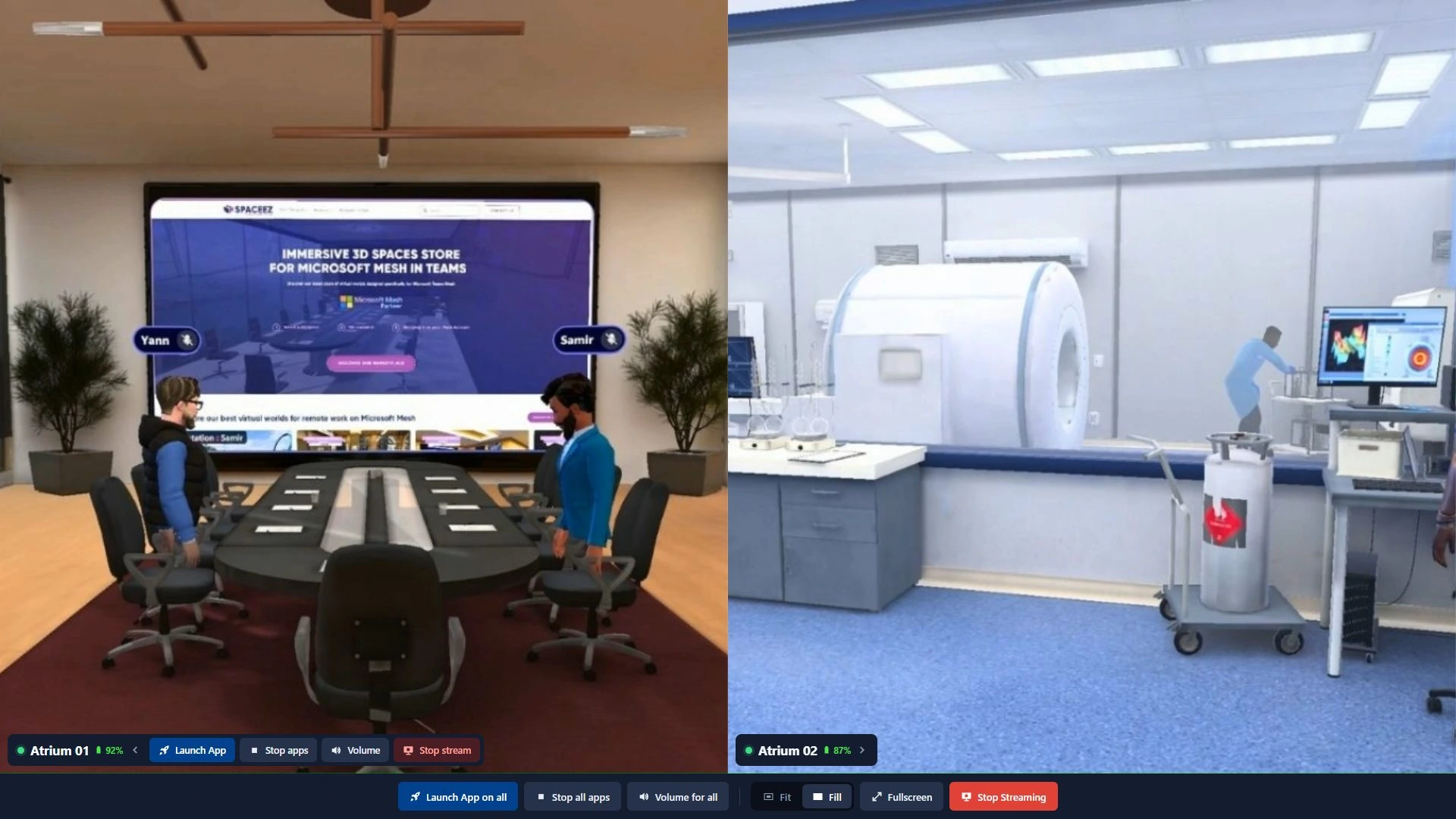
The trainer sees every learner by streaming each headset to the PC: OmnicastVR shows up to 16 headsets in one window, with four display modes that match the moments of a lesson.
| Display mode | What it shows | Teaching use |
|---|---|---|
| Supervisor | Every headset (up to 16), with the live status of each stream | Keeping an eye on the whole group |
| Group | A group of headsets, each with its name and battery level | Following one team or one workshop |
| Compare | Two headsets side by side | Comparing two learners' choices during the debrief |
| Focus | One headset full screen, with its own controls | Helping one learner step by step |
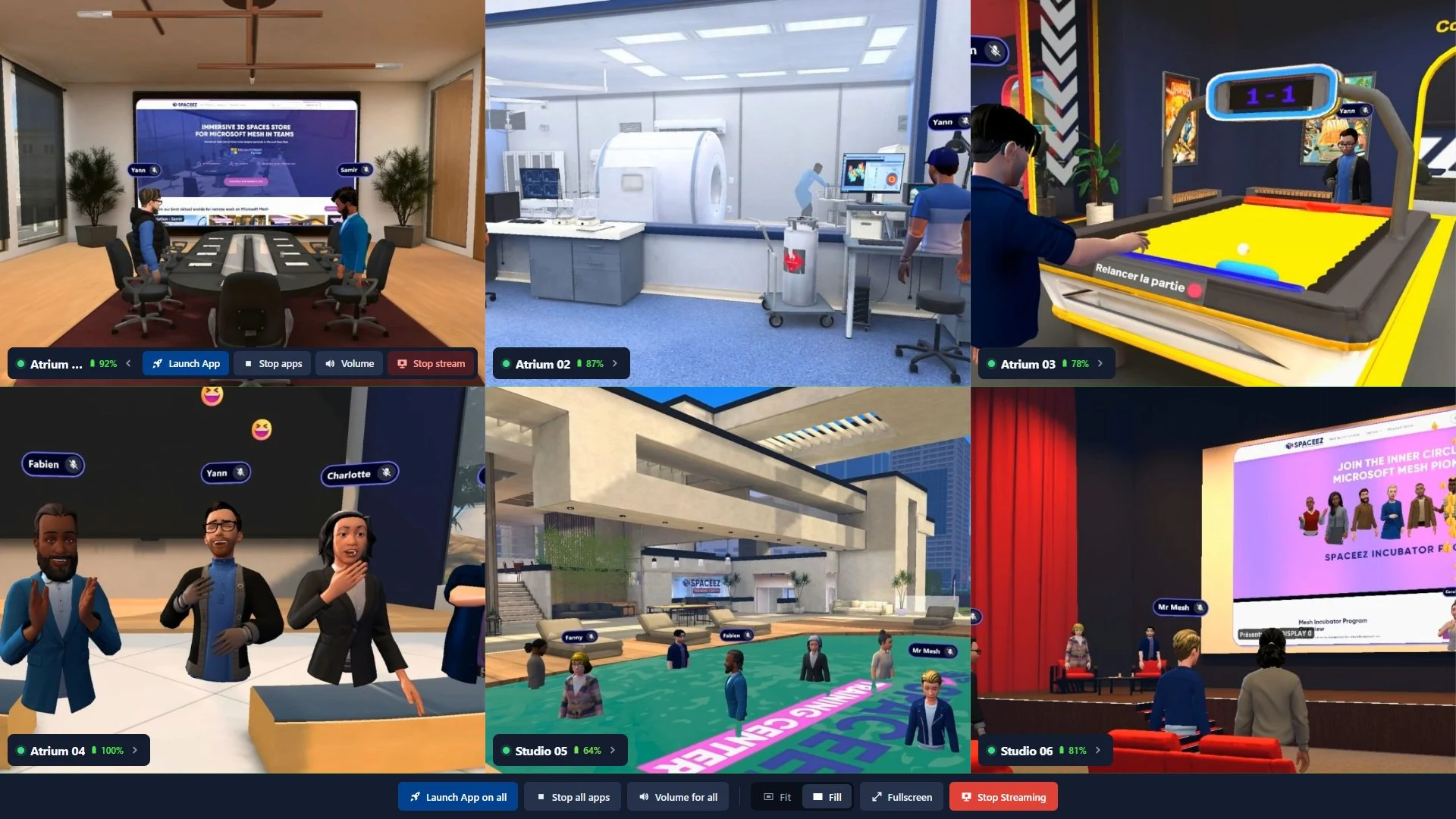
To share the view with the whole room, the trainer connects the PC to the room's screen or projector with an HDMI cable. Connecting the headsets, launching apps and every other step are detailed in how to manage multiple VR headsets: the complete guide.
How do you run a lesson in a VR training room?
A lesson in a VR training room runs in three phases: preparation before the learners arrive, a supervised exercise, and a debrief with the whole group.
Before the lesson
- Install the training app on every headset, so that every learner has the same version: see how to install APKs on multiple VR headsets.
- Take the charged headsets out of the kiosk or case and switch them on: they reconnect to OmnicastVR on their own.
- Check the floor areas and brief the learners on safety before they put the headsets on.
During the exercise
- Start together: OmnicastVR starts the same app on every selected headset in one click, and the stream shows straight away which headset is not on the right screen.
- Spot: in the Supervisor grid, a learner who has not moved for a while, or who is in the wrong place of the scenario, stands out.
- Guide: one click opens that headset full screen in Focus mode, where the trainer can launch or stop an app and adjust the volume; the trainer speaks to the learner while watching the result. The learner keeps the headset on, and the others are not interrupted.
After the exercise
- Debrief: Compare mode puts two learners side by side on the room's screen, to discuss the choices each one made.
- Next group: when there are fewer headsets than learners, stopping every app at once frees the headsets for the next group without switching them off.
- End of the day: every headset shuts down in one click, then goes back to charge.
Case study: UniLaSalle's immersive training room
UniLaSalle, in Beauvais, opened an immersive training room for its students. From a laptop, the teacher sees live what each student experiences and runs the whole session; for the group, the mosaic goes up on the room's screen with an HDMI cable.
| Need | Solution deployed | Result |
|---|---|---|
| Charging and protecting the headsets | Headset docks with Titan protective shells and built-in chargers | Headsets protected and ready for every class |
| Seeing every student during the class | A mobile storage and supervision kiosk, OmnicastVR on the teacher's laptop | Live view of every headset and corrections in real time |

Schools that build a VR classroom face the same questions by level of education: see VR in education.
Key takeaways
- Plan at least 1 m by 1 m per learner for seated or standing exercises, and 2 m by 2 m when learners walk around.
- One Wi-Fi network for the headsets and the PC is enough: no internet is needed during the session.
- A kiosk, cabinet or case keeps the headsets charged; OmnicastVR shows every battery level during the session.
- OmnicastVR shows up to 16 headsets live on the trainer's PC, with Supervisor, Group, Compare and Focus modes.
- A lesson runs in three phases: preparation, supervised exercise, debrief on the room's screen.
Try it in your room: the Free plan supervises 1 to 2 headsets, free forever, with no credit card required. Download OmnicastVR for free
Frequently Asked Questions
How much space do I need for a VR training room?
A VR training room needs at least 1 metre by 1 metre per learner for seated or standing exercises, and at least 2 by 2 metres per learner when the exercise makes them walk, following Meta's guidance on the Meta Quest boundary. Add a walkway for the trainer, and check how the training app is played before arranging the room.
How many VR headsets can one trainer supervise in a training room?
One trainer can supervise up to 16 VR headsets at the same time with OmnicastVR, from a single Windows PC, laptop or tablet. The number depends on the plan: 1 to 2 headsets with the Free plan, 5 to 16 with Direct Access. Four display modes let the trainer switch between the whole group, a team, two learners or one learner.
Does a VR training room need internet?
No, a VR training room does not need internet during the session with OmnicastVR. The PC and the headsets only need to be on the same Wi-Fi network, and headset images stay on that local network. Internet is only needed to activate the licence and install updates, with a reconnection at least every 30 days.
Do learners have to take off their headset to get help?
No, learners keep their headset on. With OmnicastVR, the trainer sees each learner's view on the PC, opens it full screen in Focus mode and guides the learner by voice while watching the result live. The other learners continue their exercise without interruption, and the trainer can also adjust the volume of that headset from the PC.
Why not use Meta Quest's built-in casting?
Meta Quest's built-in casting shows one headset per screen, so a trainer with a group of learners cannot follow them all at once. OmnicastVR shows up to 16 headsets in one window on the trainer's PC, over the local network, and mixes Meta Quest, Pico and HTC Vive headsets in the same session.