ADB Connection and First Stream - Omnicast VR Tutorial
Omnicast VR: Launching Streaming for 2 Headsets + Connection Tips 🕶️ In this video, we show you how to connect two VR headsets, enable USB debugging, and launch seamless streaming from the software interface.
Establishing a stable video stream between your immersive equipment and your control station is a crucial step to ensure the monitoring of your training workshops. Dealing with display interruptions or undetected devices creates unnecessary stress for the presenter in front of their audience. Mastering the steps to launch OmnicastVR streaming secures your training infrastructure and ensures a smooth launch in 2026. 🚀
In brief: This technical video guide details USB debugging activation, network configuration, and device pairing. OmnicastVR allows you to centralize your local video streams and remotely control up to 16 VR headsets simultaneously via a simple Wi-Fi router, with no cloud latency.
🔄 Key steps to connect and launch OmnicastVR streaming

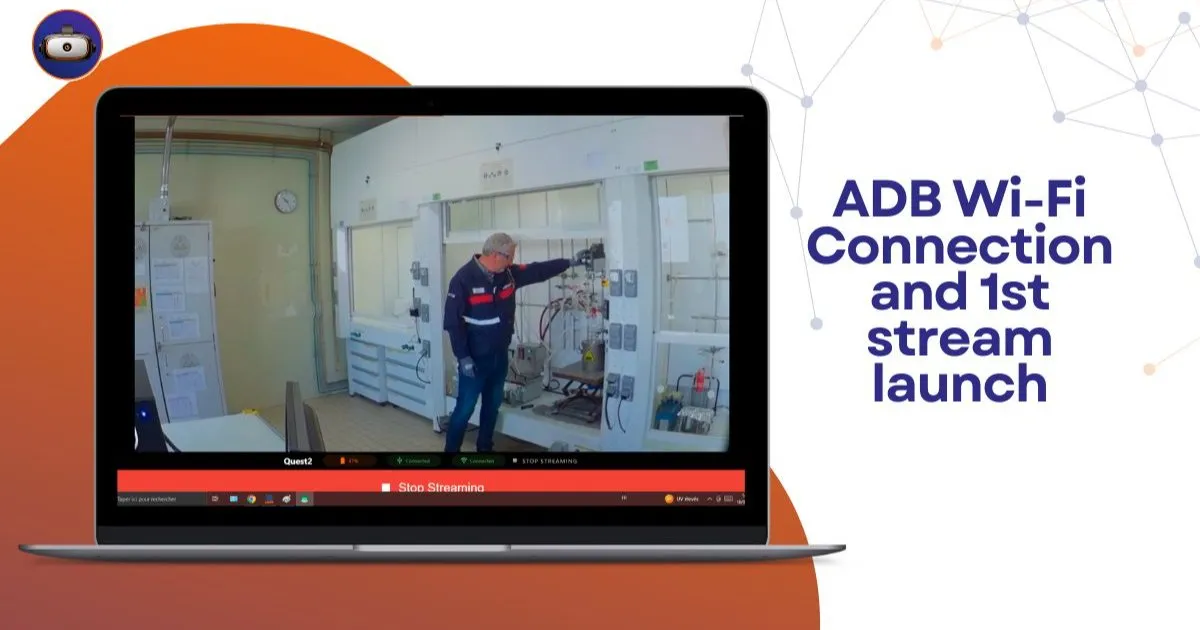
Getting your first video stream up and running begins with rigorous preparation of your hardware. You must enable developer mode and USB debugging authorization within your device settings. This essential technical manipulation allows our local interface to recognize and communicate directly with the hardware's graphics processor.
Once authorized, the connection is established through your dedicated local network infrastructure. For automatic and correct detection, your VR headsets and supervision computer must be connected to the same access point. Our solution visually validates this connection on your dashboard through specific green markers and logos.
How to effectively organize your headset fleet display?
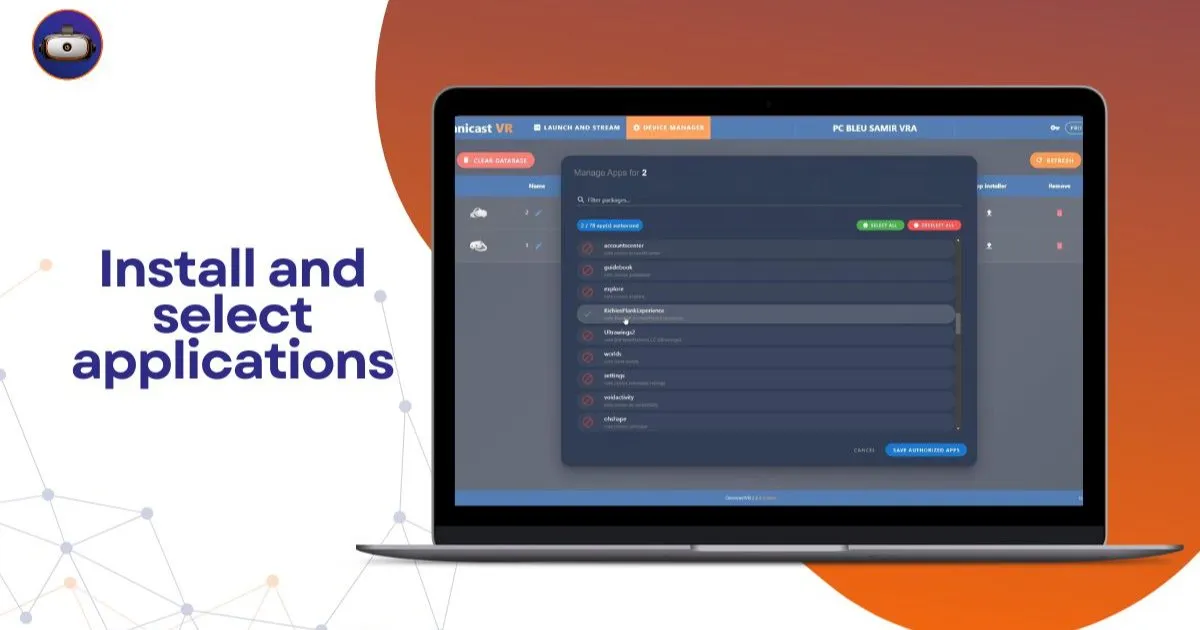
Managing a large group of learners requires absolute clarity in identifying each participant. Our interface includes an intuitive feature that allows you to rename each device according to your needs (for example, by number or student name). This rigorous organization prevents any confusion when you need to intervene remotely to reorient a lost user.
How do you control your application launches?
The flexibility of our control dashboard adapts to all pedagogical scenarios encountered in the field. You can choose to start and stop screen streaming individually, headset by headset, for personalized monitoring. A simple alternative to complex MDMs, the interface also allows you to launch the entire fleet synchronously with one click.
📊 Comparison table: OmnicastVR Video Stream vs. Classic Cloud Solutions
This table highlights the fundamental differences in stream management to optimize your training logistics:
| Streaming Criteria | Standard Cloud Cast Systems | OmnicastVR Local Architecture |
|---|---|---|
| Stream Path | External servers (Internet round trip) | Closed circuit (100% Local Wi-Fi) |
| Display Stability | Prone to interruptions and micro-stutters | Smooth and constant supervision |
| Latency | High (Delay between action and screen) | Almost zero (Up to 16 VR headsets with no latency) |
| System Modification | Mandatory APK file installation | Nothing to install on your VR headsets |
| Hardware Integrity | Manufacturer system restricted or modified | Devices remain in their original state |
This technical comparison demonstrates the benefit of bringing your streaming feeds back into your workspace. To validate the first steps of your USB port configuration, consult our ADB connection tutorial. For an overview of the process, discover our complete interface installation guide.
👁️ Keep an eye on everything and guide your learners without latency
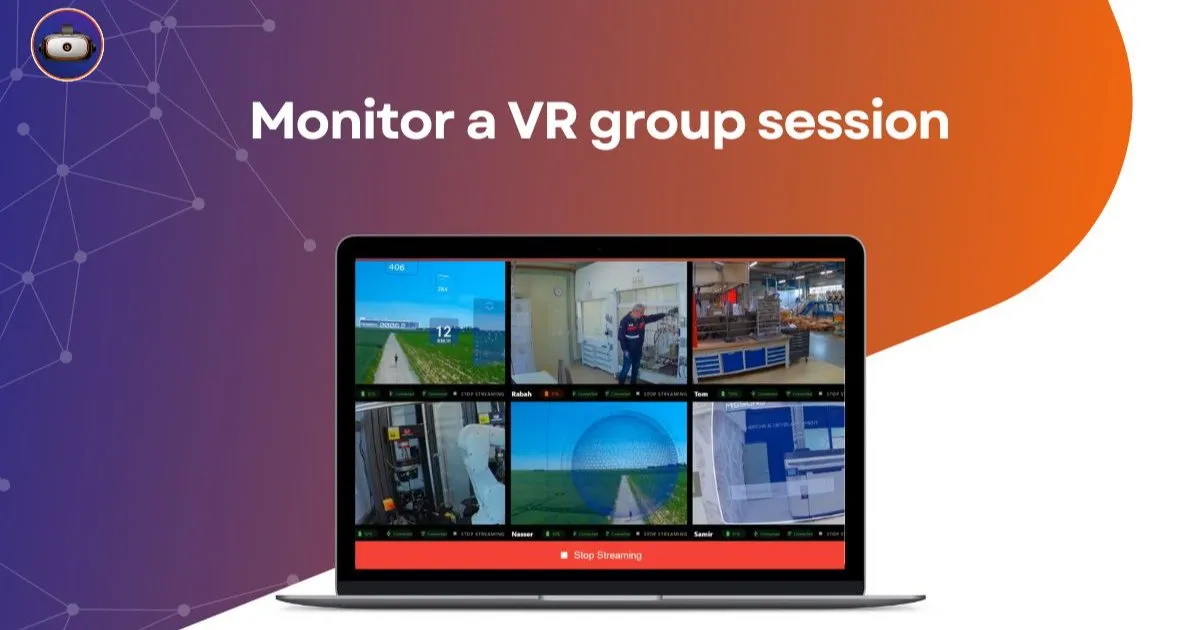
Forget the frustration of a blind trainer who has to guess the actions of their trainees in the middle of the room. Our solution eliminates technical barriers to offer you immediate and total visibility. See the screens of 16 VR headsets simultaneously. Ideal for guiding your learners without latency. Learning becomes more effective.
A universal remote control to manage your sessions
Logistical group management should not encroach on your speaking time or pedagogical follow-up. Control your sessions: launch your apps synchronously and turn off VR headsets with one click from your computer. Have eyes everywhere. Plug in. Control. Supervise. That's all. Your trainers can focus entirely on the human element.
Zero network constraints for your enterprise infrastructure
Getting an XR project validated by an IT department requires adherence to strict security criteria. Control your VR headsets via a simple local Wi-Fi connection. Nothing to install on your VR headsets. Stream the screens of your Meta Quest, Pico, and HTC Vive VR headsets with no constraints. No data flows externally.
🎯 The integrator's opinion from the field: "At VR-Academie.fr, our Novalab entity has over 10 years of field expertise with thousands of animated sessions. During an industrial maintenance exercise for a major client, the site's general Wi-Fi experienced a major outage. Thanks to OmnicastVR's local architecture, we were able to launch OmnicastVR streaming and maintain video feedback from our 10 Pico VR headsets completely independently, without losing a single minute of training."
🚀 Secure and optimize your virtual reality deployments
Freeing yourself from cloud constraints represents the choice of sovereignty and reliability for your training sessions. By adopting a proximity streaming method, you protect your workshops against all internet network outages. Your trainers approach their sessions with complete technical serenity, thereby enhancing your company's technological investment.
To further manage your professional applications, study our comprehensive guide on how OmnicastVR solves the challenge of simultaneous supervision in confined spaces. Also discover our arbitration dossier to know whether to choose OmnicastVR or an MDM for your VR headsets. Finally, plan your budgets by consulting our OmnicastVR pricing page.
❓ Frequently asked questions about local streaming
How to launch OmnicastVR streaming without interruptions?
To ensure stable streaming, connect your devices to a dedicated Wi-Fi router configured as a local closed circuit. This standalone configuration is the field VR solution for easily controlling a group of learners, free from cloud instabilities.
Does the software manage different brands of VR headsets simultaneously?
Yes. Our control interface is completely agnostic and unified. It acts as a universal remote control, allowing you to stream the screen and simultaneously control mixed fleets of Meta Quest, Pico, and HTC Vive VR headsets in the same room.
Is a monthly subscription required per connected device?
No. Unlike complex market infrastructures, our economic model is based on the acquisition of a perpetual license. You benefit from a fluid supervision interface designed for field use, with no recurring fees or usage-based billing.