Free
€0
1 to 2 headsets, free forever, no credit card required.
Download OmnicastVRSee every headset. Launch every app. From one screen.
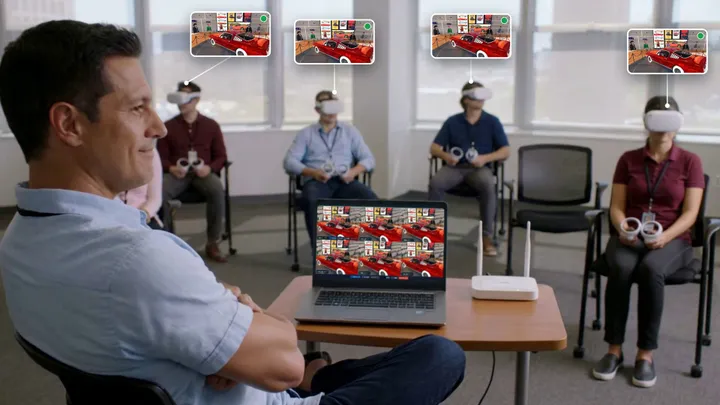
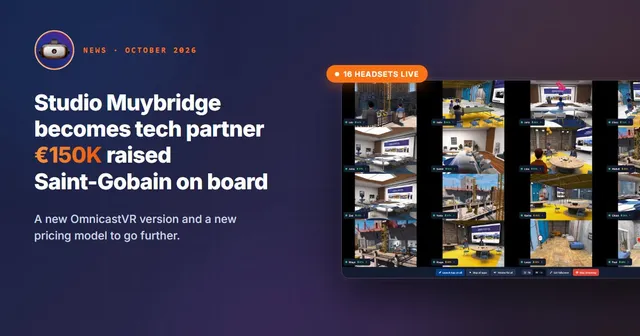
OmnicastVR is VR session control software for Windows, built for group training sessions. One trainer sees up to 16 standalone headsets live on one screen, launches the same app on all of them and shuts them down at the end, over a local Wi-Fi network, with or without internet.
Trusted by trainers in France and worldwide
 UniLaSalle BeauvaisIFPEN
 CPIFP Corona de AragónUniversité Champollion
 Amaze VRR'volution
 University of Physical Education BucharestVirtual CreationIno VR
The difference
The same group VR session, without and with OmnicastVR.
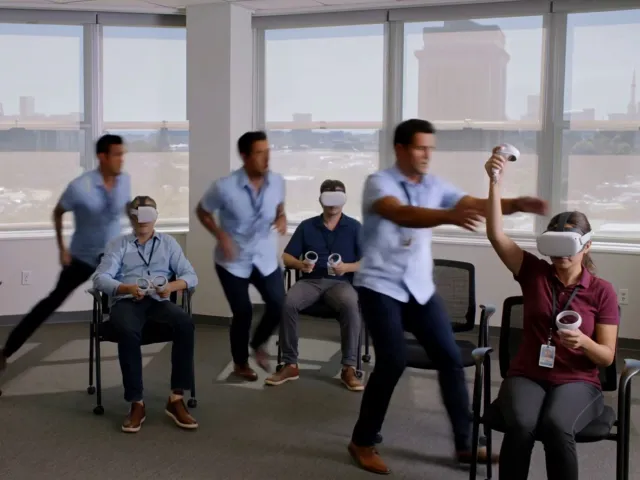
Without OmnicastVR
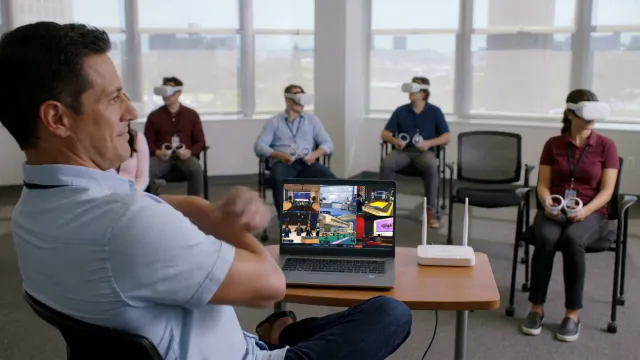
With OmnicastVR
×2
VR sessions
Polytechnique Beauvais
/4
less XR gear to bring
Industrial group — trained by Virtual Creation
−65%
debrief time per session
Regional teaching hospital, VR procedural simulation
×3
booth traffic
Onera — Roadshow
Figures reported by the customers.
The product
OmnicastVR manages VR headsets during the live session. It is not an MDM: device enrolment, kiosk mode and remote wipe stay with tools such as ArborXR or ManageXR.
1See
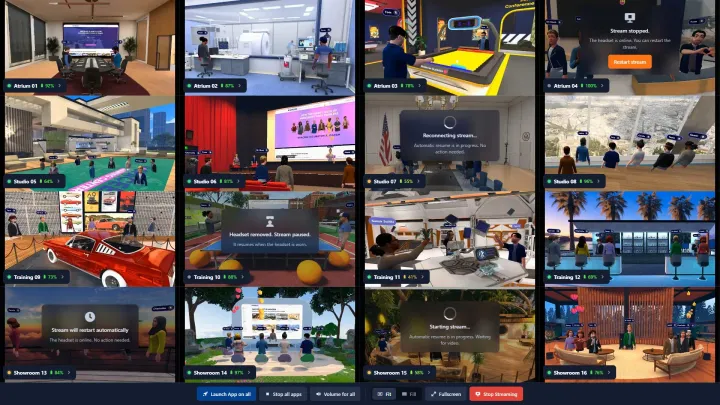
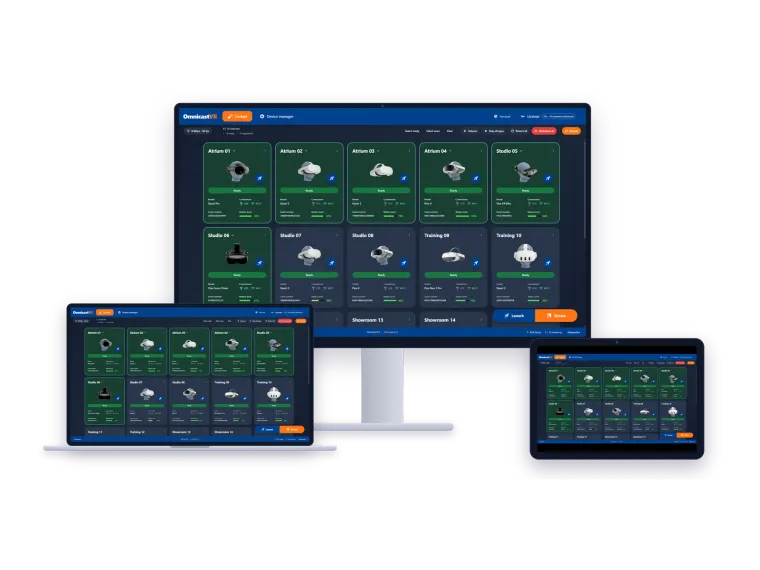
OmnicastVR streams up to 16 headsets to your PC in one grid. Spot the learner who hesitates and enlarge their view in one click.
2Launch
Launch the same app on every headset at once so everyone starts together, or relaunch it for the one learner who fell behind. APKs install straight from the PC.
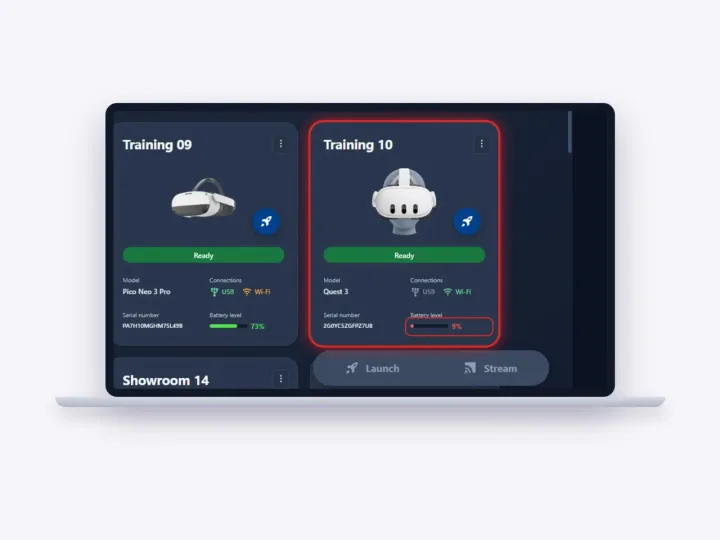
3Battery
OmnicastVR shows the battery level of every headset next to its live view. Spot the headset that won't last the exercise and charge or swap it before the group starts, not halfway through.
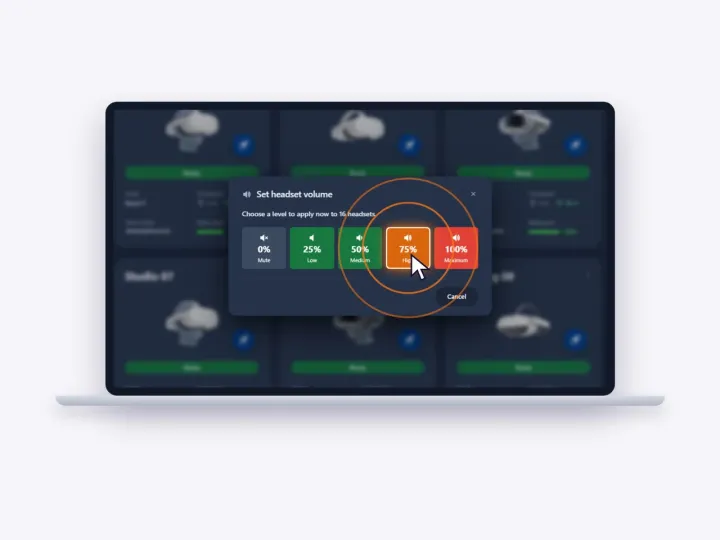
4Volume
Set the volume of one headset, a group or all of them from the PC. Every learner hears the scenario at the right level, and nobody has to fiddle with the headset buttons mid-exercise.
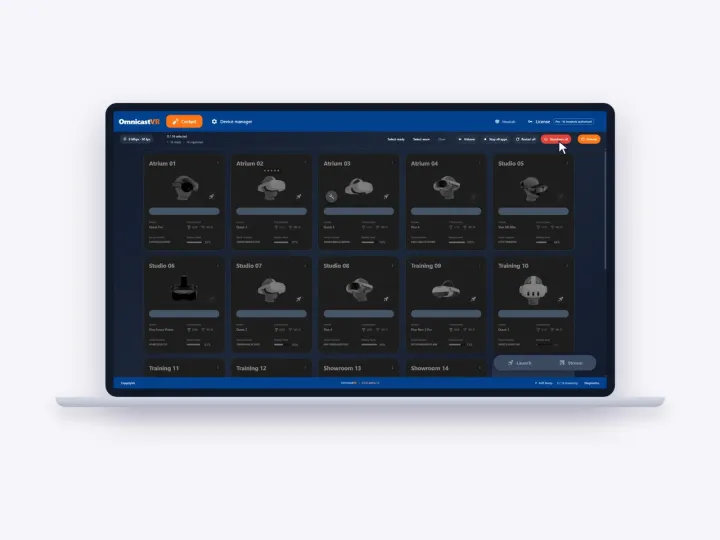
5Shutdown
When the session ends, OmnicastVR shuts down every headset at once from the PC. No more collecting headsets one by one to turn them off, and the room is ready for the next group.
Where it's used
From the training room to the trade-show floor: training centres, schools, mobile trainers and event teams run OmnicastVR in four typical settings.
 In a fixed training roomFollow the whole group from the front desk.Training rooms
 On client sites, without internetA laptop and a portable router are enough.Mobile trainers
 On a trade-show boothLaunch the demo for everyone, mirror it on a TV.Trade shows
 During a client demonstrationSee what each guest is looking at.Client demos
Fewer resources per session
Classic setup
With OmnicastVR
In their words
Unlike a complex MDM, OmnicastVR is used in the field like a remote: to launch content, stream, or shut down headsets at a distance.
Thanks to simultaneous streaming and the Zoom feature, I can spot very quickly which trainee in the group has a trembling hand before the incision.
Because OmnicastVR runs on local Wi-Fi, we worked around the missing internet at the show. Simultaneous content launch let us share our experiences with whole groups, and the screen mirroring on the TV was a key driver of booth attraction.
How it works
OmnicastVR installs on one Windows computer and reaches the headsets over your local Wi-Fi network.
Download OmnicastVR on a Windows 10 or 11 PC, laptop or tablet, then activate the Free licence from the portal.
Windows 10 / 11, 64-bitPlug each headset in by USB-C for 5 to 10 seconds, one time only. From then on it reconnects over Wi-Fi at every session.
Meta Quest, Pico, HTC Vive Live · 16 headsets
Every headset appears in the grid: watch the group, launch the app for everyone, shut everything down at the end.
With or without internetSession control vs MDM
Both are called VR headset management software, but they do different jobs. Many teams only need session control; large fleets use both side by side.
Requirements
Run your sessions from a desktop PC in a fixed training room, a laptop on client sites or a tablet on a trade-show booth. All you need is Windows 10 or 11, 64-bit.
Good to know: Meta Quest: developer mode is enabled once, before the first session. Pico and HTC Vive don't need it. Windows only: there is no macOS or Linux version. Internet: needed for activation and updates, with a reconnection at least every 30 days. Beyond 16 headsets, each extra group needs its own PC and licence. Enable developer mode on Meta Quest →
Plans
OmnicastVR is licensed per computer, not per headset.
€0
1 to 2 headsets, free forever, no credit card required.
Download OmnicastVRfrom€20/ month excl. VAT, billed annually
Up to 5, 10 or 16 headsets per computer. Monthly or annual billing.
Compare plansQuote
For organisations with specific needs. Talk to the team.
Book a demoSoftware + hardware
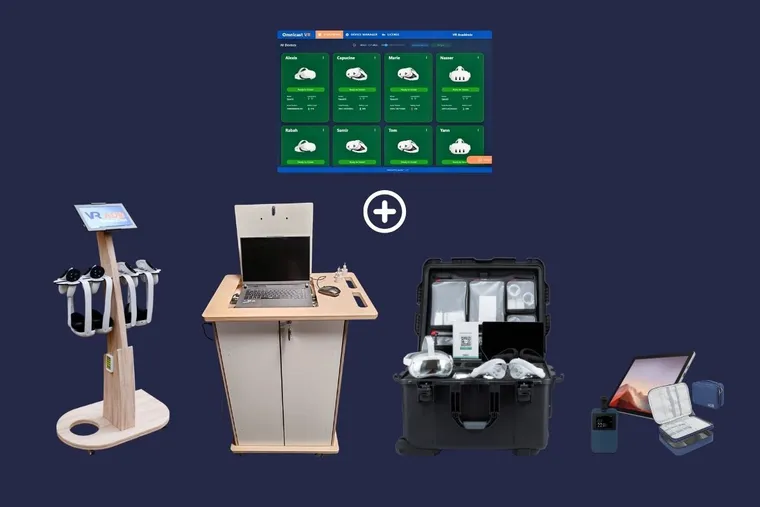
The VR training kit ships pre-configured Meta Quest headsets, a tablet and a Wi-Fi router with OmnicastVR installed, ready in minutes.
FAQ
Worldwide
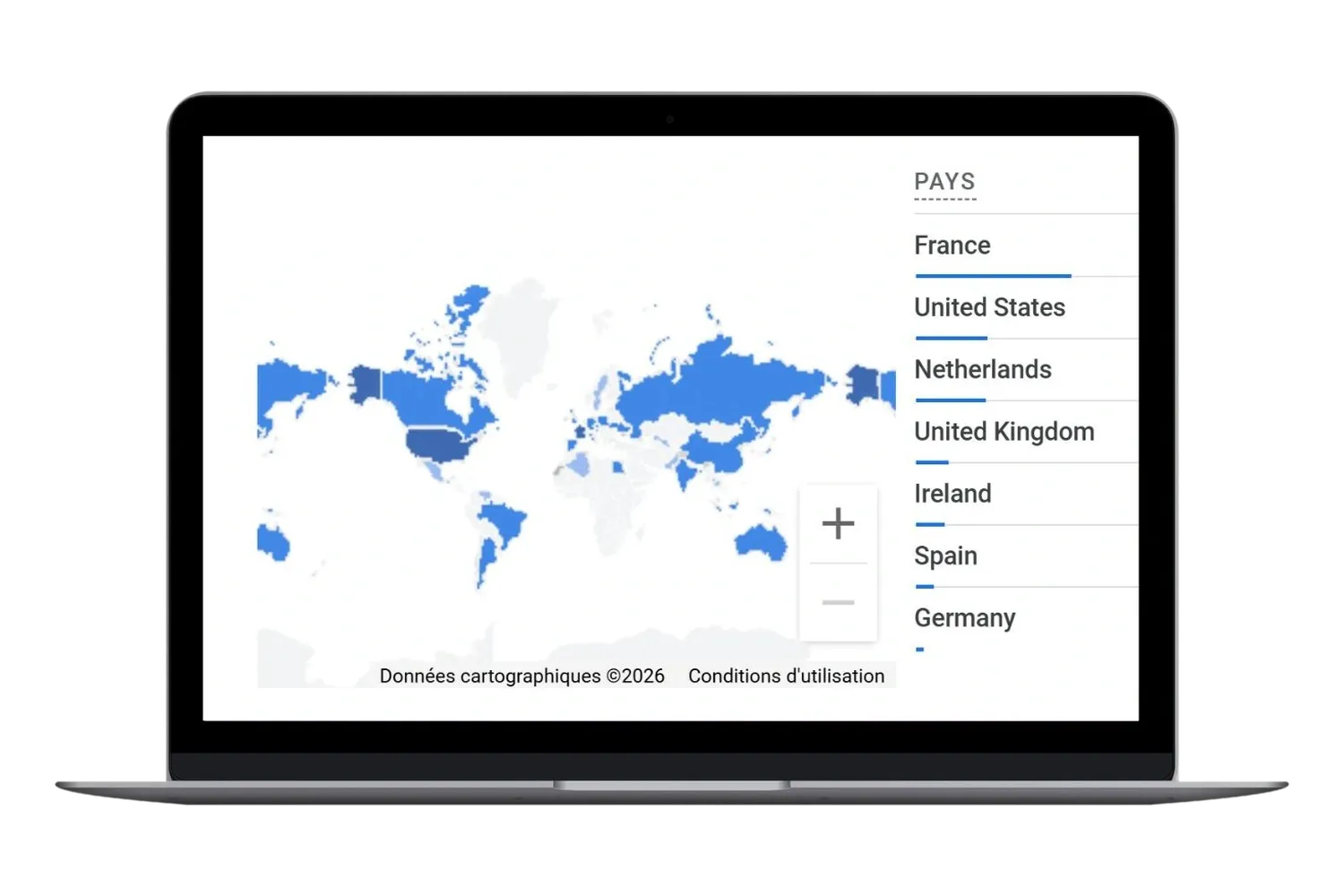
Join the dozen organisations worldwide that already trust OmnicastVR for their immersive training.
Countries
6,490
OmnicastVR sessions run
24,856
headset streams
5,326
app launches
2,863
hours of streaming
Live counters reported by OmnicastVR installations.
Join our community of partners. Benefit from complimentary Pro licenses and a wide range of exclusive professional advantages (Dedicated Support, Reseller Discounts, Early Access, Marketing Toolkit, Training & Certification, Priority Technical Assistance).










Blog

We use cookies to improve your experience and analyze our site usage. We respect your privacy and give you the choice.
Privacy Policy